
One-screen diagram reader
Wants to view lines, the key and small labels in one workspace, and zoom in when needed. Screen size, resolution and positioning are important considerations.


Start by asking whether you can comfortably view the full rain garden diagram and zoom in on labels. Then check whether your source device can provide a video signal and enough power. A larger 15.6-inch screen gives you more viewing space, while a more compact 14-inch model with a 16:10 aspect ratio may be more practical on a small study desk. Touch functionality or a built-in battery is only relevant if you need it: a portable monitor still relies on a connected source device.
Wants to view lines, the key and small labels in one workspace, and zoom in when needed. Screen size, resolution and positioning are important considerations.
Takes the screen with them or works at a small table. Consider the size, stand, and video and power connections on your laptop.
May want to point to or annotate parts of the diagram. Lenovo lists 10-point touch for the ThinkVision M14t Gen 2; check that your source device and software support this input.
First, compare the available viewing space with the place where you study. Then check your source device’s video connection and power supply. Only consider touch and other extra features if you need them.
When studying rain garden diagrams on a single portable monitor, your choice mainly comes down to readability, connectivity, portability and whether you need to annotate.
| What to consider | What to look for | Who is this important for? |
|---|---|---|
| Readable lines and labels | Compare screen size, aspect ratio and resolution. If possible, view one of your own diagrams at the size you want to use; you may still need to zoom in to read small labels. | I want to see the whole drawing and read the details without constantly switching between workspaces. Readability is the top priority for around 31% of consumers. |
| Video connection and power | Check that your laptop can output video through the connection you plan to use, and how the monitor gets its power. A USB-C connector alone does not guarantee a video connection. | I want to know before buying whether my laptop can power and send a signal to the monitor. Connectivity and power are the top priority for around 31% of consumers. |
| Portability and positioning | Compare the dimensions and weight of the exact model, and check that the stand suits your desk and viewing angle. | I need to carry the screen around or fit it into a small study space. Portability is the top priority for around 23% of consumers. |
| Annotating the diagram | Check whether the model has a touchscreen and whether your source device and software support this input. Also check which stylus or accessories are included with the model. | I want to point to or make notes directly on the drawing; touch is not essential if you only need to read. Annotation is the top priority for around 15% of consumers. |
A matching connector isn’t enough: your laptop must support video output through the connection you choose. The power supply also needs to work with your chosen setup.
Before choosing a model, check your source device’s video mode and how the monitor will get its power. An HDMI connection may be a video option, but it doesn’t automatically solve the power issue.
Resolution and touch alone don’t tell you how easy small labels will be to read at your study desk. A 14-inch screen is still compact, even if its stated resolution is higher.
View one of your own diagrams at the size you want to use. Choose touch only if your source device and software support it and you want to use the feature.
A built-in battery can power the monitor, but it doesn’t turn the screen into a device that can open files on its own.
Even if you’re away from a power socket, you’ll still need a source device and a working video connection.
ZenScreen models offer different ways to set up a portable study space; check the screen layout and connections you need for each model.
The ThinkVision M14t Gen 2 is a compact 14-inch option for anyone considering a higher stated resolution and touch functionality.
The Pro 14 Plus P1425 is a 14-inch option with a 16:10 display for anyone who doesn’t need touch functionality.
The HP E14 G4 is a 14-inch portable monitor with a stand and case, designed for a USB-C setup.
These models are portable screens for a study setup with one connected monitor. Above all, compare the stated screen size, aspect ratio and connections with your laptop and study space.
 Image unavailable
The 16-inch screen and 16:10 aspect ratio may suit you if you’re looking for more physical screen space for a diagram.
FHD IPS screen, 144 Hz, two USB-C ports, mini-HDMI and built-in stand.
 Image unavailable
The 16-inch screen and 16:10 aspect ratio are worth considering if you want a larger workspace; check how small labels look at your chosen display scale.
2.5K IPS screen, 144 Hz, two USB-C ports, mini-HDMI and built-in stand.
 Image unavailable
The compact 14-inch screen and 16:10 aspect ratio may suit a smaller study space.
IPS screen with 1920 × 1200 pixels; Type-C and mini-HDMI connections.
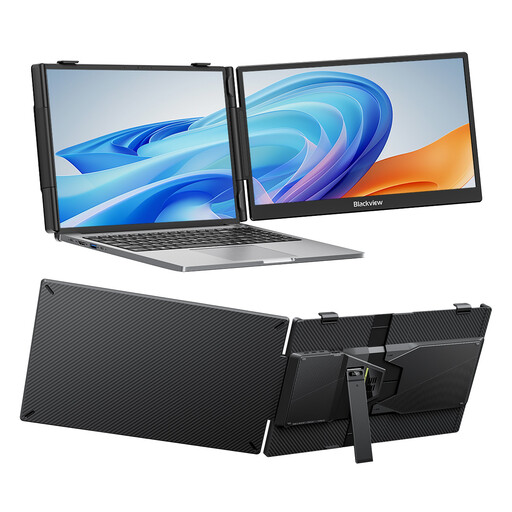 Image unavailable
The 14-inch screen and adjustable stand may suit a compact workspace; check compatibility with your source device.
FHD IPS screen; stated thickness 18,2 mm.
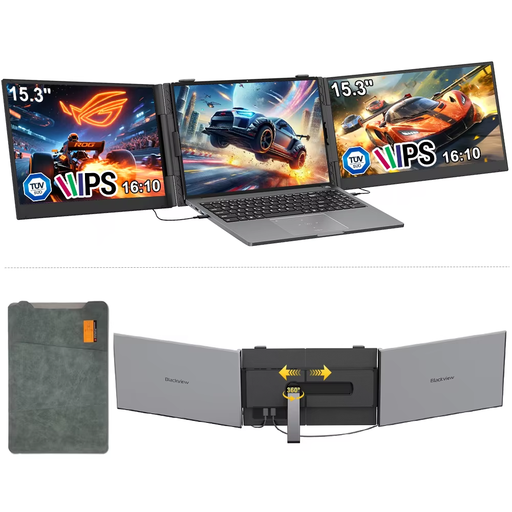 Image unavailable
The 16:10 aspect ratio gives you a different screen layout from 16:9; compare it with the shape of your diagram and the space available on your desk.
IPS screen with 1920 × 1200 pixels and a stated refresh rate of 60 Hz.
Don’t assume a portable monitor works on its own: the models discussed here receive video from a connected device. A built-in monitor battery doesn’t change that, so make sure you have a source device if you plan to study with one.
No. Check whether your laptop supports video through the required USB-C mode. According to ASUS, the ASUS ZenScreen MB16AHV has USB-C with DP Alt Mode as well as mini-HDMI; check the power supply separately.
Check that the stand and screen orientation you want suit your setup. If needed, use the zoom function in your drawing or PDF software to read small labels. ASUS lists automatic rotation with DisplayWidget Center for the MB16AHV; check that the software will work with your setup.
According to ACM ConsuWijzer, for a standard online purchase you generally have a statutory cooling-off period of up to 14 days after the product has been delivered; some exceptions apply. Your statutory guarantee is separate from any manufacturer’s warranty or extended warranty: if a product is faulty, the seller is responsible for providing an appropriate solution under the applicable terms.