
Diagram reader with a small desk
You want to view legends and fine lines, but don’t have room for a large permanent screen. Compare the physical dimensions, resolution and scale at which you usually display diagrams.


For fine lines and small legends on a small desk, you could compare a 14-inch screen with a resolution of 2240 × 1400 pixels with a physically larger 15.6-inch Full HD screen. Lenovo and ASUS list these specifications for the ThinkVision M14t Gen 2 and ZenScreen MB16AHV respectively, but they don’t tell you how easy your diagrams will be to read. Also check whether your laptop can output video through the port you plan to use, and how the screen is powered.
You want to view legends and fine lines, but don’t have room for a large permanent screen. Compare the physical dimensions, resolution and scale at which you usually display diagrams.
You’re looking for extra workspace alongside your laptop and want to be able to put the screen away after studying. Check the stand design and which connection you need.
You want to tap or zoom directly on the second screen. As well as checking the touch specification, make sure your computer supports this type of input.
Start with the space available on your desk and the details you need to read in your diagrams. Then check the video signal and power supply. Choose touch functionality or a built-in battery only if these features suit the way you study.
| What to consider | What should you check? | Who is this important for? |
|---|---|---|
| Details and legends | Compare the resolution, screen diagonal and aspect ratio; if possible, view one of your own diagrams at the scale you use. | If I need to read fine lines and small legends, I want to know how my own files will look on screen. Around 31% of consumers make readable diagram details their top priority. |
| Desk space | Measure the available width and depth with your laptop in its usual position, and allow room for the stand. | I want to be able to set up and put away my second screen without it taking over my small study space. Around 25% of consumers prioritise the amount of desk space available. |
| Connection and power | Check video output through the exact laptop port you plan to use, along with the cable and power requirements of the model you choose. | Before choosing a screen, I want to know for sure that my laptop can output video and that I have the power supply I need. Around 25% of consumers prioritise compatible connections. |
| On-screen controls | Check that the screen, connection and computer all support touch. | If I want to touch or zoom in on diagrams directly, the whole setup needs to support this. Around 13% of consumers prioritise direct on-screen interaction. |
| Power without a socket | Check whether the screen has a built-in battery and the test conditions under which any stated battery life was measured. | I want to be able to study even when there’s no suitable power source for the monitor. Around 6% of consumers prioritise being able to use a monitor without a separate power supply. |
A USB-C connector doesn’t prove that your laptop supports video through that port. To output video over USB-C, the laptop port you use needs to meet the required video specification.
Look up the video specifications for the exact laptop port before ordering a screen.
An HDMI connection can carry video, but Verbatim requires a separate power supply when HDMI is used.
Check the cables and power supply required for each model, and what’s included with the monitor.
Resolution and physical screen size are different things. More pixels won’t automatically make text larger; the scaling setting and the detail in the source file also matter.
View one of your own diagrams at a useful zoom or scaling setting, and compare both the resolution and the screen diagonal.
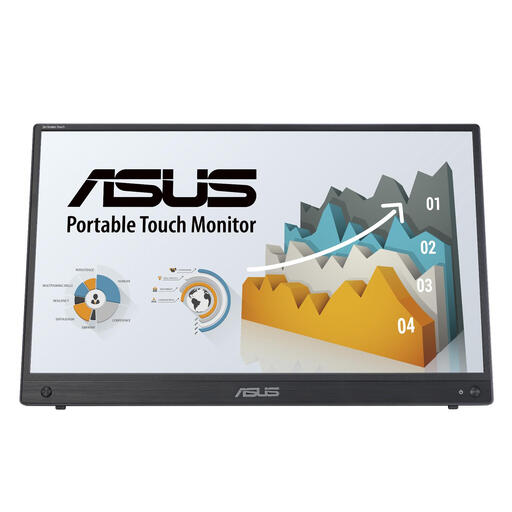
ZenScreen models offer a range of connection and power options for a portable second screen.
The ThinkVision M14t Gen 2 is a high-resolution 14-inch 16:10 touchscreen.
The LIGHT Series #32402 is a 15.6-inch Full HD touchscreen monitor with USB-C and mini-HDMI.
The HP E14 G4 is a 14-inch Full HD alternative for anyone looking for a smaller second screen without prioritising touch.
These portable monitors suit different priorities for a small study space, including screen size, resolution, touch and connections.
 No image available
A 14-inch option to compare if you’re looking for a second screen for a small study space.
1920 × 1200 pixels; IPS; 16:10; USB-C and mini-HDMI.
 No image available
A touchscreen option to compare if you want to interact with diagrams directly on the second screen.
15.6 inches; 1920 × 1080 pixels; Full HD; touchscreen.
 No image available
A 14-inch option to compare if you’re looking for a smaller second screen for your study space.
1920 × 1200 pixels; WUXGA; LCD.
 No image available
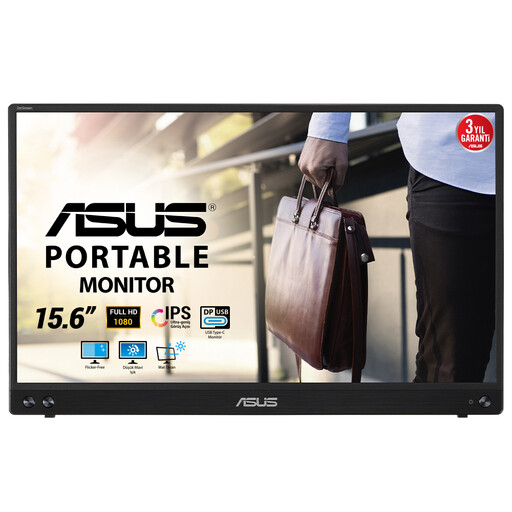
A 15.6-inch option to compare if you’re looking for a physically larger second screen.
1920 × 1080 pixels; Full HD; LED.
 No image available
A 14-inch option to compare if screen size matters for your small desk.
Full HD 1080p; USB-C and mini-HDMI.
No, it depends on the laptop port and monitor model. Check whether the port supports video over DisplayPort Alt Mode and whether the cable and power supply are suitable for the screen. ASUS specifies this host-device requirement for the MB16AHP; for model #32402, Verbatim distinguishes between a USB-C port for connection and one that is for power only.
Compare monitors with mini-HDMI, such as the ASUS ZenScreen MB16AHV or Verbatim LIGHT Series #32402, and check which cables and power supply you’ll need. Verbatim states that a separate power supply is required when using HDMI.
View one of your own diagrams at the screen size and scaling setting you plan to use. Compare both the physical diagonal and the resolution: more pixels won’t automatically make labels larger.
For many distance purchases from a business, consumers have a 14-day cooling-off period, according to the Dutch government. There is no fixed statutory warranty period in the Netherlands; if a product is faulty, contact the seller. Check which exceptions and sales conditions apply to your purchase.
According to the Netherlands Food and Consumer Product Safety Authority, CE marking is required for electrical products; a separate inspection is not required, according to its general overview. CE marking alone does not prove that the screen will work with your laptop.