
Student with a small desk
Wants to keep a diagram open alongside their laptop without having to move textbooks or notes. The space available for the screen, stand and cables all affects the choice.


First, choose a monitor that fits alongside your laptop, including its screen, deployed stand and cables. Then compare its resolution and aspect ratio with the details in your diagrams: a compact 14-inch screen takes up less space, while extra pixels or a 16:10 aspect ratio can give you more room to view your work. Also check that your laptop, cable and monitor support the video connection and power supply you need.
Wants to keep a diagram open alongside their laptop without having to move textbooks or notes. The space available for the screen, stand and cables all affects the choice.
Wants to view legends, labels and landscape cross-sections side by side. Resolution and aspect ratio matter here, not just screen size.
Wants to take the monitor along and connect it to whichever laptop is available at their workspace. Ports, power and how the screen is positioned all deserve consideration.
Start by measuring the available width and depth, including the stand when it is extended. Then choose the aspect ratio and resolution for your diagrams, and check that your laptop, cable and monitor support the video connection and power supply you need.
| What to consider | What should you check? | Who does this matter most to? |
|---|---|---|
| Desk space | Measure the available width and depth alongside your laptop, allowing for the extended stand and cables. | If I want to keep using my laptop and study materials alongside the second screen, I first check whether everything will fit on my desk. Around 33% of consumers say available desk space is their top priority. |
| Diagram details | Compare the resolution, aspect ratio and screen size with your own diagrams at the scale you intend to view them. | If I want to read legends and fine labels without judging by screen size alone, I also compare the resolution and aspect ratio. Around 27% of consumers put the readability of diagram details first. |
| Connection and power | Check your laptop's video output, the monitor port and cable required, and how the monitor gets its power. | I want to know in advance whether my laptop can provide video and power to the screen through the intended connection. For around 27% of consumers, compatibility is their main concern when buying. |
| Taking it with you and setting it up | Compare the weight, any protective accessories included and how the stand works at your workspaces. | When I study in different places, I want to be able to take the monitor with me and set it up securely each time. Around 13% of consumers prioritise portability and ease of setup. |
The USB-C connection alone does not confirm that a laptop supports the video mode required by the monitor. The power supply also needs to suit your chosen setup.
Depending on the combination, you may need a different cable, power source or connection solution.
Check the laptop port, monitor port, cable and power supply as one complete setup before choosing a model.
A larger FHD screen does not automatically have more pixels than a smaller screen with, for example, 1920 × 1200 or 2240 × 1400 resolution. A diagram may therefore look different from what you expect based on screen size alone.
Compare the resolution and physical dimensions with your own diagrams and the space available on your desk.
Specifications, included accessories and warranty terms can vary between offers. A similar model name does not, on its own, tell you everything about what is included.
Before buying, check the full model name, connections and contents of the offer.
The ThinkVision M14t Gen 2 is a compact 14-inch option for anyone considering touch control or annotation.
The Pro 14 Plus P1425 is a 14-inch option without touch control.
ZenScreen models vary in size and connections, so compare the full model name.
The Business Monitor 16B1P3302D/00 is a 15.6-inch option with two USB-C ports.
The A1S is a compact 14-inch option with a built-in adjustable stand.
These Joybuy products are intended as second screens for studying at a small desk, with compact 14-inch options and a larger 16-inch model.
 No image available
A compact option for anyone who wants to place a second screen alongside their laptop.
The product name lists a resolution of 1920 × 1200, IPS, 16:10, and Type-C and Mini-HDMI connections. Check that the chosen laptop connection supports video and how the monitor will be powered in your setup.
 No image available
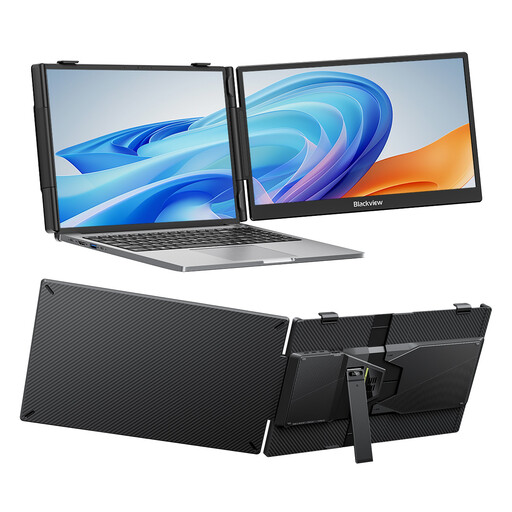
This 14-inch version with an adjustable stand is designed to provide a second screen on a compact desk.
The product details list an FHD IPS screen and an adjustable stand. Check the connections on the exact version before pairing it with your laptop.
 No image available
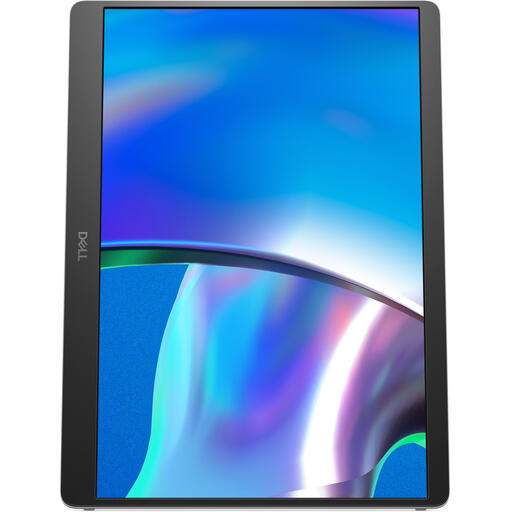
A compact 14-inch option for anyone who wants to view diagrams on a second screen.
Dell specifies a resolution of 1920 × 1200, 16:10, IPS and no touchscreen for the P1425; the model has a tilting stand. Check that your laptop supports the required video feature through the intended connection.
 No image available
The built-in stand is handy if you want to take a compact second screen with you and set it up in different places.
The product details list a 14-inch FHD screen and a built-in stand. Check your laptop's video output before choosing a USB-C connection.
 No image available
The larger screen could be a good fit if you want more room to view your work and have enough space on your desk.
The product name lists a resolution of 2560 × 1600, 16:10, USB-C, Mini-HDMI and a built-in stand. The 16-inch panel needs more desk space than a more compact monitor.
No. Check whether the relevant laptop port supports the video mode required by the monitor, such as DisplayPort Alt Mode on models that use it. Also check how the monitor gets its power: the same connector shape does not automatically confirm video or power support.
Make room for a stable stand and position the screen so it does not get in the way of your study materials. Arboportaal recommends a well-adjusted workspace and positioning the screen directly in front of you; this advice does not guarantee that a particular monitor model will prevent discomfort.
In the Netherlands, under the statutory guarantee, the seller must provide a product that lasts for as long as you can reasonably expect it to. A manufacturer's warranty does not replace this right; contact the seller if a fault develops. ACM ConsuWijzer explains these consumer rights.
For a standard online consumer purchase, you generally have a statutory cooling-off period of up to 14 days after delivery. ACM ConsuWijzer explains the cooling-off period and the relevant conditions; check for any exceptions and do not mistake a longer voluntary returns period for the statutory period.
EU energy labelling rules generally cover computer monitors, but the European Commission also lists exceptions, including small displays. Check the product information or label for the exact model; do not infer an energy rating from screen size alone.