Start with the layout you use: keep your model on your laptop screen and see whether your references fit on the second screen at a readable scale. Then compare your laptop’s video output and power requirements with the monitor, and choose between a compact screen, a larger display, touch controls or extra panels. More pixels or panels don’t automatically mean more usable, readable space; screen size, scaling, bag space and your setup all matter too.
Who is a portable monitor suitable for?
Design student with references open
You review a model with drawings, visual examples or text open alongside it. In that case, having extra screen space that’s easy to read is an important consideration. The stated screen sizes and aspect ratios help you compare models, but don’t prove that a particular screen will display your files optimally.
Student who moves between study spaces
You take a screen with you to classes or the library. When choosing, consider the stand, case, cables, power supply and the space available on your table.
Student who annotates digitally
You want to point out or mark parts of a design or reference on a second screen. Check the touch and pen features, as well as whether your software supports them—not just the resolution.
What should you consider when choosing one?
First decide whether you mainly need readable screen space, a compatible connection, easy portability, colour assessment or annotation. This helps you avoid unnecessary features and practical disappointments.
| What to consider |
What should you look for? |
Who is this important for? |
| Readable screen space |
Compare screen diagonal, aspect ratio and resolution together. View your own model and references at the scale you want to use. |
If I want to view my design and several references side by side, everything needs to remain readable at the scale I prefer. Around 25% of consumers rank readable workspace as their top priority. |
| Connection and power |
Check whether the specific laptop port outputs video, and which video input and power supply the monitor requires. |
If I work in different study spaces, I want to know in advance whether my laptop, cable and screen will work together to provide a picture and power. Around 25% of consumers give top priority to a working connection and power supply. |
| Portability and setup |
Compare the dimensions and weight of the exact model. Also check what’s included with the stand or case. |
If I need to take my screen to class or the library, the panel and everything I need must fit in my bag and stand securely on the table. Around 20% of consumers prioritise portability and setup. |
| Colour or annotation |
For critical colour work, look for calibration information or independent measurements. For annotation, check which pen and software are required. |
If I need to assess colours or mark things directly on the screen, I want to know what the stated colour and pen features actually mean for the way I work. Around 15% of consumers prioritise colour assessment or annotation. |
| Features you’ll use |
Decide whether you need touch controls, a built-in battery or extra panels. Also check the connections required and what’s included. |
If I mainly want to display a second document, I don’t want to carry extra features that my study setup doesn’t need. Around 15% of consumers make avoiding unnecessary features their top priority. |
Common pitfalls
-
Assuming every USB-C port outputs video
A USB-C connection doesn’t automatically support the required video function. ASUS distinguishes between USB-C with DisplayPort Alt Mode and USB-C without video output.
Before choosing a model, check the specifications for the exact laptop port, the monitor’s video input, the cable and the power supply required.
-
Assuming resolution tells you how much readable workspace you’ll have
A 14-inch screen with a high pixel count may still need different scaling to make text and labels comfortable to read. Lenovo lists a resolution of 2240 × 1400 for the M14d and M14t Gen 2; this doesn’t measure how readable your files will be.
Compare the diagonal, aspect ratio and resolution, and view your own documents at the scale you want to use.
-
Assuming a battery or extra panels are always an advantage
ASUS states that the MB16AHP’s maximum battery life applies under specific usage conditions. The MB14FCD has different display modes, which need to suit your laptop and the way you work.
Choose a built-in battery only if having power on the go matters to you. For a screen with two panels, check the connections, available modes and table space you’ll need beforehand.
-
Treating a stated colour gamut as proof of colour accuracy
Lenovo specifies a 100% sRGB colour gamut for the M14d and M14t Gen 2. This manufacturer specification isn’t an independent measurement of colour accuracy.
For colour-critical design work, check what standards apply and whether calibration or an independent measurement is needed.
Brands to compare
Lenovo
The ThinkVision M14d and M14t Gen 2 are compact 14-inch options with a stated high resolution; the M14t Gen 2 also offers touch controls.
- Lenovo specifies 2240 × 1400 and 100% sRGB for both models. For the M14t Gen 2, Lenovo also lists ten touch points and support for an active stylus.
- The stated colour gamut isn’t an independent colour measurement. For the M14t Gen 2, check which pen suits the way you work: Lenovo links pressure sensitivity to an active stylus.
ASUS
The ZenScreen range includes the MB16AHV, with USB-C and mini-HDMI; the MB16AHP, with a built-in battery; and the dual-panel MB14FCD.
- ASUS lists the MB16AHV as a 15.6-inch Full HD monitor with a fold-out stand. The Dutch specifications list two USB-C ports with DisplayPort Alt Mode and mini-HDMI.
- ASUS states a maximum battery life of four hours for the MB16AHP when using DisplayPort Alt Mode at 100% brightness. For the MB14FCD, check which display mode and setup suit your laptop.
Dell
The Pro 14 Plus P1425 is a 14-inch, 16:10 option for adding one extra workspace.
- Dell specifies a resolution of 1920 × 1200, an IPS panel and tilt adjustment for the P1425.
- Dell doesn’t list a touchscreen. Compare the connection with your laptop’s video output.
AOC
The 16T20E2 is a 15.6-inch Full HD option that offers an alternative to USB-C video.
- AOC lists USB-C with DisplayPort Alt Mode and mini-HDMI.
- If you use HDMI, check separately how the screen is powered. Descriptions of picture quality are manufacturer claims.
HP
According to HP, the E14 G4 is a 14-inch option with a case and adjustable stand.
- HP specifies Full HD, a 16:9 aspect ratio, an IPS panel and a stated brightness of 400 nits.
- Check whether the case and stand are included with the model you choose.
Portable monitors at Joybuy
This selection focuses on portable screens with a larger diagonal, designed to provide extra workspace alongside your laptop screen.
 Image unavailable
Blackview DCM8 Pro 15.3-inch FHD Dual-Screen Monitor
Suitable if you want to use a larger portable screen alongside your laptop screen.
The product name lists a 15.3-inch FHD dual-screen setup with USB-C and a stated weight of 1.2 kg.
View at Joybuy
 Image unavailable
TECLAST V16H 16-inch 144Hz FHD IPS Monitor
Suitable if you’re looking for a larger second screen with a built-in stand to use in different study spaces.
The product name lists a 16-inch 16:10 FHD IPS screen, two USB-C ports, mini-HDMI and a built-in stand.
View at Joybuy
 Image unavailable
TECLAST V16Q 2.5K 144Hz IPS Monitor
Suitable if you want to compare a larger portable screen with a higher stated resolution.
The product name lists a 16-inch 16:10 2.5K IPS screen, two USB-C ports, mini-HDMI and a stand.
View at Joybuy
 Image unavailable
Blackview TABLE 9 16-inch 16:10 Monitor
Suitable if you want a larger second screen with an adjustable setup for viewing documents.
The product name lists a telescopic, rotating magnetic stand and compatibility with PC, smartphone, tablet and MacBook.
View at Joybuy
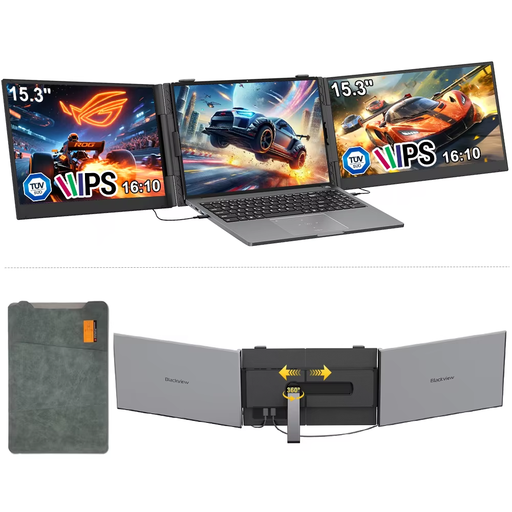 Image unavailable
Blackview DCM8 15.3-inch Portable LCD Monitor
Suitable if you’re looking for a portable second screen to use in different workspaces.
The product name lists a 15.3-inch portable LCD monitor.
View at Joybuy
Frequently asked questions
Does every USB-C port on your laptop work as a video output?
No, not every USB-C port outputs video. Check the specifications for the exact laptop port and compare them with the screen’s requirements; ASUS distinguishes between USB-C with DisplayPort Alt Mode and USB-C without video support. Also check the cable and power supply.
How should you set up a portable screen for your model and references?
Choose extend on your laptop if you want to show different files on each screen. Then position the model and references at a readable scale, and check that the stand and cables fit on your table. Lenovo lists extend and mirror modes for the M14t Gen 2; ASUS lists a fold-out stand for the MB16AHV, which can be used in portrait or landscape orientation.
In the Netherlands, am I only entitled to a standard two-year legal guarantee?
No. ACM ConsuWijzer explains that your legal guarantee depends on what you could reasonably expect from the product under normal use. This is separate from any manufacturer’s or retailer’s guarantee; if a product is faulty, the retailer is your point of contact.
Can I try out a monitor bought online and return it?
For a standard online purchase by a consumer, you generally have a statutory 14-day cooling-off period from the date of delivery. Check the applicable exceptions and the rules on unpacking and trying out the product; ACM ConsuWijzer provides guidance on this.
Which EU product rules apply to a monitor?
The European Commission states that energy labelling and ecodesign rules also apply to computer monitors, subject to applicable exceptions. According to Your Europe, CE marking is only required for products covered by harmonised EU rules that prescribe it. A product listing alone doesn’t show that a specific item complies with the applicable rules.


