
Student checking model details
You view fine details or annotations alongside your design software, weighing up extra pixels against screen size and connectivity.


Before choosing a portable monitor to review a downloaded design model, check that your laptop can output video through the right connection. The monitor won’t open the file or replace your design software. Then choose according to your priorities: more pixels for fine details, a suitable connection, less weight, or features such as touch control, a battery or a second panel.
You view fine details or annotations alongside your design software, weighing up extra pixels against screen size and connectivity.
You take your second screen between study spaces; its weight, stand, cables and power supply all affect how practical it is.
You want to show your work to others or point out and annotate specific details. Touch control or space for reference material is most useful if your device and workflow support it.
First, check that your source device can provide video and enough power through a connection compatible with the monitor. Then compare the screen specifications with how you want to view, discuss and carry your design.
| What to consider | What should you check? | Who is this important for? |
|---|---|---|
| Video connection and power | Check your laptop’s video output, the inputs on the exact monitor variant, its power requirements and which cables are included. | If I want to see my design on a second screen straight away, the connection needs to work with my laptop and the monitor needs power. Around 36% of consumers say connectivity and power are their top priority. |
| Design details | Compare the native resolution, aspect ratio and screen size of the exact variant. Treat colour coverage as a specification, not as a measurement of your entire working environment. | When I want to review fine lines, text or annotations alongside my software, I focus on the available pixels and workspace. Around 29% of consumers put model detail first. |
| Portability and set-up | Compare the stated weight of the configuration you’ve chosen and check the stand, case and included cables. | If I often move between study spaces, I want to know how much I’ll actually be carrying and how quickly I can set up the screen. Around 21% of consumers say portability is their top priority. |
| Discussing and using the screen | Decide whether you need touch control, pen input or a second panel, and check that your device and software support the way you want to work. | If I want to point things out, add annotations or show references at the same time, these features are only useful if they suit my set-up. Around 14% of consumers prioritise discussing and interacting with their work. |
The presence of a USB-C port alone doesn’t confirm that your laptop can output video. The monitors mentioned here specify USB-C with DisplayPort Alt Mode.
Check your own laptop’s video specifications and the inputs on the exact monitor variant. If you need a different video input, check whether that variant has, for example, mini-HDMI, and check the power requirements separately.
A physically larger screen doesn’t automatically mean more pixels are available to display details or toolbars.
For fine model details, compare both the native resolution and the screen dimensions.
Touch control, a built-in battery and dual panels each meet different needs. None of these features replaces a suitable connection or a set-up that works for you.
First decide whether you want to add annotations, work without a continuous laptop power supply or show references alongside the model. Then check software support, power requirements and the weight of the configuration you’ve chosen.
ZenScreen models vary in their connections and extra features. Compare the exact model code rather than assuming that features of one model apply to the entire range.
The ThinkVision M14d is a single high-resolution screen, while the M14t Gen 2 adds touch control for a different way of working.
The Dell Pro 14 Plus P1425 is a single-panel option with a 14-inch IPS screen and a 16:10 aspect ratio.
The HP E14 G4 is a 14-inch FHD monitor that HP presents as connecting with a USB-C cable.
This Joybuy selection includes portable screens for laptop use, from higher-resolution models to screens with different connections or a dual-screen set-up. Before buying, check that the variant you choose is compatible with your device’s video output and power supply.
 Image unavailable
An option to compare if you’re looking for a high-resolution portable screen with several listed video inputs.
2560 × 1600, 16:10, 144 Hz IPS, two USB-C ports and mini-HDMI.
 Image unavailable
An option to compare if you’re looking for a 16-inch, high-resolution portable screen.
2560 × 1600, 16:10, QLED, with Type-C and mini-HDMI connections.
 Image unavailable
An option to compare if you’re looking for a high-resolution portable screen with a built-in stand.
2560 × 1600 IPS, USB-C and HDMI. The product description lists a weight of 810 g.
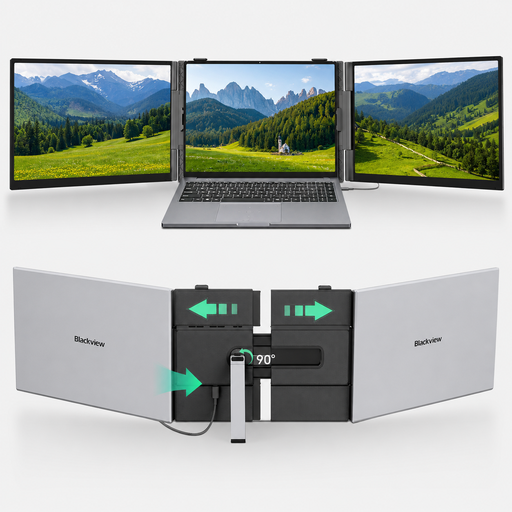 Image unavailable
A dual-screen option to compare if you want space for other content while viewing a model.
FHD and USB-C. The product description lists a weight of 1,2 kg; according to the product information, this model is designed for laptops measuring 13–17,3 inches.
 Image unavailable
An option to compare if you’re looking for a portable screen with USB-C and mini-HDMI.
FHD IPS, 144 Hz, two USB-C ports and mini-HDMI. The product title also lists a built-in stand.
Don’t assume you can: the monitors described here are screens for a connected source device, not standalone computers with design software. Open the file on a suitable device and check that it can provide the required video signal.
A USB-C connection alone doesn’t guarantee video output. Check whether your laptop’s port supports DisplayPort Alt Mode and whether the monitor is getting enough power.
Check that the included stand or case suits your workspace, and store the screen and cables safely after use. Check the contents of the exact package; ASUS states that accessories may vary by region.
For a standard online purchase, you generally have a statutory 14-day cooling-off period after delivery, according to ACM ConsuWijzer. The Dutch government states that there is no fixed statutory guarantee period covering all products in the Netherlands: you’re entitled to a product that works as it should, and should contact the seller if there’s a fault. An additional guarantee doesn’t replace your statutory rights.
Check the product information and marking on the version you want to buy. According to Business.gov.nl, CE isn’t an independent quality mark but a declaration of conformity from the manufacturer; the product rules that apply depend on the product.