
Students discussing a model together
You want to position the screen steadily on the table so others can see it, and perhaps point to elements directly. Lenovo, Verbatim and ASUS list touch functionality for the models mentioned here.


Start with a stable set-up and a screen everyone around the table can see. Choose touch if you want to point to or interact with elements directly on the screen; for fine details, both resolution and screen size matter. Also check whether your laptop’s USB-C port supports video, and what extra cables and power you’ll need if you use HDMI.
You want to position the screen steadily on the table so others can see it, and perhaps point to elements directly. Lenovo, Verbatim and ASUS list touch functionality for the models mentioned here.
You compare lines, text and small elements in a model, so both screen size and resolution matter. Lenovo and Dell publish different resolutions for the 14-inch models mentioned here.
You want to take a second screen with you and connect it to your laptop without encountering unexpected cable requirements. Check your laptop’s video output, as well as the connections and power requirements of the exact monitor model.
Choose this if: you want to point to or interact with elements directly on the external screen during the discussion.
Trade-off: with the Verbatim PMT-15, using touch via HDMI requires an extra USB cable; HDMI use also requires power.
Choose this if: others mainly need to see the model and you’ll control it from your laptop.
Trade-off: without touch, you control the model from the source device; a larger screen takes up more table space.
Choose this if: you often change workspaces and mainly want to show material on a second screen.
Trade-off: a USB-C connector alone doesn’t confirm that your laptop can output video through that port.
| What to consider | What should you check? | Who should pay particular attention? |
|---|---|---|
| Viewing together | Compare the screen size and stand; check whether touch works through the connection you want to use. | I want others around the table to follow the model clearly and point to elements. Around 29% of consumers put being able to view together at the top of their list of needs. |
| Connecting and powering | Check whether your laptop port outputs video, and which cables and power supply the exact monitor model requires. | I want to connect the screen to my own laptop without finding that a connection is missing during the discussion. Around 29% of consumers put a working connection at the top of their list of buying concerns. |
| Viewing fine details | Compare both the resolution and screen size, and check that your design software remains readable at that size. | I want to assess fine details in a design model, so both pixel count and physical screen area matter. Around 24% of consumers give detail display their highest priority. |
| Carrying and setting up | Check the dimensions, weight, stand and any protective accessories included with the exact version. | I often change workspaces and want to be able to carry the screen and set it up on a table. Around 18% of consumers name portability and positioning as their main needs. |
The USB-C connector alone doesn’t tell you whether your laptop supports video through that port. Without suitable video output, the expected picture connection won’t work.
Check the specifications for the exact laptop port before relying on a one-cable set-up.
For the Verbatim PMT-15, the manufacturer states that HDMI use requires power and that touch requires an extra USB cable.
Check which connections each model needs for video, touch and power.
For the PMT-15, bear in mind that an HDMI set-up requires extra connections in addition to the HDMI cable.
A higher resolution on a smaller screen and a larger physical screen area meet different needs. The published figures alone don’t show how colours will look or how readable your software will be.
Compare the dimensions and resolution with your own model view and the space available on the shared table.
The ThinkVision M14t Gen 2 is a compact touchscreen monitor to consider if you’re looking for a higher stated resolution.
The PMT-15 is a 15.6-inch touchscreen to consider if you want more screen area around the table.
The Pro 14 Plus P1425 is a compact second monitor to consider if you don’t need touch.
The ZenScreen MB16AHV is a 15.6-inch model to consider if you’re weighing up USB-C and mini-HDMI.
The Business Monitor 16B1P3302D/00 is a portable second screen to consider for showing material.
These models are designed for showing material and viewing together, with different combinations of screen size, stand and connections. Compare the stated resolutions and, before buying, check that your laptop supports the video connection you want to use.
 No image available
The built-in kickstand and listed connections are useful if you want to show material around a table.
16 inches, 2560 × 1600, IPS, 144 Hz, 16:10, dual USB-C and mini-HDMI.
 No image available
The built-in stand is useful when you want to position the monitor on a table for viewing together.
16 inches, 2560 × 1600, QHD, IPS, USB-C and HDMI.
 No image available
The adjustable stand can help you position the monitor on a table for viewing together.
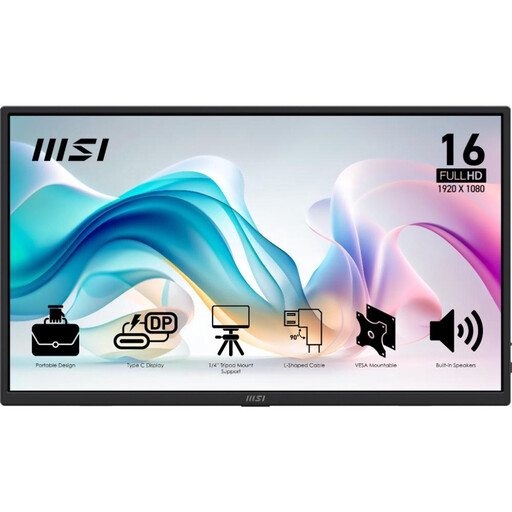
15.6 inches and Full HD. The description lists two USB-C ports with DP Alt Mode and HDMI.
Full HD has fewer pixels than 2.5K models if fine details are your priority.
 No image available
The touchscreen is useful if you want to point to elements directly during the discussion.
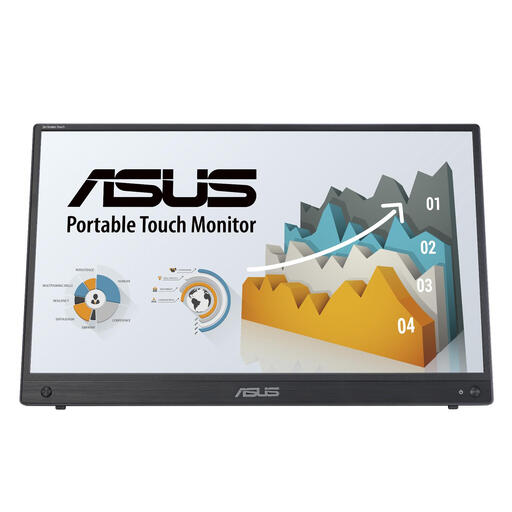
15.6 inches, 1920 × 1080, Full HD, IPS, with HDMI and USB-C connections.
Full HD has fewer pixels than 2.5K models if fine details are your priority.
 No image available
The listed kickstand and 600 g weight are useful if you want to carry the screen and set it up on a table.
14 inches, 1920 × 1080, IPS, dual USB-C and mini-HDMI.
The 14-inch screen offers less physical viewing area than larger sizes; Full HD has fewer pixels than 2.5K models if fine details are your priority.
No. A matching connector alone doesn’t confirm video support. Check your laptop’s specifications to see whether the USB-C port you’re using supports video, such as DisplayPort Alt Mode, and check the screen’s power requirements too.
It depends on the model and connection. Verbatim states that the PMT-15 requires power when used with HDMI and an extra USB cable for touch; check the manual for other models.
Set the stand up securely, adjust the viewing angle for everyone around the table, and position the power and video cables so they don’t pull on the screen. Beforehand, check that your design software displays legibly on the external screen.
No. ACM ConsuWijzer explains that the legal guarantee in the Netherlands doesn’t have a fixed two-year term. With normal use, a product must meet what you could reasonably expect from it; if a product develops a fault too soon, the seller is your point of contact.
According to ACM ConsuWijzer, a standard online purchase usually comes with a legal cooling-off period of up to 14 days after delivery, subject to exceptions. Check how to cancel the purchase and what conditions apply to returning it.