
Designer discussing colours
You’re showing a digital design proposal where colour differences are part of the discussion. In that case, the stated colour gamut and calibration may matter more than a simply vivid picture.


For a colour-critical digital review, a compact screen with a calibration claim specific to the model is a better fit. For showing details and notes, a higher-resolution 16:10 screen may be more practical. ASUS lists factory calibration and 100% sRGB and Rec.709 for the ProArt PA148CTV, while Lenovo lists 100% sRGB for the ThinkVision M14d and M14t Gen 2. Manufacturer specifications do not prove that a screen will reproduce a print exactly.
You’re showing a digital design proposal where colour differences are part of the discussion. In that case, the stated colour gamut and calibration may matter more than a simply vivid picture.
You want to share the screen with a client without using much desk space or needing a separate monitor stand. The screen size, tilt and viewing angle all affect your setup.
You want to know in advance whether your laptop can send video and enough power over USB-C, or whether you’ll need separate video and power connections.
| What to consider | What should you check? | Who is this important for? |
|---|---|---|
| Colour reproduction | Compare the colour gamut of your proposal with the stated coverage. For a colour-critical discussion, look for a calibration claim for the exact model. Coverage alone does not prove colour accuracy. | If I’m discussing the colours in a digital proposal, I want to know whether the coverage and calibration are suitable for that colour gamut. Around 33% of consumers say colour reproduction is their top priority. |
| Desk space and shared viewing | Measure the space, including the unfolded stand and cables. Check the tilt and whether someone sitting opposite you will be able to see the screen clearly. | I want to set the screen up on a small desk and view it with a client. Around 27% of consumers prioritise the setup and visibility for two people. |
| Video and power | Check your laptop’s video output, the monitor’s connections, the power requirements and which cables are included. For a single USB-C cable to the PA148CTV, ASUS specifies DisplayPort Alt Mode and at least 10 W of output power from the computer. | When I want to present quickly, I want to be sure in advance that my laptop can drive the screen. Around 27% of consumers say connection reliability is their top priority. |
| Touch and room for detail | Decide whether you need touch or whether extra room for detail is enough. If you want touch, also check the operating system and connection requirements. | I want to point out details or show variations side by side during a discussion. Around 13% of consumers prioritise touch or extra room for detail. |
Colour gamut coverage and colour accuracy are not the same thing. A digital screen also won’t automatically show you how a design proposal will look when printed.
Compare the colour gamut of your digital proposal with the stated coverage. For a colour-critical review, look for a calibration claim for the exact model.
A USB-C connection may not support the same features that the monitor requires. Some connection setups need separate video and power connections.
Check your laptop’s port, the power requirements, the monitor’s ports and the cables included. With an HDMI connection, a separate power cable may take up extra desk space.
For the Dell P1425, the panel description in a Joybuy listing differs from the IPS specification given by Dell. A similar model name alone doesn’t confirm that the listing matches the product variant.
Before buying, check the exact model and panel specification on the product page. Don’t treat a conflicting description as confirmation.
The ProArt PA148CTV is a compact option for colour-focused digital presentations, while the ZenScreen MB16AHV has USB-C and mini-HDMI.
The ThinkVision M14d and M14t Gen 2 are compact 14-inch 16:10 models; the M14t Gen 2 also has a touchscreen.
The ColorPro VP16-OLED is a larger portable option for digital presentations where DCI-P3 is relevant.
The Pro 14 Plus P1425 is a compact option for discussions where layout and readability come first.
These product options are intended for a portable screen setup during a design review. Compare the connections on each model and the amount of desk space it takes up with its stand.
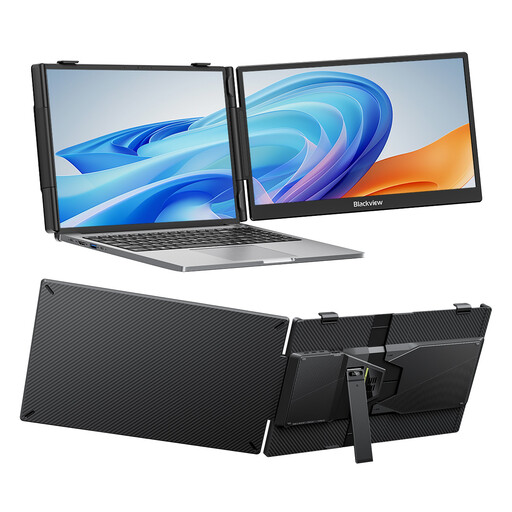 No image available
The 14-inch size and adjustable stand suit a compact desk setup.
FHD IPS screen; the product information lists an adjustable stand.
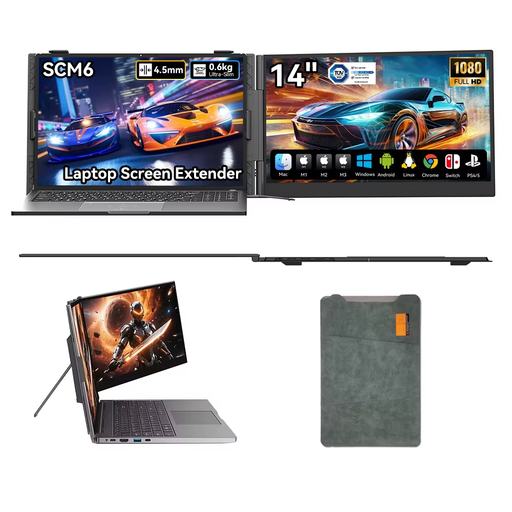 No image available
The 14-inch screen has a stand described in the product title as adjustable through 180°.
1080p; the product information lists a built-in speaker and USB-C.
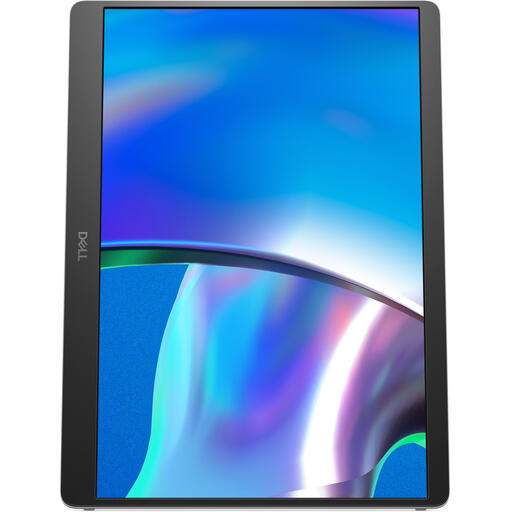 No image available
The 14-inch size and adjustable stand may suit a compact presentation setup.
The product name lists 1920 × 1200 pixels. Before buying, check that the panel description matches the exact variant.
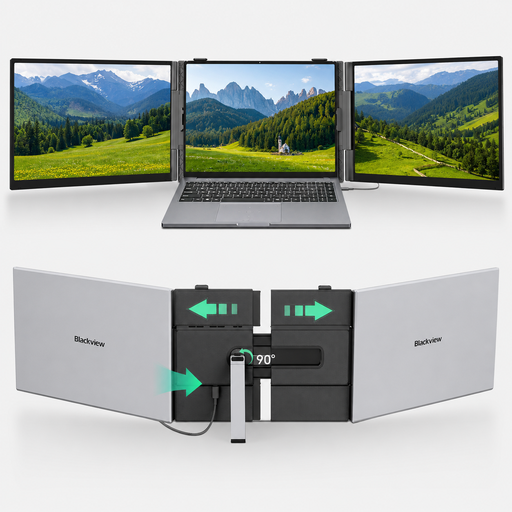 No image available
The product information lists 100% sRGB; check whether the larger screen will fit on your desk.
15.3-inch IPS screen, 1920 × 1200 pixels and a 16:10 aspect ratio. The product information lists USB-C.
 No image available
The built-in stand may mean you don’t need a separate monitor stand, but make sure you have room for the 16-inch screen.
The product name lists 2.5K, 144Hz, IPS, 16:10 and 100% sRGB.
Only if both the laptop and monitor support the video and power features required. For a single-cable connection to the PA148CTV, ASUS specifies DisplayPort Alt Mode and at least 10 W of output power from the computer. Check the specifications for the USB-C port on your own laptop.
First, measure the available desk space and check the viewing angle from both seats. ASUS lists a kickstand and tripod socket for the PA148CTV; Lenovo describes the M14d as tiltable. Don’t assume that a tripod is included.
Check that both the laptop and monitor support video over the USB-C connection you’re using, and that the cable is suitable. ASUS lists mini-HDMI for video and USB-C for separate power as an alternative for the ZenScreen MB16AHV if your laptop doesn’t have USB-C DP Alt Mode.
Report a fault to the seller. According to the Dutch Government, the Netherlands has no fixed legal guarantee period: you’re entitled to a product that meets what you could reasonably expect from it. A manufacturer’s or extra guarantee comes in addition to your legal rights.
For a standard online consumer purchase from a business, you generally have a 14-day cooling-off period. The Dutch Government lists some exceptions; an online purchase from a private seller isn’t covered by the same distance-selling rules.