If you keep handwritten references on paper, a standard portable monitor may be all you need to view a digital design model alongside them. If you want to annotate directly on the screen, check separately that the model supports your preferred pen input and software. Then compare resolution, screen size, connections and weight.
Who is this relevant for?
Student reviewing model details
Wants to view small parts of a digital design model while keeping handwritten references on paper. Lenovo describes a compact screen with 2240 × 1400 pixels, while Verbatim lists viewing reference images alongside design work as a use case.
Student annotating on screen
Wants to point things out or make notes directly on the second screen. Look out for the difference between touch control and active pen support, and check that it works with your operating system and design software.
Student who often changes workspaces
Wants to take a second screen along and set it up in different places. Screen size, weight, stand and connection all affect whether it suits your study space.
What should you look for when choosing?
Standard second screen
A good fit if: your references stay on paper and you mainly want more screen space for your digital model.
The trade-off: consider resolution and screen size together; a larger panel and more pixels are different features.
Compact screen with more pixels
A good fit if: viewing small digital details matters more than having a larger screen area. Lenovo lists a 14-inch screen with 2240 × 1400 pixels for the ThinkVision M14t Gen 2.
The trade-off: if you also want to write digitally, check the active pen and software separately; Lenovo lists a passive pen as an included accessory.
Touchscreen for direct control
A good fit if: it would be useful to tap, swipe or point directly on the second screen. ASUS describes the ZenScreen Touch MB16AHT as a 15.6-inch Full HD screen with 10-point touch.
The trade-off: ASUS says touch functionality depends on the operating system; this alone does not confirm pressure-sensitive pen input.
| What to consider |
What should you check? |
Who is this important for? |
| On-screen detail |
Compare the resolution with the screen diagonal; more pixels or a larger panel won't automatically meet the same need. |
If small details in a digital model need to be clearly visible alongside paper references, resolution is a key factor. Around 36% of consumers prioritise detail. |
| Connection and power |
Check that your laptop can output video through the port you plan to use and can meet the screen's power requirements. |
If you want to know whether your laptop can run the screen before you buy, you need to be sure about video and power. Around 29% of consumers say the connection is their main concern. |
| Touch or pen |
Check whether touch is enough or whether you need an active pen; also check your operating system and design software. |
If you want to annotate directly on the second screen, support for your preferred input method matters more than touch functionality alone. Around 21% of consumers prioritise digital input. |
| Portability and set-up |
Compare the screen size and stated weight; also check the stand and whether your bag has room for the cables. |
If you move between study spaces, you'll want a screen that's easy to carry and set up securely. Around 14% of consumers consider portability their main buying concern. |
Common buying mistakes
-
Assuming every USB-C port outputs video
A USB-C connector that fits doesn't necessarily mean your laptop can output video. ASUS specifies DisplayPort Alt Mode for the USB-C connection on the ZenScreen MB169CK; other models may also have an HDMI connection.
Compare your laptop's video output and power capabilities with the inputs and requirements of the exact monitor model.
You may need a different connection or a suitable power supply.
-
Assuming a touchscreen lets you write with an active pen
Touch control and active pen input aren't the same thing. Lenovo lists support for an active stylus, but says a passive pen is included. ASUS says the MB16AHT's touch functionality depends on the operating system.
Before buying, check the pen type, included accessories, operating system and compatibility with your design software.
You may need to buy a compatible active pen separately.
-
Treating a product listing as a verified model specification
The product listing for the Dell Pro 14 Plus P1425 mentions both IPS and Mini LED, while Dell specifies IPS for this model. The listing therefore doesn't clearly confirm the additional screen technology.
For key specifications, use the manufacturer's listing for the exact model and check the product details again before ordering.
Brands to compare
Lenovo
The ThinkVision M14t Gen 2 combines a compact size with touch control and active stylus support.
- Lenovo lists a 14-inch screen with 2240 × 1400 pixels and 10-point touch.
- Lenovo says a passive pen is included; check separately which active pen suits your needs.
ASUS
ZenScreen models offer different combinations of USB-C, mini-HDMI and touch; features vary by model.
- ASUS lists DisplayPort Alt Mode for the MB169CK and a mini-HDMI connection for the MB16AHV.
- ASUS says touch on the MB16AHT depends on the operating system.
Dell
The Pro 14 Plus P1425 is a 14-inch model to consider if you're looking for a compact screen without a touchscreen.
- Dell lists a resolution of 1920 × 1200 pixels and an IPS panel for this model.
- Dell doesn't list a touchscreen for the P1425; don't rely on conflicting product listings for information about other screen technologies.
HP
The HP E14 G4 is a 14-inch USB-C option for a portable second-screen set-up.
- HP describes a single-cable USB-C connection and a case with a stand.
- Check that your laptop's USB-C port outputs video and is compatible with the monitor's connection.
Portable monitors at Joybuy
This selection includes portable screens for viewing a digital design model alongside paper references, including models with touch control. Touch control doesn't confirm support for an active pen.
 No image available
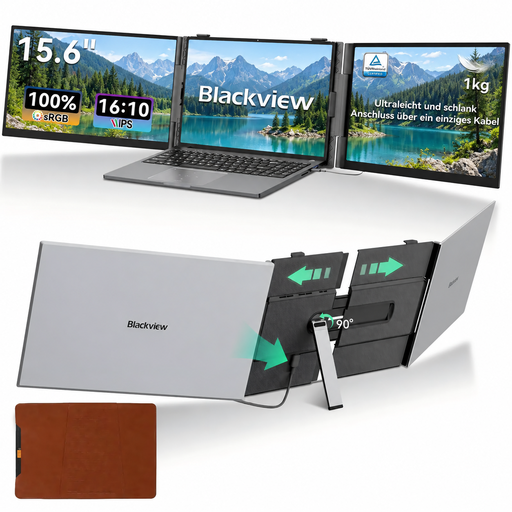
Blackview DCM6 PRO 14-inch Full HD monitor
A portable second screen for viewing a digital model alongside paper references.
14 inches; Full HD 1920 × 1080. According to the product information, designed for laptops measuring 13–17.3 inches.
View at Joybuy
 No image available
TECLAST V16Q 2.5K 144Hz IPS monitor
A 16:10 screen for viewing digital model details on a portable second monitor.
2560 × 1600 pixels; IPS; 16:10; 144 Hz. The product information lists USB-C, Mini HDMI and a built-in stand.
View at Joybuy
 No image available
ARZOPA Z1RC 16-inch 2.5K IPS monitor
A larger portable screen for viewing a digital design model alongside paper references.
16 inches; 2560 × 1600 pixels; IPS. The product information lists a built-in stand and a weight of 810 g.
View at Joybuy
 No image available
ASUS ZenScreen MB166CR 15.6-inch Full HD monitor
A portable monitor for anyone looking to set up a second screen alongside paper references.
15.6 inches; 1920 × 1080; IPS. The product information lists USB-C and a 360° stand; check that your laptop supports USB-C video.
View at Joybuy
 No image available
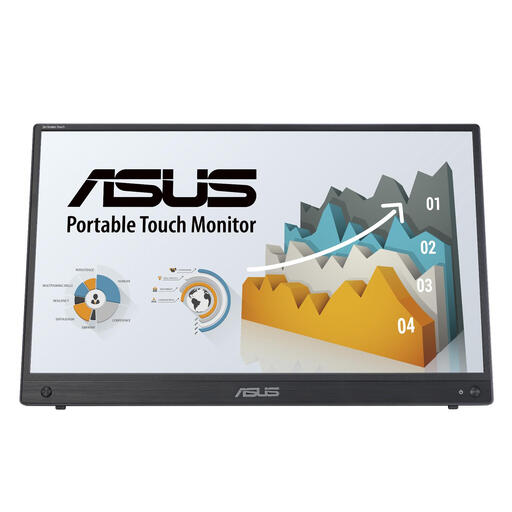
ASUS ZenScreen MB16AHT 15.6-inch Full HD touchscreen
An option if you want to touch or control the second screen directly; this doesn't confirm support for an active pen.
15.6 inches; 1920 × 1080; IPS; 10-point touch. ASUS says the touch functionality depends on the operating system.
View at Joybuy
Frequently asked questions
Can you use any USB-C port on your laptop with a portable monitor?
No. A USB-C connection that fits doesn't confirm that your laptop can output video. ASUS lists DisplayPort Alt Mode as a requirement for the USB-C connection on the ZenScreen MB169CK; also check the monitor's power requirements.
Do you need a touchscreen if your references are handwritten on paper?
Not just to place paper alongside your digital model. If you want to point things out or annotate on the screen itself, check whether touch is enough or whether you need an active pen, and make sure it works with your operating system and design software.
What should you check when setting up and carrying a portable monitor?
Check that the stand is stable in your usual study space and that the cable is compatible with your laptop. When comparing models, also consider the screen size and stated weight; follow the instructions for the specific model when connecting and cleaning it.
What are your rights if you buy online in the Netherlands and don't like the monitor or it is faulty?
For an applicable online consumer purchase, you generally have a statutory 14-day cooling-off period from delivery; check the terms and any exceptions that apply to your purchase. The product must also conform to the contract, and if there's a problem, the seller is your point of contact for a solution. An additional manufacturer's warranty doesn't replace your statutory rights.


