For a customer presentation at a shared table, choose a portable monitor that can be positioned so it’s easy to read from both seats and that connects to your laptop’s video output. Measure the available table and bag space, check which cable you need and work out how the monitor and laptop will be powered. A larger screen needs more room, while a more compact model may be easier to carry. Dell Netherlands, Lenovo Netherlands, ASUS eShop Netherlands and Philips Netherlands describe a range of screen sizes, connections and positioning options. Features vary by model and do not guarantee readability or compatibility in your setup.
Who is this choice relevant to?
Presenting to a customer at the table
You want two people to be able to read slides from their seats, so you focus on usable screen space, viewing angle and positioning. Dell Netherlands describes the P1425 as having a tilt-adjustable stand, while ASUS eShop Netherlands lists a fold-out stand for the MB16AHV.
Presenting with different laptops
You want to know in advance whether USB-C actually carries video, or whether you need HDMI or a suitable DisplayLink connection. For the 16B1P3302/00, Philips Netherlands distinguishes between USB-C with DP Alt Mode and USB-A via DisplayLink.
Presenting on the move, without a permanent workspace
When you present in a different place each time, consider the weight, stand, cables and available power. Lenovo Netherlands lists the ThinkVision M14t Gen 2 as weighing 700 g; ASUS eShop Netherlands says the separate ZenScreen Go MB16AWP has a built-in battery.
What should you look for when buying?
Start by checking that the screen is easy to read from both seats. Then make sure the laptop, cable, table space and power supply will all work with your chosen model.
| What to consider |
What should you check? |
Which consumers is this important for? |
| Easy for both people to read |
Look at the slides from both seats and check for reflections in the room where you’ll be presenting. |
If I’m showing slides to a customer at the same table, I want us both to be able to read the text from our seats and position the screen easily. Around 31% of consumers prioritise readability. |
| A working video connection |
Check whether your laptop supports video over USB-C. If not, see whether a suitable HDMI or model-specific DisplayLink connection will work. |
When I present with different laptops, I want to know in advance which connection will actually carry a picture. Around 31% of consumers give compatibility their highest priority. |
| Portability and positioning |
Compare the external dimensions and weight, and check the stand, included accessories and available table space. |
If I move my monitor often and have little table space, I want a manageable screen that can stand securely. Around 19% of consumers prioritise portability and positioning. |
| Power during the presentation |
Check the power requirements for the exact model and test it with your laptop, cable and any charger. |
If I present in different locations, I want to know in advance whether I’ll need a mains socket or whether my chosen setup can be powered another way. Around 19% of consumers focus mainly on power. |
Common mistakes
-
Assuming every USB-C port supports video
For USB-C video on the Philips 16B1P3302/00, Philips specifies DP Alt Mode; USB-A via DisplayLink is a separate option.
Check the laptop port, monitor connection and cable as a complete setup. Test the connection beforehand, and if you’re using DisplayLink, check that you’re allowed to install the required software on the laptop you’ll be presenting from.
-
Choosing a larger screen without measuring the table space
A 15.6-inch screen takes up more room than a 14-inch model. The shape and position of the stand also affect how well it fits on a shared table.
Measure the available space and view the slides from both seats before choosing a screen size.
-
Confusing power pass-through, laptop charging and a built-in battery
These are different features. Lenovo lists power pass-through of up to 65 W for the ThinkVision M14t Gen 2; ASUS says the ZenScreen Go MB16AWP has a built-in battery.
For your chosen model, work out how both the monitor and laptop will be powered during the presentation, and test the complete setup beforehand.
Brands to consider
Dell
The P1425 is a compact option to consider if you’re looking for a 14-inch screen with a tilt-adjustable stand.
- Dell Netherlands lists an IPS display, 1920 × 1200 pixels, anti-glare coating and a tilt-adjustable stand for the P1425.
- These specifications alone don’t guarantee that the slides will be easy to read from the seats at your table.
Lenovo
The ThinkVision M14t Gen 2 is worth considering if you’re looking for a compact touchscreen.
- Lenovo specifies a 14-inch screen, 2240 × 1400 pixels, touch control, a weight of 700 g and a sleeve for this model.
- Touch control may be unnecessary if you’re only showing slides. Lenovo lists power pass-through of up to 65 W; check the power requirements for your complete setup.
ASUS
The ZenScreen MB16AHV and the separate ZenScreen Go MB16AWP offer different connection and power options.
- ASUS eShop Netherlands lists a 15.6-inch Full HD IPS screen, USB-C, mini-HDMI and a stand for the MB16AHV. For the MB16AWP, ASUS lists a battery and wireless mirroring.
- For wireless mirroring, check that your source device is supported. For a wired connection, also check which cable and power supply you’ll need.
Philips
The Business Monitor 16B1P3302/00 is worth considering if you’re also looking at a USB-A connection.
- Philips describes USB-C video with DP Alt Mode and a separate USB-A connection via DisplayLink for this model.
- Check whether you’re allowed to use the required DisplayLink software on the laptop you’ll be presenting from.
HP
The 514pn is worth considering if detailed images on a 14.36-inch screen are important to you.
- HP lists a resolution of 2560 × 1600, 400 nits and up to 65 W of power via the specified connection for the 514pn.
- These manufacturer specifications don’t guarantee that the screen will be easy to read in your workspace lighting or fully compatible with every laptop.
Portable monitors at Joybuy
These models are suited to presentations at a shared table, with screen space, positioning and different connection options in mind.
 No image available
TECLAST V16H 16-inch portable monitor, 16:10, 144Hz
A 16-inch screen with a built-in stand for viewing slides together at the table.
16-inch IPS screen; FHD; 16:10 aspect ratio; 144Hz; two USB-C ports and mini-HDMI.
View at Joybuy
 No image available
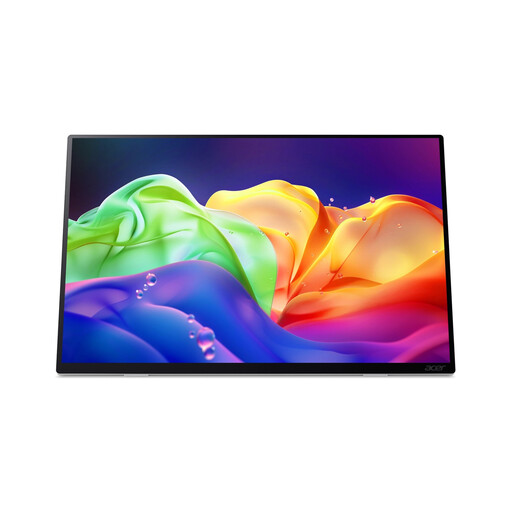
Acer ProDesigner PE160WUT 16-inch OLED touchscreen monitor, 2880 × 1800, 120Hz
A 16-inch touchscreen to consider if you’re looking for a higher stated resolution and adjustable positioning.
OLED touchscreen; 2880 × 1800; 120Hz; HDMI 2.1 and two USB-C ports; 0° to 90° tilt range; VESA mounting support. This model has no built-in battery and doesn’t support charging via USB-C Power Delivery.
View at Joybuy
 No image available
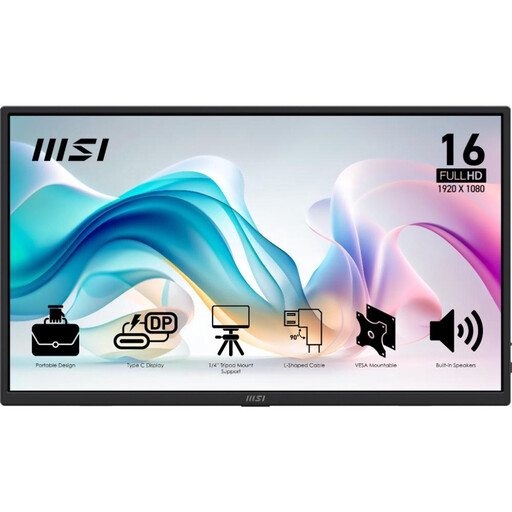
MSI PRO MP165 E6 15.6-inch Full HD monitor
A 15.6-inch screen to consider if you want to view the same image as your customer.
Full HD IPS screen with anti-glare coating; USB-C video requires DP Alt Mode, while HDMI 2.0b is a separate connection option. Built-in stand with a tilt range of up to 90°; weight 0.78 kg.
View at Joybuy
 No image available
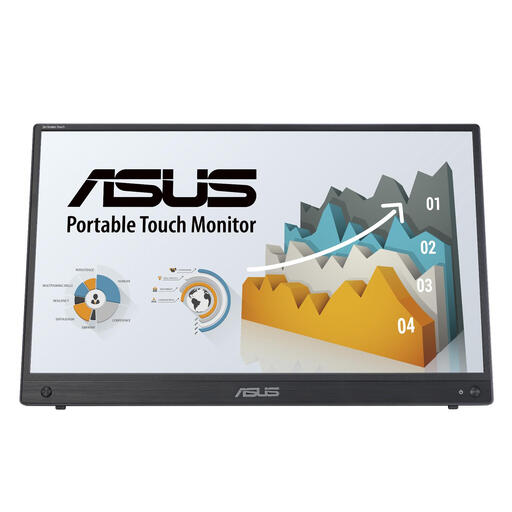
ASUS ZenScreen MB16AHT 15.6-inch Full HD touchscreen
A touchscreen with a stand that can be placed on a flat table.
15.6 inches; Full HD, 1920 × 1080 pixels; IPS; HDMI and USB-C.
View at Joybuy
 No image available
Arzopa A1S 14-inch FHD monitor
A more compact screen with a built-in stand for use on a shared table.
14-inch IPS screen; 1920 × 1080 pixels; anti-glare; weight 600 g; USB-C and Mini HDMI.
View at Joybuy
Frequently asked questions
Will every USB-C port on my laptop work with a portable monitor?
No, don’t assume it will. For USB-C video on the Philips 16B1P3302/00, Philips specifies DP Alt Mode; also check your cable and laptop specifications.
Can I use USB-A if my laptop doesn’t support USB-C video?
For the Philips 16B1P3302/00, Philips describes USB-A via DisplayLink as a separate option alongside USB-C with DP Alt Mode. Check whether you’re allowed to use the required software on the laptop you’ll be presenting from.
How can I stop my customer seeing my other windows?
Check which display mode your laptop is using beforehand, and show only the intended presentation on the external screen. A portable monitor won’t hide other open windows; test your setup with non-confidential slides before presenting to your customer.
Will I have to pay if my monitor breaks after the manufacturer’s warranty expires?
Not automatically if you bought it as a consumer in the Netherlands. ACM ConsuWijzer explains that your statutory guarantee applies alongside a manufacturer’s or seller’s warranty, and depends on what you could reasonably expect from the product under normal use. If you bought it for business use, don’t assume the same consumer rights apply.
Can I put my old portable monitor in the general rubbish?
Dispose of old electrical equipment separately. According to the Dutch government, a private individual can return a similar old appliance to the retailer free of charge when buying a new one. There are also collection points and local authority disposal options. The trade-in scheme described here doesn’t apply to businesses.


