First, check that your laptop can output video through the connection you plan to use. Dell Support says that video over USB-C requires a suitable DP Alt Mode or Thunderbolt port. Then choose between a more compact 14-inch screen and a larger physical display area, and decide whether power from your laptop will be enough or whether a built-in battery would better suit your café sessions. The product specifications mentioned are supplied by the manufacturers; they are not the result of testing with your laptop or table set-up.
Who is a portable monitor suitable for?
Reader working with a second document
You want to edit your reading list while keeping a source or note visible. First, check that your laptop can output video through the monitor’s connection. Then compare the screen size and resolution at the text size you usually use.
Working at a small café table
You want to take the screen with you and still have enough room beside your laptop for a stable set-up. Compare the dimensions and stand of the exact model, not just the screen size.
Working without a nearby socket
You can’t rely on mains power at the table and want to know in advance whether the monitor draws power from your laptop or has its own battery. ASUS lists a built-in battery for the ZenScreen Go MB16AHP; its stated battery life depends on the usage conditions given.
What should you look for when choosing one?
For viewing a second document beside your reading list, the key things to compare with your own café set-up are the video connection, legible text size, table space and power supply.
| What to consider |
What to look for when buying |
Who is this important for? |
| A working video connection |
Check your laptop’s video output, the input on the exact monitor model and the cable you’ll need. For video over USB-C, Dell Support lists DP Alt Mode or Thunderbolt as a requirement for the P1425. |
If I want to open a source beside my reading list, the video signal needs to work with my laptop. Around 31% of consumers prioritise a working video connection. |
| Room to read the list and source |
Compare 14 and 15.6 inches at the text size you usually use. Consider the resolution and aspect ratio together, as more pixels don’t automatically mean larger text. |
If I want to read both documents at once without making the text uncomfortably small, usable screen space matters most. Around 25% of consumers put room for the list and source first. |
| Carrying and setting it up |
Compare the dimensions and weight, and check how the stand opens and how much table space the set-up needs. |
If I want to use my laptop and screen side by side at a small table, the complete set-up needs to fit and remain stable. Around 25% of consumers give carrying and positioning top priority. |
| Power during your café session |
Check whether the monitor draws power from your laptop or has its own battery. Only compare stated battery life with the usage conditions provided. |
If I can’t rely on a socket, I want to know in advance how the monitor is powered. Around 19% of consumers put independent monitor power first. |
Common buying mistakes
-
Assuming every USB-C port supports video
A USB-C port that only supports data or charging won’t automatically send video to a portable monitor. Dell Support lists DP Alt Mode or Thunderbolt as suitable video connections for the P1425.
Check your laptop’s video output and the requirements of the exact monitor model before choosing a cable.
You may need a suitable cable or a different connection for the video signal.
-
Comparing screen size alone
The monitor needs to fit in your bag and sit alongside your laptop on a café table. A stand also takes up space when unfolded.
Compare the monitor’s dimensions and the space its stand takes up with the area where you plan to work.
-
Treating stated battery life as a guarantee
ASUS states that the ZenScreen Go MB16AHP offers up to four hours of use under the DP Alt Mode condition at 100% brightness. That figure doesn’t automatically apply to every situation.
Read the conditions that apply to the stated battery life, and don’t rely solely on the maximum figure for a longer session.
-
Confusing an extended warranty with your statutory rights
According to the Dutch Government, the retailer is your point of contact if there’s a problem with a product. An extended warranty is only extra cover if it offers more than your statutory rights.
Compare any extra cover with your statutory rights and read the terms and conditions before choosing it.
Brands to consider
ASUS
The ZenScreen models mentioned offer different connection and power options.
- ASUS specifies an anti-glare 15.6-inch screen, USB-C and mini-HDMI for the MB16AHV. The MB16AHP has a built-in battery.
- ASUS states that the MB16AHP offers up to four hours of use under specific conditions. This isn’t a guaranteed duration for every session.
Lenovo
The ThinkVision M14t Gen 2 is a compact 14-inch model with a 16:10 aspect ratio and touch functionality.
- Lenovo lists a resolution of 2240 × 1400 pixels and an adjustable stand.
- Touch functionality is only relevant if you’ll actually use it; it isn’t essential for editing a reading list.
Dell
The Pro 14 Plus P1425 is a portable 14-inch monitor with a 16:10 aspect ratio.
- Dell lists a resolution of 1920 × 1200 pixels and a tilting set-up.
- Dell Support says that video over USB-C requires a suitable DP Alt Mode or Thunderbolt port.
HP
The HP E14 G4 is a 14-inch portable monitor with an anti-glare screen.
- HP lists a brightness of 400 nits and connection via a single USB-C cable.
- The stated brightness doesn’t show how easy the text is to read in direct sunlight or at your particular café table.
Portable monitors at Joybuy
These Joybuy products are portable monitors designed to work as a second screen with a laptop. Compare the size, stated connections and set-up with your own laptop and the space available on your table.
 No image available
TECLAST V16H 16-inch portable monitor
The 16-inch version gives you a larger physical display area for a reading list and a second document. Check in advance that it will fit on your café table.
16 inches; FHD; 16:10; 144 Hz; USB-C and Mini HDMI; built-in stand.
Joybuy
 No image available
Portable Monitor PM14R 14-inch
The 14-inch size may suit a more compact set-up. Check that your laptop can output video through one of the stated inputs.
14 inches; FHD 1920 × 1200; IPS; 16:10; Type-C and Mini-HDMI.
Joybuy
 No image available
ARZOPA Z1RC 16-inch 2.5K monitor
The 16-inch version is an option if you want more physical display area beside your laptop. Bear in mind how much table space you have available.
16 inches; 2.5K; 2560 × 1600; IPS; built-in stand; USB-C and HDMI.
Joybuy
 No image available
Arzopa A1S 14-inch portable monitor
The 14-inch size and built-in stand make this model easy to carry and set up on a table. Check how the stand will fit into your set-up.
14.0 inches; FHD 1080P; built-in stand.
Joybuy
 No image available
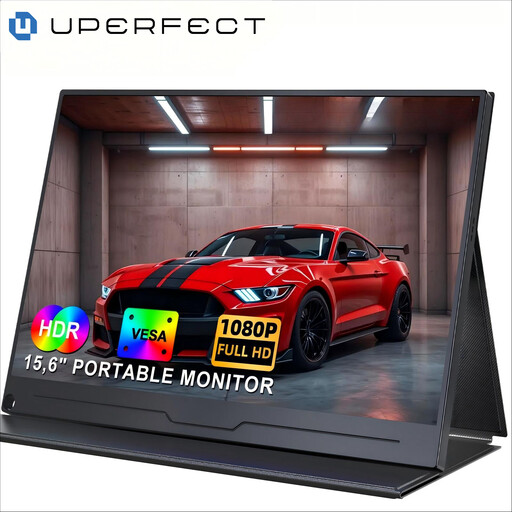
UPERFECT 15.6-inch 1080P portable monitor
The 15.6-inch size gives you more physical display area than a 14-inch model, but you’ll also need enough room on the table.
15.6 inches; 1080P; IPS.
Joybuy
Frequently asked questions
Will every USB-C port on your laptop work with a portable monitor?
No. Video over USB-C requires a suitable video output, such as DP Alt Mode or Thunderbolt. Dell Support says a port that only supports data or power won’t output video, so check the specifications for your laptop and the exact monitor model.
How do you set up a second screen for your reading list?
First, connect a suitable video cable and the required power supply. Then select the extend option in your laptop’s display settings if you want to show two different documents. Lenovo says the ThinkVision M14t Gen 2 supports both mirroring and extending; the steps may vary depending on your laptop.
How should you carry and clean the monitor?
Follow the instructions for your exact model when cleaning and transporting it. Use a case if one is included with your version or available separately, and avoid putting pressure on the screen while carrying it.
What are my rights if I buy a monitor online and it doesn’t suit my set-up?
For eligible online consumer purchases, the Dutch Government says you’ll often have a 14-day cooling-off period; check the terms of your specific purchase. You also have statutory rights if a product is faulty. The Dutch Government states that the Netherlands has no fixed statutory warranty period of two years, and that you should contact the retailer if there’s a problem.
Which product rules are relevant when buying in the Netherlands?
EU rules for electronic displays include requirements for ecodesign and energy labelling, as explained by the European Commission. According to Your Europe, CE marking applies to products covered by specific harmonised EU rules, and the manufacturer is responsible for compliance. These general rules don’t confirm that an individual product offered for sale complies.


