What should you look for when buying?
First, improve the screen’s position relative to the window. Then compare the screen finish and resolution, and check that the connection and weight suit your workspace and the way you study.
| What to consider |
What should you check? |
Who is this important for? |
| Reflections and readability |
Compare an anti-glare finish and the stated brightness. Also try adjusting your viewing angle and the screen position. |
If I study drawings beside a bright window, I want to reduce distracting reflections without relying on a single brightness rating. Around 36% of consumers put reflections and readability first. |
| Fine lines and overview |
Compare the native resolution, screen diagonal and aspect ratio; assess lines and dimension labels at the scale you use. |
If you want to view lots of fine lines or dimensions side by side, focus on pixel count and usable workspace. Around 29% of consumers give drawing details top priority. |
| Video signal and power |
Check that your laptop and monitor support video over the connection you’ve chosen, and find out which cable, adapter or power supply you’ll need. |
If I want to connect my own laptop, I want to know in advance whether it can provide video and enough power through the connection I’ve chosen. Around 21% of consumers prioritise connectivity and power. |
| Portability and annotation |
Compare the weight and check the touch controls, software requirements and what’s included with the exact version. |
If you travel between study spaces or want to annotate drawings on screen, weigh up portability and controls against the connections you need. Around 14% of consumers make this their main priority. |
Explore Joybuy monitors for viewing drawings
This Joybuy selection includes portable monitors for viewing drawings, with differences in resolution, screen finish, touch controls and connectivity.
 No image available
UPERFECT 16-inch 2K 144Hz portable monitor
The stated resolution may suit you if you want to see plenty of detail in drawings; the brightness rating alone doesn’t guarantee readability beside a window.
2560 × 1600 pixels, 450 nits, QLED screen and 16:10 aspect ratio. The product title lists Mini HDMI, Type-C and VESA compatibility.
View at Joybuy
 No image available
UPERFECT 15.6-inch touchscreen monitor
Touch controls may come in handy if you want to annotate drawings on screen; check that the connection works with your laptop.
Full HD (1080P), touchscreen and USB-C; the product title also lists Mini HDMI and VESA mounting.
View at Joybuy
 No image available
ASUS ZenScreen MB166CR
The stated anti-glare surface may be worth considering if you work beside a window; also adjust the screen position to suit the light.
15.6 inches, 1920 × 1080 pixels and Full HD. The product information lists an adjustable 360° stand and USB-C.
View at Joybuy
 No image available
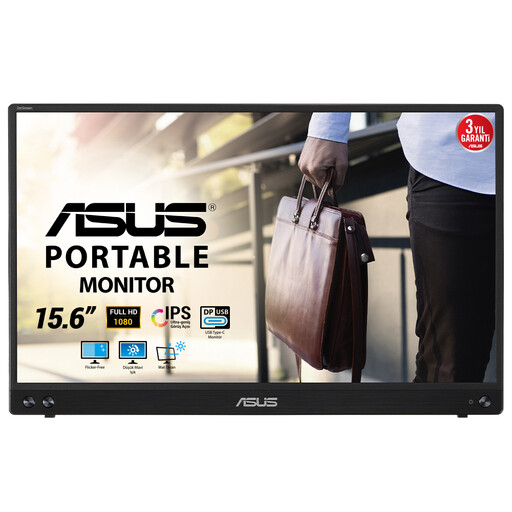
ASUS MB16ACV
This model may suit you if you’re looking for a portable second screen; check that your laptop’s USB-C video output is compatible.
15.6 inches and 1920 × 1080 pixels. The product information lists a USB-C hybrid connection for video and power, and a weight of 0.83 kg.
View at Joybuy
 No image available
Arzopa A1S portable monitor
The stated anti-reflective finish and built-in stand may be useful for a portable setup, but they don’t guarantee that reflections will disappear in every workspace.
14 inches and Full HD (1080P). The product title lists a built-in stand; the product information mentions USB-C and HDMI.
View at Joybuy
Frequently asked questions
Does higher brightness always help with reflections from a window?
No, a higher brightness rating won’t automatically prevent reflections. Arboportaal advises positioning your line of sight parallel to the window and using blinds or shading if needed. Then compare the screen finish and stated brightness for your workspace.
Can I connect my portable monitor to any USB-C port?
No, the USB-C port must support video, and the connection must be compatible with the monitor. Check your laptop’s video output, the cable you need and the power requirements; matching plug shapes alone don’t guarantee compatibility.
How should I set up a portable monitor beside a window?
If possible, position yourself so you’re looking parallel to the window, and adjust the screen if light falls on the panel. Arboportaal mentions blinds or shading as a possible addition; this is workplace advice, not a product specification.
Should I buy an extended warranty for a portable monitor?
You don’t need an additional commercial warranty to have statutory rights in the Netherlands. According to ACM ConsuWijzer, the seller is responsible if a product used normally breaks sooner than you could reasonably expect; an additional warranty doesn’t replace those rights.
Which product safety rules apply to a monitor?
Business.gov.nl outlines the relevant European safety rules for electrical and electronic equipment; the requirements that apply depend on the product. Where the relevant requirements apply and the conditions are met, the manufacturer affixes the CE marking and draws up an EU declaration of conformity. A CE marking isn’t a measure of screen performance.


