A compact 14-inch screen with a higher stated resolution may be a good fit if fine lines and labels are your priority; Lenovo lists a resolution of 2240 × 1400 for the ThinkVision M14t Gen 2. If you’d prefer a larger physical screen, consider a 15.6-inch model such as the ASUS ZenScreen MB166CR, which ASUS lists as Full HD. Also check that your laptop supports the display connection and how the monitor is powered. These comparisons are based on specifications, not independent readability testing.
Who is this relevant for?
Anyone viewing detailed drawings
You want to view small labels and lines on bridge drawings alongside your study notes. Compare both the stated resolution and the physical screen size; Lenovo and Dell publish specifications for their compact 14-inch screens.
Student unsure about their laptop connection
You need a second screen, but first want to check whether your laptop’s USB-C port supports video output or whether you need a different display connection. ASUS Support explains that USB-C ports can have different functions.
Student sharing a table
You move your setup around regularly and want to keep the screen, stand and cables within your own workspace. Compare the screen size and how the chosen model sits on the table; for example, ASUS lists a 360° stand for the MB166CR.
What should you look for when buying?
First, check that your laptop supports the display connection you’ve chosen. Then compare the screen details you need with the space available for the screen, stand and cables.
The percentages below refer to consumers considering a portable monitor for this study setup; each row focuses on the stated top buying priority.
| What to consider |
What to look for when buying |
Who is this important for? |
| Detail in drawings |
Compare the resolution, screen size and aspect ratio, and check that your own drawing remains easy to read at the scale you want. Lenovo lists 2240 × 1400 for the ThinkVision M14t Gen 2; Dell lists 1920 × 1200 for the P1425. |
I want to view small dimension lines and labels on bridge drawings alongside my notes; around 33% of consumers prioritise viewing detail. |
| Laptop connection |
Check the video capabilities of your laptop’s port and the requirements of the exact monitor. ASUS lists DP Alt Mode for the MB166CR; AOC lists USB-C with DisplayPort Alt Mode, as well as HDMI and Mini HDMI inputs, for the 16T20E2. |
When using my own laptop, I want to know in advance that the display connection will work; around 27% of consumers put compatibility first. |
| Space on the table |
Measure the available space and check the stand and tilt options for the version you’ve chosen. ASUS lists a 360° stand for the MB166CR; Dell lists tilt adjustment for the P1425. |
I share table space and want to keep the screen, stand and cables within my workspace; around 20% of consumers prioritise a compact, portable setup. |
| Power and accessories |
Check the power requirements and which cables or power supply are included with the version you’ve chosen. Lenovo lists USB-C power pass-through of up to 65 W for the ThinkVision M14t Gen 2; check that this works with your laptop and power supply. |
I want to know in advance whether I’ll need extra power or cables, so the setup works with what I already have; around 20% of consumers prioritise power and the total cost of purchase. |
Common pitfalls
-
Assuming every USB-C port supports video output
A compatible connector doesn’t automatically mean your laptop can output video through that port. For the ASUS MB166CR, ASUS lists DP Alt Mode as the display connection.
Look up the display capabilities of your laptop’s port and compare them with the requirements of the exact monitor model.
If the connection isn’t compatible, you may need a different monitor or connection solution.
-
Looking only at the number of pixels
A higher resolution on a smaller screen won’t automatically make text comfortable to read at your viewing distance. The physical screen size and scaling settings also play a part.
Compare the resolution and screen size, and, if possible, view one of your own drawings at the intended scale.
-
Checking power, cables and seller only after ordering
The display connection and power supply are separate considerations. The accessories included with a particular version may also affect your setup.
Check the product contents, power requirements and seller details before paying.
Depending on your setup, you may need an extra cable or power supply.
Relevant brands to consider
ASUS
The ZenScreen MB166CR is a 15.6-inch option to consider if you want to compare screen size and adjustable positioning.
- ASUS lists a Full HD IPS panel, anti-glare finish, 360° stand and USB-C via DP Alt Mode for the MB166CR.
- Check that your laptop’s USB-C port supports DP Alt Mode; these features apply to this model.
Lenovo
The ThinkVision M14t Gen 2 is a compact 14-inch option if you’re weighing up a higher stated resolution and the option of touch.
- Lenovo lists a resolution of 2240 × 1400, a 16:10 aspect ratio, touch functionality and a weight of 700 g for this model.
- The screen is smaller than a 15.6-inch model; touch is only useful if it works with your device and the way you work.
Dell
The Pro Plus P1425 is a 14-inch option for viewing drawings alongside notes if you don’t need a touchscreen.
- Dell lists a resolution of 1920 × 1200, an anti-glare finish and a tilting stand for this model.
- Dell states that the P1425 doesn’t have a touchscreen; this applies to this model, not all Dell monitors.
AOC
The 16T20E2 is worth considering if you want to compare USB-C and HDMI as possible display connections.
- AOC lists a resolution of 1920 × 1080 and HDMI, Mini HDMI and USB-C inputs with DisplayPort Alt Mode for this model.
- The listed display inputs don’t confirm that every connection also supplies power; check the requirements for the version you’re considering.
Joybuy products for this study setup
These portable monitors are worth considering for viewing bridge drawings at a shared table; compare their stated resolutions and connections with your laptop and available workspace.
 Image unavailable
TECLAST V16Q 16-inch 2.5K 144Hz IPS portable monitor
Could suit you if you want to compare a high stated resolution with the space a 16-inch screen takes up on a shared table.
The product title lists 2.5K, 16:10, 144Hz, IPS, USB-C and Mini HDMI. Check the display and power requirements of the connections for your laptop.
View at Joybuy
 Image unavailable
ARZOPA Z1RC 16-inch 2.5K portable monitor
Could suit you if you’re looking for a high stated resolution and a built-in stand, provided the 16-inch screen fits in your workspace.
The product title lists 2560 × 1600, IPS, a built-in stand, USB-C and HDMI. Check the power requirements for the display connection you choose.
View at Joybuy
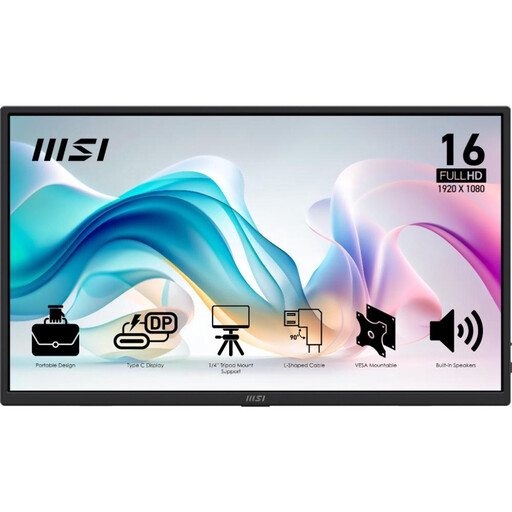 Image unavailable
MSI PRO MP165 E6 15.6-inch Full HD portable USB-C monitor
Could suit you if you want to place a 15.6-inch screen alongside your study notes; make sure you have enough room for the monitor on the shared table.
The product title lists Full HD, 15.6 inch, USB-C and speakers. Before buying, check the connections and power supply requirements of your laptop and the version you’ve chosen.
View at Joybuy
 Image unavailable
ASUS ZenScreen MB166CR 15.6-inch Full HD monitor
Could suit you if you’d like a larger physical screen and want to position it freestanding on the table.
ASUS lists a resolution of 1920 × 1080, an anti-glare finish and a 360° stand for the MB166CR. For video over USB-C, your laptop’s port must support DP Alt Mode.
View at Joybuy
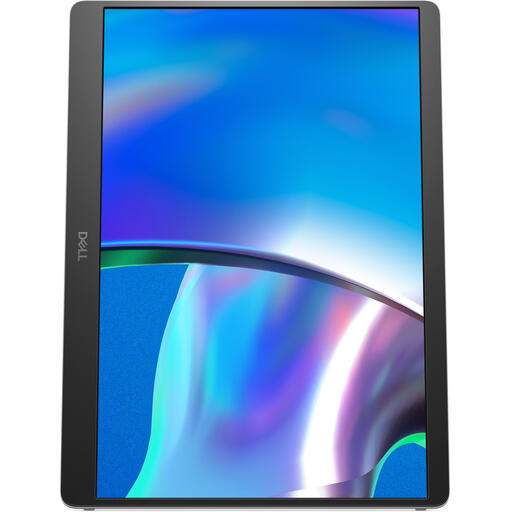 Image unavailable
Dell Pro Plus P1425 14-inch 1920 × 1200 monitor
Could suit you if you want to use a compact monitor alongside your notes and don’t need a touchscreen.
Dell lists a resolution of 1920 × 1200 for the P1425, along with an anti-glare finish and a tilting stand. Check that the connections and power supply work with your laptop.
View at Joybuy
Frequently asked questions
Will every USB-C port on my laptop work with a portable monitor?
No, not every USB-C port supports video output. ASUS lists DP Alt Mode for video on the ZenScreen MB166CR, so check your laptop’s port functions and the requirements of the exact monitor.
How can I use two screens for a drawing and my notes?
Connect the monitor using a supported display connection, then select an extended desktop on your laptop. Put the drawing and notes on separate screens, and check that the scaling is comfortable to read in each application.
Will I need a separate power cable when using HDMI?
An HDMI input confirms the display connection, but not how the monitor is powered. Check the power requirements and what’s included with the exact model.
What if the screen isn’t compatible with my laptop or develops a fault after I buy it online?
According to ACM ConsuWijzer, online consumer purchases in the Netherlands generally come with a statutory 14-day cooling-off period after delivery, subject to legal exceptions. This is separate from the statutory guarantee: if a product doesn’t meet what you could reasonably expect when used normally, the seller is your point of contact.


