Choose a portable monitor that receives its display signal from the computer storing your local project files: a standard monitor won’t open files by itself. A higher resolution and plenty of screen space can be useful for viewing small map details, but weigh these against size and power requirements. Touchscreen functionality or a built-in battery is most relevant if it suits the way you work.
Who is a portable monitor suitable for?
Map and scan viewer
You view details in historical maps or scans while keeping project materials open on your computer. Screen detail and a comfortable viewing angle may be important. The National Archives describes zoom, pan and rotate functions for scans.
Researcher working in different locations
You take scans and local files with you on a laptop, so you need a working display connection and a suitable power supply. ASUS Support explains that USB-C video depends on the video capabilities of the computer’s port.
Digital annotator
You want to control or annotate scans on a second screen. Lenovo specifies that the ThinkVision M14t Gen 2 has touchscreen functionality and supports an active stylus. Also check that your software and pen suit the way you want to work.
What should you look for when choosing one?
Start by checking the display connection to your computer, then compare the resolution, portability and any control features with the way you work.
| What to consider |
What to look for when buying |
Who is this most relevant for? |
| Scan detail |
Compare the native resolution, aspect ratio and screen size with the way you view scans. Also check the zoom features in your software. |
If I want to view small map labels without losing sight of my project files, I prioritise legible detail. Around 36% of consumers put this need first. |
| Files and display connection |
Check whether your computer can output video through the USB-C connection you’ve chosen, or use a suitable HDMI connection. Bear the monitor’s power requirements in mind. |
If I want to show local files on a second screen, my computer and the connection I choose both need to suit the setup. Around 29% of consumers prioritise this combination of files and connectivity. |
| Portability and power |
Consider the screen size, the power source required and whether you need a built-in battery for your workspace. Compare battery life only under the stated conditions. |
If I work in different locations, I want to know how to carry the screen and power it. Around 21% of consumers give these practical considerations the most weight. |
| Touch and annotation |
Check touchscreen and pen support, the type of pen supplied and whether your software can save annotations. |
If I want to control scans directly or write on them, the screen, pen and software need to work together. Around 14% of consumers prioritise this way of annotating. |
Things to watch out for when buying
-
USB-C doesn’t automatically mean it can carry a video signal
A USB-C port may not support video. ASUS Support distinguishes between USB-C ports with video capabilities and connections that only support other functions.
Check what both your computer and monitor support, and choose a suitable cable before relying on USB-C.
-
A second screen won’t open local files by itself
A standard portable monitor displays the output from a connected device. LG states that the 16MQ70 has no processor, operating system or storage of its own.
Before you buy, decide which device stores your scans and project files, and which software you’ll use to open them.
-
Touchscreen functionality doesn’t mean you have a complete annotation setup
For the ThinkVision M14t Gen 2, Lenovo specifies support for an active stylus, while the pen supplied is passive.
Check which type of pen you need, whether your software works with it and where annotations will be saved.
-
An old product listing doesn’t tell you everything about a model’s status
LG marks the 16MQ70 as discontinued. An old model specification therefore doesn’t confirm that it’s currently available.
Before buying, check the current version and availability of the model you’re considering.
Brands and models to compare
Lenovo
Lenovo describes the ThinkVision M14t Gen 2 as a 14-inch touchscreen with 2240 × 1400 pixels and a 16:10 aspect ratio.
- Its combination of resolution and touchscreen functionality may be useful if you view detailed scans or want to control the screen directly.
- Lenovo lists a passive pen as included, not an active stylus. Also check that the connection and software are compatible with your computer.
ASUS
According to ASUS, the ZenScreen MB16AHV has USB-C and mini-HDMI. The separate MB16AHP has a built-in battery.
- The MB16AHV’s range of inputs may be useful if you need an alternative to USB-C video.
- ASUS states that the MB16AHP offers up to four hours of use under the specified test conditions. This isn’t a real-world test for your working setup.
Dell
Dell specifies that the Pro 14 Plus P1425 is a portable 14-inch IPS screen with 1920 × 1200 pixels and a 16:10 aspect ratio.
- The 16:10 aspect ratio is a useful specification to consider if you view scans and project materials side by side.
- Dell doesn’t list a touchscreen for this model. Check that its connections are compatible with your computer.
ViewSonic
ViewSonic describes the VA1650 as a Full HD model with USB-C, HDMI, a stand and a protective case.
- The stand and case are useful features to compare if you’ll be carrying the monitor and using it in temporary workspaces.
- ViewSonic specifies 1920 × 1080 pixels and a typical brightness of 250 cd/m². According to the manufacturer, the charging function described requires an external power adapter.
LG
The gram +view 16MQ70 is a 16-inch model with 2560 × 1600 pixels. LG Netherlands marks this model as discontinued.
- Its specifications illustrate what a portable screen with a larger display and higher resolution can offer.
- The model’s status means historical specifications aren’t proof that it’s currently available. The screen also can’t read local files by itself.
Portable monitors at Joybuy
These Joybuy picks are portable second screens for use with a computer, including higher-resolution options and touchscreen models.
 Image unavailable
TECLAST V16Q 2.5K 144Hz IPS monitor
An option to compare if you’re looking for a portable screen with a higher resolution and 16:10 aspect ratio for scans and project files.
The product name lists 2560 × 1600 pixels, 16:10, two USB-C ports, mini-HDMI and a stand.
Joybuy
 Image unavailable
UPERFECT 16-inch 2K 144Hz monitor
A good fit if you want to compare a portable second screen with a 16:10 aspect ratio and higher resolution.
The product name lists 2560 × 1600 pixels, a QLED screen, mini-HDMI, Type-C and VESA compatibility.
Joybuy
 Image unavailable
Blackview TABLE 9 16-inch monitor
A portable screen to consider if an adjustable stand is important when working in temporary workspaces.
The product name lists a 16:10 aspect ratio and a retractable, rotating magnetic stand. The title states that it’s compatible with PCs, smartphones, tablets and MacBooks.
Joybuy
 Image unavailable
UPERFECT 15.6-inch touchscreen monitor
An option to compare if you want a touchscreen for controlling a connected computer.
The product name lists 1080p, USB-C and VESA mounting. Check that the touch controls you need work with your computer and software.
Joybuy
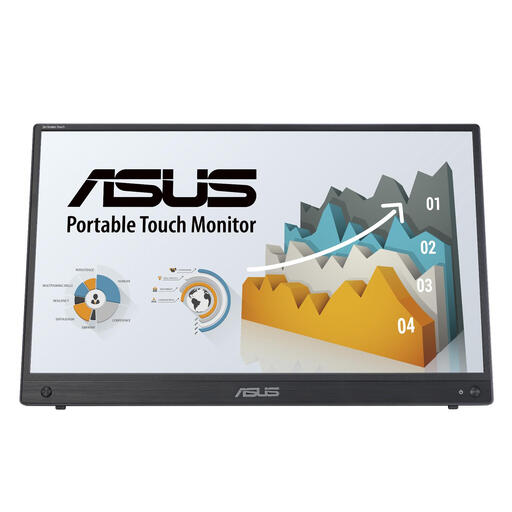 Image unavailable
ASUS ZenScreen MB16AHT 15.6-inch
A possible match if you want to compare a portable touchscreen as part of your working setup.
The product name lists a Full HD resolution of 1920 × 1080 pixels and touchscreen controls.
Joybuy
Frequently asked questions
Can I open scans and local project files directly from a portable monitor?
A standard portable monitor can’t open these files by itself. Use the connected computer and its files or software instead. Check individual models if they’re advertised as standalone file viewers.
Why isn’t my laptop displaying anything through USB-C?
Not every USB-C connection supports video. Check that both your laptop and monitor support video over the connection you’ve chosen, such as DisplayPort Alt Mode, and use a suitable cable. ASUS Support distinguishes between video capabilities and connections that only support other functions.
How can I view an archive scan without losing sight of the bigger picture?
You can view the scan on one screen and project materials on the other, if your computer supports this setup. The National Archives describes zoom, pan and rotate functions for its scan viewer; how you control local files depends on the software you use.
What should I know about warranties and returns in the Netherlands?
If a product is faulty, contact the seller about your statutory guarantee rights. In the Netherlands, there’s no fixed statutory guarantee period. For distance purchases, you can usually change your mind within 14 days, although there are exceptions. The Dutch government explains these statutory rights.


