
Reader of detailed scans
You enlarge small print or compare fine details, and weigh up the screen space and resolution you need against the monitor’s physical size.


If you mainly look at small text and fine details, compare the resolution and aspect ratio of the exact model. If you move the screen frequently, consider its dimensions, weight and stand too. Before buying, check whether your laptop can output video over USB-C, how the monitor is powered and whether you can position it securely in different workspaces. Specifications can help you weigh up your options, but they don’t prove how well a particular screen will display your archive scans.
You enlarge small print or compare fine details, and weigh up the screen space and resolution you need against the monitor’s physical size.
You regularly pack away the screen and set it up again. Weight, protection and a stable viewing position are important considerations.
You want to check in advance that video, power and any touch controls will work with the equipment and software you use.
Start with the level of readability you need, then weigh it against portability, connectivity and the power available in your workspaces.
| What to consider | What to look for when buying | Who should pay extra attention? |
|---|---|---|
| Scan detail | Compare the native resolution, screen size and aspect ratio of the exact model. If possible, try a representative scan at a magnification that’s comfortable for you to read. | I want to assess small print and details on maps. Around 27% of consumers prioritise scan detail. |
| Frequent moving | Check the weight and dimensions of the model, including the items you’ll be carrying. Also consider the case and how stable the stand is. | If I often pack and unpack the screen, I want to know how much my full set-up weighs and whether I can position it securely each time. Around 27% of consumers prioritise portability. |
| Video connection | Check whether your laptop port supports video, whether the cable is suitable and what power source the screen needs. | I switch between laptops and don’t want to discover at my destination that the video connection doesn’t work. Around 20% of consumers make reliable connectivity their top priority. |
| Changing light | Compare the stated screen size and brightness. Also consider whether you can adjust the monitor’s position in relation to windows in your workspace. | When I work in places with different lighting, I want to view my scans without distracting reflections. Around 13% of consumers prioritise changing light conditions. |
| Power on the go | Check whether your laptop can supply power, how the exact model is powered and whether its stated battery life suits your work sessions. | I can’t always rely on having a spare power socket when viewing scans. Around 13% of consumers make independent screen power their top priority. |
The shape of a USB-C port doesn’t confirm that your laptop’s port supports a video signal. VESA describes DisplayPort Alt Mode as a feature that allows video to be transmitted over a compatible USB-C connection.
Check the laptop and monitor specifications, cable and power requirements before ordering. If you connect via HDMI, check the power supply separately.
Depending on the connection you choose, you may need a suitable cable, adapter or separate power supply.
Resolution and aspect ratio tell you about the screen, but don’t prove how easy it is to read small text or details from your scans. The physical screen size and original scan also play a part.
Compare both the resolution and dimensions. If possible, assess a representative scan at the magnification you use.
ASUS lists the ZenScreen MB16AHV as having a net weight of 0.9 kg; one retailer listing gives a weight of 780 g. The listings don’t explain the difference.
Check the weight of the exact model and remember to factor in the case, cables and any other items you’ll be carrying.
ASUS states that the ZenScreen Go MB16AHP can be used for up to four hours under the specified conditions. The ZenScreen Duo MB14FCD requires suitable video connections and power, as well as enough desk space.
Check the power supply and available space at the locations where you’ll actually view your scans.
A screen with a battery needs charging; a dual-screen model needs room for both panels when set up.
The ZenScreen models in this comparison range from Full HD with mini-HDMI to a 16-inch screen with higher resolution and a model with a built-in battery.
Lenovo describes the ThinkVision M14t Gen 2 as a compact 14-inch touchscreen.
The Dell Pro 14 Plus P1425 is a 14-inch portable monitor with a 16:10 panel.
The HP E14 G4 is a 14-inch Full HD monitor with USB-C, a stand and an anti-glare surface.
These product picks are aimed at viewing scans in different workspaces, with a focus on screen size, connections and ease of set-up.
 No image available
The stated 16:10 aspect ratio and built-in stand may suit anyone looking for a portable screen to set up for viewing scans.
Specifications: FHD IPS screen, 16:10, 144 Hz, two USB-C ports, mini-HDMI and stereo speakers. Check that your laptop supports the video connection you choose and how the monitor is powered.
 No image available
The stated 2.5K resolution and 16:10 aspect ratio are worth considering when comparing scan display and portability.
Specifications: IPS screen, 144 Hz, 16:10, two USB-C ports, mini-HDMI and built-in stand. Check the video and power connections against your own equipment.
 No image available
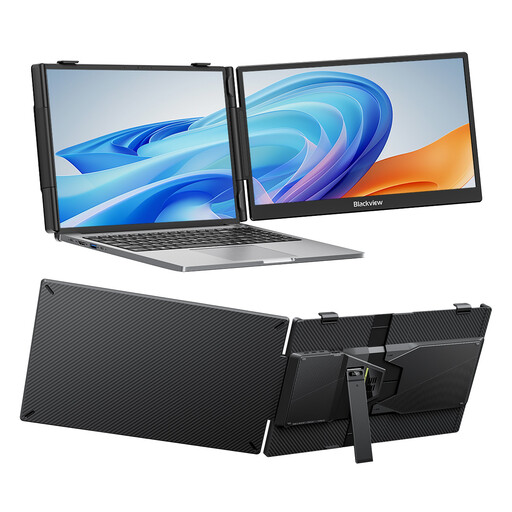
The 14-inch size and adjustable stand are worth considering if you regularly set up the monitor in a different workspace.
Specifications: FHD IPS screen, stated thickness of 18,2 mm, 1,5 W speaker and adjustable stand. The product name lists compatibility with 13 to 17,3-inch laptops; also check the connections on your own device.
 No image available
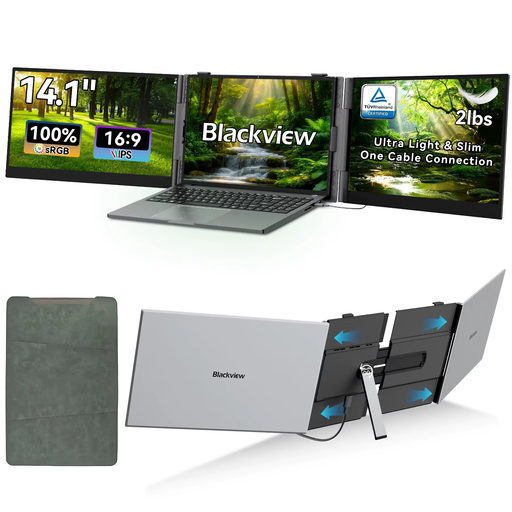
The stated 14-inch screen size may suit anyone looking for a compact option to use in different places.
Specifications: 1920 × 1080 pixels, 16:9, IPS and 60 Hz. The product name lists compatibility with Windows, Mac and mobile devices; check that your device and chosen connection are supported.
 No image available
The 16:10 aspect ratio may be worth considering if you’d like to compare models with more vertical screen space for viewing scans.
Specifications: 16-inch WUXGA IPS screen, USB-C and 65 W Power Delivery. Video over USB-C requires a compatible DisplayPort Alt Mode port; check your laptop’s specifications.
No. Don’t assume a port supports video based on its shape. Check your laptop specifications to see whether the port supports video, for example via DisplayPort Alt Mode, and compare the monitor’s power requirements too.
Reassess the workspace each time: position the monitor securely, consider its viewing angle in relation to windows and adjust the workspace where possible. Arboportaal provides this workplace guidance; a portable stand alone doesn’t guarantee good ergonomics.
That depends on the screen and operating system. Check support for your model and scanning software. For example, ViewSonic lists additional touch software for the TD1656-2K on macOS; this doesn’t automatically apply to other models.
For a standard online consumer purchase, ACM ConsuWijzer says you generally have up to 14 days from delivery to change your mind, subject to legal exceptions. If the product is faulty, the seller is responsible for the statutory guarantee. An extra commercial warranty doesn’t replace those rights.
Yes. Rules apply to screen workstations for employees. Arboportaal states, among other things, that if you work at a screen for more than two hours a day, the screen and keyboard must not be attached to each other. When using a laptop, a separate screen or keyboard must therefore be available. This isn’t a universal buying requirement for every private purchaser or every use of a portable monitor.