
Reader of digitised archive documents
You want to view scans, transcriptions and notes at the same time. So pay attention to the resolution, aspect ratio and text scaling you use to read the documents.


Start by choosing a monitor that fits on your desk and that your laptop can actually output a picture to. A compact 14-inch 16:10 screen leaves more room to work, while a larger model gives you more screen space; a higher resolution can show fine scan details, but check the text scaling, stand and laptop connection too.
You want to view scans, transcriptions and notes at the same time. So pay attention to the resolution, aspect ratio and text scaling you use to read the documents.
You need to fit the extra screen alongside your laptop and papers, then put it away when you have finished. Consider the screen size and the space needed for the stand when it is unfolded.
You take the monitor with you or connect it in different locations. Check which video output, cable and power supply your laptop and the screen need.
Start with the space available on your desk and a working video connection. Then compare how documents look at the text size you find comfortable, and decide whether extra features suit the way you study.
| What to consider | What should you check? | Who is this important for? |
|---|---|---|
| Scan readability | Compare the resolution with the quality of your scans and the PDF zoom level you use to read the text. | I want to read scans, transcriptions and notes side by side without losing sight of the text size. Around 29% of consumers put readability first. |
| Space and viewing position | Measure the space for the screen and stand, and leave room for your laptop and papers. | At a crowded desk, I want to keep my papers next to the screen. Around 24% of consumers give top priority to keeping desk space clear. |
| Video connection and power | Check that your laptop port supports the screen’s video input, and find out which cable and power supply are required. | I want to connect the second screen to the laptop I already use, without relying on the USB-C connector alone. Around 29% of consumers prioritise a suitable connection and power supply. |
| Features for working with documents | Decide whether you really need touch controls, extra connections or a high refresh rate. | When studying documents, I mainly want to choose features I’ll actually use. Around 18% of consumers prioritise useful document features over extra capabilities. |
A USB-C port on your laptop does not guarantee that it can send a video signal to the monitor.
Before choosing a model, check the specifications for the exact laptop port and the monitor’s video connection.
Without a compatible video output, the monitor cannot work as a second screen in the way you intend.
On a small desk, the unfolded stand also takes up space, alongside your laptop, cables and papers.
Measure the full setup and check that you can position the screen at a comfortable viewing angle.
The ARZOPA Z1FC’s 144 Hz specification describes its refresh rate; on its own, it does not tell you how much detail a still archive scan will show.
For document work, first compare resolution, screen space and the text scaling you use. Consider the refresh rate only if moving images matter too.
The Series 5 Pro 514pn is a compact option to compare if fine scan details matter to you.
The Pro 14 Plus P1425 offers a compact 14-inch screen for documents when desk space is limited.
The ThinkVision M14t Gen 2 is worth considering if touch controls or pen input are part of your document work.
ZenScreen models vary in screen size and connections, so make sure you compare the specifications for the right version.
The Z1FC is a larger 16.1-inch Full HD model that is also designed for moving images.
This selection includes compact 14-inch models and larger portable screens for comparing archive scans with notes. For each model, check that its size, connections and resolution suit your desk and laptop.
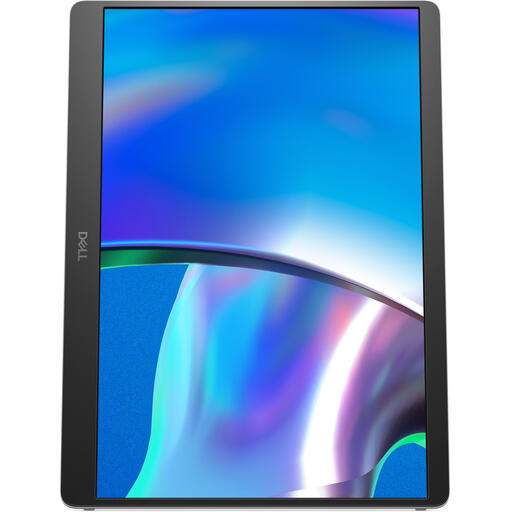 No image available
A compact screen for documents to consider if you want to keep space free next to your laptop.
1920 × 1200 pixels and a 16:10 aspect ratio. The description lists an adjustable stand and protective case.
The USB-C connection for video requires a compatible video output on your laptop.
 No image available
A larger screen to consider if your desk has enough room for a spacious document window.
The product title lists 2560 × 1600 pixels and an IPS screen. The description mentions a built-in stand, two USB-C ports and HDMI.
The 16-inch size takes up more desk space than a compact 14-inch screen.
 No image available
A compact model to compare if you’re looking for a portable screen with several listed connection options.
The product title lists Full HD 1080p. The description mentions two USB-C ports, mini-HDMI and a built-in stand.
The stated resolution is Full HD; the 14-inch size does not make it equivalent to models with a higher pixel resolution.
 No image available
A larger screen for documents to compare if your desk has room for a 16-inch monitor.
The product title lists WUXGA IPS and 65 W Power Delivery. The description mentions an adjustable stand and protective case.
The 16-inch size takes up more desk space than a compact 14-inch alternative.
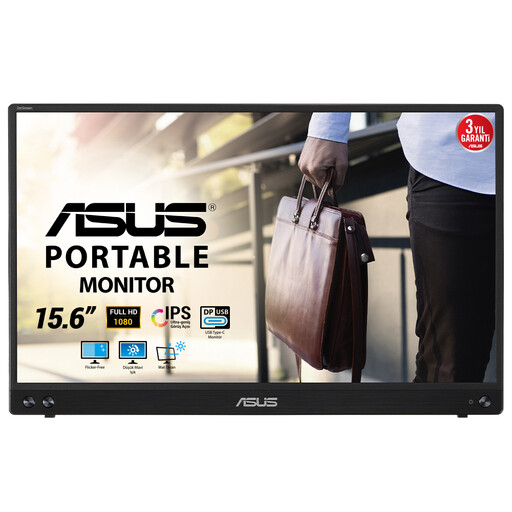 No image available
A larger portable screen to consider if your desk has more room than a compact 14-inch model needs.
1920 × 1080 pixels and Full HD. The description lists a USB-C connection for video and power, and a stand.
The USB-C connection for video requires a compatible device; check the exact connection on your laptop.
No. Check whether your laptop port can provide the required video signal, such as DisplayPort Alt Mode, and whether its power supply is suitable for the screen you choose. A USB-C connector alone does not mean that video is supported.
Choose a position where you look straight at the screen or slightly downwards, and tilt the screen towards you. Arboportaal offers this as workplace advice; it is not a legal purchasing requirement or a guarantee that discomfort will be avoided.
Only if touch or pen input genuinely suits the way you work and your laptop and software support it. Lenovo lists touch controls for the ThinkVision M14t Gen 2; this does not demonstrate an advantage for simply reading.
For a standard online consumer purchase, you generally have a statutory 14-day cooling-off period after delivery, subject to applicable exceptions. You also have a statutory guarantee: ACM ConsuWijzer explains that, when used normally, the product must meet what you can reasonably expect; a manufacturer’s warranty period does not replace this right.