For archive research at a shared table, a compact screen is a good choice if saving space is your main priority. A larger screen may be more comfortable if you want to view scans alongside your notes and have room on the table. Before buying, check whether your laptop can output video through the connection you plan to use, how the monitor is powered, and whether the archive allows you to use an extra screen.
Who is a portable monitor suitable for?
Researcher with a crowded archive table
Want to view scans alongside your notes without taking up too much room for original documents? A compact screen with an adjustable stand is a sensible place to start. Dell and Lenovo offer 14-inch options in the models featured here.
Reader of lengthy scans
If you spend long periods reading documents, weigh up screen size, resolution and the option of portrait orientation against the monitor’s weight and the space available on the table. Lenovo and ASUS list these features for specific models.
Visitor without reliable access to power
If you don’t want to rely on a mains socket, check in advance how your laptop and monitor will be powered together. HP describes a charging set-up for the E14 G4 using its own charger; ViewSonic states that an external adapter is needed to charge the VA1655 using the solution described.
What should you look for when choosing one?
Start by checking the video connection and power set-up for your laptop and monitor. Then compare the screen size with the space you have at the table and in your bag, and make sure your set-up complies with the archive’s rules.
| What to consider |
What should you check? |
Who should pay particular attention? |
| Video connection |
Check that your exact laptop port supports video and that the monitor’s input is compatible with the cable. HDMI may be an alternative if both devices and the cable support it. |
If I want to connect my laptop to a screen without connection problems, I’ll first check the video capabilities of both devices; around 29% of consumers prioritise a reliable connection. |
| Readability |
Compare the resolution, aspect ratio, viewing angle and any portrait-viewing option with the scans you use. A screen can’t make a poorly scanned source easier to read by itself. |
When I’m reading lengthy scans, I want to view documents comfortably without having to switch layouts unnecessarily often. Around 23% of consumers put document readability first. |
| Space and size |
Compare the dimensions and weight of the screen and stand, as well as the space taken up by cables. |
If I need to fit my laptop and archive documents on a shared table, a compact set-up matters more to me than extra screen space; around 18% of consumers prioritise space at the table and in their bag. |
| Power |
Check which power source, cables and adapters your set-up needs, and whether a mains socket is available. Test the complete set-up in advance. |
If I might be working without a mains socket, I want to know whether my laptop battery will need to power the monitor or whether a separate power source is needed. Around 18% of consumers put finding a suitable power set-up first. |
| Privacy and archive rules |
Ask the relevant archive what equipment is allowed and whether any restrictions apply to the material. Also consider who will be able to see your screen at the shared table. |
If I’m viewing material with access restrictions, I want to know in advance whether a visible second screen is appropriate. Around 12% of consumers prioritise privacy and the archive’s conditions. |
Common mistakes
-
Assuming every USB-C port supports video output
A USB-C connection alone doesn’t guarantee video output. Your laptop’s video output, the monitor’s input and the cable must all support the connection method you choose.
Check the connection options on your exact laptop and monitor, and find out which cable you need.
-
Confusing power pass-through with operation without external power
The pass-through charging feature described doesn’t automatically mean the monitor works without an external power supply. HP states that the E14 G4 needs its own charger to charge the laptop at the same time; ViewSonic says an external adapter is needed to charge using the VA1655 solution.
Check separately how you’ll power the monitor and whether you’ll also need to charge your laptop during your visit.
-
Assuming every archive allows a second screen
The rules at one archive don’t automatically apply to another reading room. The material you’re viewing may also be subject to access conditions.
Ask the relevant archive about its equipment rules in advance and follow any restrictions that apply to the material.
Brands and models to compare
Dell
The Pro 14 Plus P1425 is a compact 14-inch option for a small work area beside your laptop.
- Dell lists an IPS screen with 1920 × 1200 pixels and a tilting stand for the P1425.
- The product specifications don’t list a touchscreen. Check that the connection is compatible with your laptop.
Lenovo
The ThinkVision M14t Gen 2 is a 14-inch option if a 16:10 aspect ratio and touch control suit the way you work.
- Lenovo lists 2240 × 1400 pixels, two USB-C ports, a weight of 700 g and touch control for this model.
- Don’t assume touch control will work with every connected device; check compatibility.
HP
The E14 G4 is a 14-inch model that lets you compare portability and power requirements.
- HP lists a weight of 640 g, a resolution of 1920 × 1080 pixels and 65W power pass-through.
- HP says its own charger is also needed for the simultaneous charging set-up described. So, a single cable to the laptop doesn’t mean you can do without an external power source.
ASUS
The ZenScreen MB16AHG has a 15.6-inch screen for those who want to compare a larger display alongside their laptop.
- ASUS lists a fold-out stand, 1920 × 1080 pixels, a weight of 0.92 kg and 144 Hz for this model.
- The stated refresh rate doesn’t in itself offer an advantage for reading static archive scans; also consider the size and connection.
ViewSonic
The VA1655 is a 15.6-inch option with a foldable stand, USB-C and mini-HDMI.
- ViewSonic lists a weight of 0.7 kg and the option to set up the screen in portrait orientation.
- According to ViewSonic, an external adapter is needed for charging using the solution described. Also check the video output and power supply of your source device.
Portable monitors at Joybuy
This selection of Joybuy products includes compact screens for a crowded table and larger options for viewing documents. For each model, check the connection and power set-up with your own laptop.
 No image available
Blackview DCM6 PRO, 14-inch Full HD monitor
A compact second-screen option if you want to view scans alongside your laptop while keeping space free on the table.
14 inches; Full HD; listed in the product name as suitable for 13–17.3-inch laptops. Check your laptop’s video output and cable.
View at Joybuy
 No image available
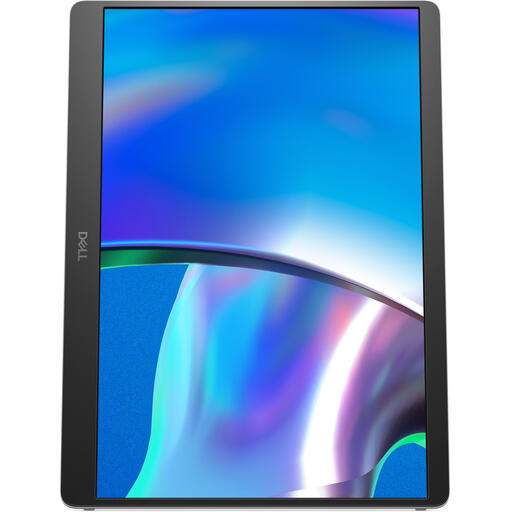
Dell Pro Plus P1425, 14-inch
A compact option if you want to place a second screen beside your laptop at a shared table.
14 inches; 1920 × 1200 pixels.
View at Joybuy
 No image available
Arzopa A1S, 14-inch FHD monitor with stand
A compact choice if you’re looking for a portable second screen with its own stand.
14.0 inches; FHD 1080P; built-in stand.
View at Joybuy
 No image available
TECLAST V16Q, 2.5K monitor with 16:10 aspect ratio
An option to compare if you want more space for documents and have room for a larger screen.
2.5K; 16:10; USB-C and mini-HDMI; built-in stand.
View at Joybuy
 No image available
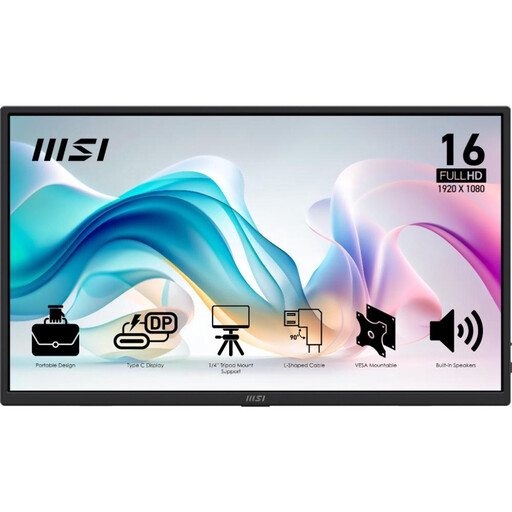
MSI PRO MP165 E6, 15.6-inch Full HD monitor
A larger screen to consider if there’s room on the table for documents alongside your laptop.
15.6 inches; Full HD.
View at Joybuy
Frequently asked questions
Will every USB-C port on my laptop output video to a portable monitor?
No, a USB-C port doesn’t automatically guarantee video output. Check that your laptop port and the monitor support the required USB-C video function; consult the specifications for both exact devices.
How do I set up a second screen for lengthy scans?
Choose your preferred display mode in the display settings and try portrait orientation if the monitor supports it. Set the stand up securely and leave room for archive documents and cables.
Can I charge my laptop through the monitor without a mains socket?
Don’t assume so. HP describes simultaneous charging for the E14 G4 with its own charger connected; ViewSonic says an external adapter is needed to charge using the VA1655 set-up. Check the complete power set-up for your chosen combination.
What warranty and cancellation period apply to an online purchase in the Netherlands?
For a consumer purchase, you have a statutory guarantee in addition to any manufacturer’s warranty if a product doesn’t meet your reasonable expectations under normal use; there is no general fixed guarantee period. For a standard online product purchase, you usually have up to 14 days after delivery to change your mind, subject to legal exceptions. ACM ConsuWijzer explains these rights.


