Choose a portable screen if you regularly carry it between rooms; a larger screen is better for design and colour reviews in a permanent workspace. Before buying, check that your laptop, monitor, cable and power supply can work together to provide a picture. And remember that manufacturers’ colour figures are not proof of how a screen will perform in your working conditions.
Who is this choice relevant to?
Design reviewer moving between rooms
You take a second screen with you for drawings, project notes and meetings. Consider how easy it is to carry, set up securely and connect to your laptop. Arboportaal advises checking that your workstation is set up correctly whenever you move to a new workspace.
Detail and colour reviewer
You mainly review fine design details or colour proposals in one place, weighing screen space and model-specific colour specifications against portability. Manufacturer figures are not an independent measurement of colour performance in your own working environment.
Reviewer who annotates digitally
You want to point things out or write on the screen during a discussion. Check that your preferred input method, any pen and the software you use are compatible. Lenovo lists active stylus support for the ThinkVision M14t Gen 2, but says a passive pen is included in the box.
What should you look for?
Compact portable second screen
Best for: moving between rooms regularly and showing a design alongside your laptop.
The trade-off: a smaller screen takes up less space, but drawings and documents appear physically smaller.
Larger screen for a permanent workspace
Best for: working in one place most of the time, when screen space matters more than portability.
The trade-off: a larger screen is less convenient to move between rooms regularly. And manufacturers’ colour claims don’t tell you how the screen will perform in your conditions.
| Consideration |
What to look for when buying |
Who is this most relevant to? |
| Carrying and setting up |
Consider the weight of the screen and the equipment you need, the available desk space, and how you can position it in the workspaces you use. |
If I move between rooms regularly, I want to be able to carry the screen and set it up quickly. Around 28% of consumers prioritise portability and quick set-up. |
| Room for detail |
Compare screen size, resolution and aspect ratio with your drawings, documents and usual text size. |
When I review drawings, text and references side by side, I want to see them clearly at my usual viewing distance. Around 22% of consumers prioritise having enough room to read the details. |
| Colour review |
Check the stated colour gamut and accuracy claim separately for the exact model, and take settings and lighting into account. |
For colour reviews, I want to know exactly what the model’s specifications say, without treating them as a measurement in my own working environment. Around 17% of consumers prioritise colour review. |
| Video connection and power |
Check the video capabilities of your laptop port, the monitor connection, the right cable and the power required. |
Before considering other features, I want to know whether my laptop, cable, screen and power supply will work together. Around 22% of consumers prioritise a reliable connection. |
| On-screen annotation |
Check for touchscreen functionality and pen support, which pen is included, and whether your operating system and software are compatible. |
If I want to point things out or write directly on a design during a review, the input method needs to work with my software. Around 11% of consumers prioritise digital annotation. |
Common pitfalls
-
Assuming every USB-C port supports video and power
A USB-C connector alone doesn’t confirm that your laptop supports the required video signal mode or that its power supply is suitable for the screen.
Before choosing a screen, check the capabilities of the specific laptop port, monitor model, cable and power supply as one complete set-up.
-
Treating a manufacturer’s colour claim as an independent measurement
The colour figures ASUS and BenQ provide for their models are manufacturer claims specific to those models. Without consistent measurement conditions, they don’t tell you which screen is most accurate for your reviews.
Compare colour gamut and accuracy claims separately, then assess colour performance in the conditions in which you’ll use the screen.
-
Comparing weight alone and forgetting about your workspace
A compact screen is easier to carry, but available desk space and the ability to position it properly matter too.
Consider viewing distance, space and adjustment options in the places where you actually discuss designs.
Brands to compare
Lenovo
The ThinkVision M14t Gen 2 is a compact second screen where touchscreen functionality can come in handy.
- Lenovo lists a 14-inch screen, 2240 × 1400 resolution, 700 g weight and 10-point touch for this model.
- Active stylus support doesn’t mean one is included; Lenovo says the box contains a passive pen.
Dell
The P1425 is designed to display content alongside a laptop, without touchscreen functionality.
- Dell lists a 14-inch screen, 1920 × 1200 resolution and tilt adjustment for the P1425.
- According to Dell, this model doesn’t have a touchscreen; these features don’t necessarily apply to other Dell monitors.
ASUS
The ProArt PA278CV is a larger screen for a permanent workspace where you review designs and colour.
- ASUS lists a 27-inch screen, 2560 × 1440 resolution, 100% sRGB and USB-C with 65 W power delivery. ASUS gives this model a factory ΔE < 2 claim.
- These factory figures aren’t an independent measurement under your working lights, and the larger size makes the screen less convenient to move regularly.
BenQ
The PD2705U is another option for reviewing detail and colour in a larger, permanent workspace.
- BenQ lists a 27-inch 4K screen, 99% sRGB and a ΔE claim of ≤ 3 for the PD2705U.
- These are manufacturer claims specific to this model, not proof that it will be more accurate than other models in every setting.
Philips
The 27E1N5600AE/00 is a USB-C screen for anyone who wants an easy connection in a permanent or mostly fixed workspace.
- Philips describes video, data transfer and laptop charging through a single USB-C cable.
- That description doesn’t confirm that every laptop will work with a single cable or that this model is suitable for colour-critical design reviews.
Portable screens at Joybuy
This selection focuses on portable second screens that you can carry and set up alongside a laptop. Check that each model’s connections and power requirements are compatible with your laptop.
 No image available
TECLAST V16H 16-inch portable monitor
The portable design and built-in stand make it a practical second screen to move between workspaces.
The product name lists a 16-inch IPS screen, FHD, 144 Hz, a 16:10 aspect ratio, two USB-C ports and Mini HDMI.
View at Joybuy
 No image available
UPERFECT 16-inch 2K portable monitor
This portable screen is designed to serve as a second screen for a PC or laptop.
The product name lists 2560 × 1600 resolution, a 16:10 aspect ratio, 144 Hz, QLED, a 1200:1 contrast ratio, 450 nits, Mini HDMI and USB-C.
View at Joybuy
 No image available
ARZOPA Z1RC 16-inch 2.5K portable monitor
The portable design and built-in stand make it a good fit as a second screen to move between workspaces.
The product name lists 2560 × 1600 resolution, QHD IPS, 123% sRGB, and USB-C and HDMI connections.
View at Joybuy
 No image available
UPERFECT 15.6-inch 1080P portable monitor
This portable monitor is designed to provide a separate screen for your laptop.
The product name lists a 15.6-inch IPS screen with 1920 × 1080 resolution and USB-C.
View at Joybuy
 No image available
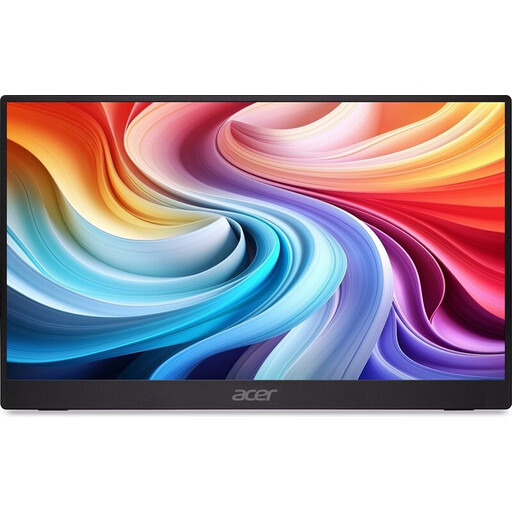
Acer PM161QB1 15.6-inch portable monitor
The portable 15.6-inch size is designed for use as a second screen in different workspaces.
The product name lists a 60 Hz refresh rate. According to the product information, the charger must be purchased separately.
View at Joybuy
Frequently asked questions
Can any USB-C laptop connect to a portable screen with a single cable?
No. Check whether the specific laptop port can output video using the required mode, and whether the cable and power supply are suitable for the screen. Having a compatible connector alone isn’t enough.
Does the Lenovo ThinkVision M14t Gen 2 come with an active stylus?
Lenovo lists active stylus support, but names a passive pen among the included items. Check which type of pen your software needs and what comes with the model.
How should I set up my workspace if I regularly move between rooms?
Arboportaal advises checking that your workspace is set up correctly when you move to a new location, and making sure the set-up can be adjusted properly. This workplace advice isn’t proof that a particular monitor prevents health problems.
What happens in the Netherlands if my monitor turns out to be faulty?
For a consumer purchase, the seller must provide a solution if there’s a problem with the product. The manufacturer’s warranty or an extended warranty is in addition to this; which rights apply depends on the fault and the circumstances.
Should I check the energy label when buying a monitor?
The European Commission lists energy labels for electronic displays, including computer monitors, on a scale from A to G. Compare the details for the exact model, and don’t use the label to draw conclusions about colour quality.


