Choose a portable screen if you regularly take your monitor between rooms. A larger fixed monitor is a better fit if you mainly work at one desk and want to view maps and reference materials side by side. First, check that your laptop, monitor and cable support the video connection and power supply you need. Then weigh up screen space, adjustability and any pen input features. The stated capabilities are manufacturer specifications, not a measure of how well the monitor will suit your research files.
Who is this choice relevant to?
Researcher who regularly moves between rooms
Wants to take a second screen along and set it up in different places. Connectivity, power and a stable position are practical considerations; Lenovo and Philips describe portable models with different stands and connection options.
Researcher comparing maps and reference materials side by side
Wants to view maps, legends and research documents clearly at the same time. A larger fixed monitor may suit this need; Dell and EIZO describe fixed models in a range of screen sizes and resolutions.
Reviewer who annotates images
Wants to point things out or write directly on the screen during a discussion. For the ThinkVision M14t Gen 2, Lenovo distinguishes between the included passive pen and support for an active stylus.
What should you look for when choosing?
Start by asking whether you’ll take the monitor with you every time you move rooms. Then compare the space you need for maps and reference materials with the connections, power requirements and any input features.
| What to consider |
What to look for when buying |
Who is this important for? |
| Taking it with you and setting it up again |
Compare the size and weight of the exact model, and check which stand and any protective cover are included. |
If you regularly take your monitor between rooms, you’ll want one that’s easy to transport and set up again. Around 28% of consumers put portability at the top of their buying priorities. |
| Viewing maps and making space for reference materials |
Open your own files and compare the screen size and resolution with the text scaling and window layout you use. |
If you want to assess maps, legends and documents at the same time, having enough clear workspace is key. Around 22% of consumers prioritise an overview of their maps. |
| Video connection and power |
Check your laptop’s video output, the monitor’s input, its power requirements and whether the cable is suitable, separately. |
If you want to get connected quickly, check whether your chosen setup can provide both video and power. Around 22% of consumers name connectivity as their top buying priority. |
| Working posture in different locations |
Check the tilt and height adjustments offered by the stand and how stable it is on the tables available. |
If you work in different places, you’ll want to position the screen comfortably each time. Around 17% of consumers say being able to adjust their workspace is their top priority. |
| Annotating on screen |
Check touch support, the type of pen, compatibility with your computer and how it works with the app you use. |
If you want to point things out or make notes directly on images, distinguish between touch input, a passive pen and an active stylus. Around 11% of consumers rank on-screen annotation as a top buying priority. |
Monitor buying pitfalls
-
Assuming every USB-C port supports both video and charging
A compatible connector doesn’t guarantee that your laptop can output video or supply the power required. For video over USB-C on the 16B1P3302D/00, Philips says the connected device must support DP Alt Mode.
Before relying on a single cable, check the capabilities of your laptop and monitor, and make sure the cable is suitable. Check video and power separately.
Depending on the combination, you may need a different cable, adapter or power solution.
-
Assuming an included passive pen is the same as an active stylus
Lenovo lists a passive pen as included with the ThinkVision M14t Gen 2. Support for an active stylus doesn’t mean one is included in the box.
Check which type of input your annotation software supports and what’s included with the exact model.
If your workflow requires an active stylus, check whether you’ll need to buy one separately.
-
Choosing a large-map monitor based on resolution alone
The models described combine different resolutions with widely varying screen sizes. Resolution alone doesn’t tell you whether a map, legend and text will fit comfortably side by side.
View your own files at the scale you want, and weigh up the screen space available against how easy the monitor is to take with you.
Monitor brands to consider
Lenovo
The ThinkVision M14t Gen 2 is a compact portable touchscreen option for discussions on the move.
- Lenovo specifies a 14-inch screen with 2240 × 1400 pixels, a weight of 700 g and 10-point touch.
- A passive pen is listed as included; support for an active stylus doesn’t mean one is supplied.
Philips
The Business Monitor 16B1P3302D/00 is a portable second monitor with two USB-C ports.
- Philips specifies a 15.6-inch Full HD screen and a tilting stand for this model.
- For video over USB-C, Philips says the connected device must support DP Alt Mode; check the power requirements too.
ASUS
The ZenScreen MB16AHV is a portable option to compare if you’d like mini-HDMI as well as USB-C.
- ASUS lists a 15.6-inch Full HD screen, a fold-out stand, two USB-C ports and mini-HDMI.
- Check which accessories are included with the exact version sold in the UK and whether the power supply suits your setup.
Dell
The Pro Plus P2425DE is a fixed QHD monitor with adjustment options for a permanent workspace.
- Dell specifies a 23.8-inch screen, 2560 × 1440 pixels, height adjustment and 90 W USB-C power delivery for this model.
- A fixed monitor is less practical if you want to take it with you every time you move rooms.
EIZO
The ColorEdge CS2740 is a fixed option to consider if your research genuinely involves colour-critical image assessment.
- EIZO specifies a 26.9-inch 4K monitor for this model, aimed at uses including photography and graphic design.
- These specifications don’t show that colour management is needed for ordinary map or document viewing, and a fixed monitor won’t solve the problem of moving it frequently.
Joybuy products for mobile monitor use
These portable second screens are for anyone who moves between rooms; some versions also offer touchscreen controls.
 No image available
TECLAST V16H 16-inch portable monitor
A portable screen with a built-in stand for anyone who wants to use a second screen between rooms.
The title lists a 16-inch FHD IPS screen with a 16:10 aspect ratio and 144 Hz, two USB-C ports, mini-HDMI and built-in speakers.
View at Joybuy
 No image available
TECLAST V16Q portable monitor
This portable model may suit you if you want to take a second screen with you between rooms to view maps or documents.
The title and product description list a 16-inch IPS screen with a 16:10 aspect ratio and 2560 × 1600 pixels, two USB-C ports, mini-HDMI and a stand. The product information also states 100% sRGB.
View at Joybuy
 No image available
Lenovo L16 16-inch WUXGA IPS monitor
A portable monitor with an integrated adjustable stand for use in different workspaces.
The product description lists a 16-inch WUXGA IPS screen with a 16:10 aspect ratio and a weight under 1 kg. It also mentions two USB-C ports with DisplayPort Alt Mode and up to 65 W Power Delivery; check that this is suitable for your laptop.
View at Joybuy
 No image available
UPERFECT 15.6-inch touchscreen monitor
This portable model is worth comparing if you want to point things out directly on screen during discussions.
The product title lists 1080p, USB-C and mini-HDMI. The product description mentions an adjustable stand function in the smart cover; check that it suits your workspace.
View at Joybuy
 No image available
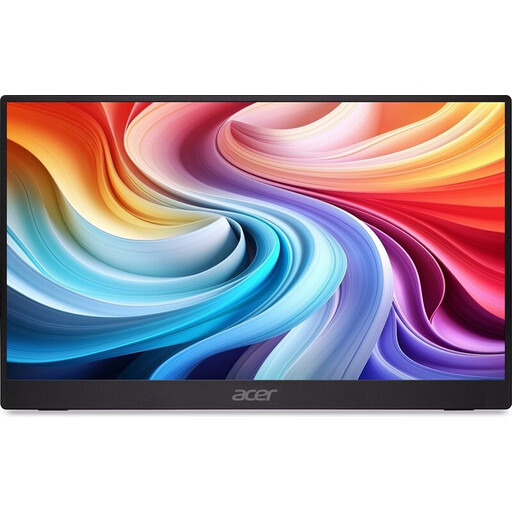
Acer PM161QB1 15.6-inch portable monitor
A portable second screen to compare if you want to take a monitor between rooms.
The title lists a 15.6-inch screen and 60 Hz; the product description mentions IPS, HDMI, USB-C, a stand and a weight of 0.75 kg. According to the product information, the charger is not included and must be bought separately.
View at Joybuy
Frequently asked questions
Will every USB-C port on your laptop work with a portable monitor?
No, it depends on the capabilities of the laptop and monitor. For video over USB-C on the 16B1P3302D/00, Philips says the connected device must support DP Alt Mode. Also check the power supply and cable for your setup.
How should you position your monitor when working in another room?
Review your setup whenever you move to a new workspace. Arboportaal advises placing the screen directly in front of you and adjusting its position to suit your workstation; the adjustments available depend on the monitor and stand you choose.
Do you need a touchscreen or active pen for map discussions?
Only if you want to point things out or annotate directly on the screen. Lenovo lists touch controls and active stylus support for the ThinkVision M14t Gen 2, but says a passive pen is included; check which input methods your computer and software support.
Is every researcher legally required to choose a particular type of monitor?
The information from Arboportaal does not establish a general requirement for every private monitor buyer to choose a specific model. For employees who work with screens for more than two hours a day, Arboportaal describes requirements for setting up the workstation and using a laptop; discuss any relevant working arrangements with your employer.


