
If you often move between study spots
You take your laptop with you between campus sessions and want to open a map and an explanation side by side at a temporary workspace.


A portable monitor is a better fit if you move between study spots on campus. A larger desktop monitor gives you more physical screen space if you usually read maps and explanations side by side at one desk. Before choosing a portable model, check that your laptop can output video through the connection you want to use, and find out how the monitor is powered. Resolution alone won’t tell you whether a screen suits the way you study plans.
You take your laptop with you between campus sessions and want to open a map and an explanation side by side at a temporary workspace.
You usually work at one desk and value screen space, positioning and legible detail more than portability.
You want to make notes directly on the second screen. So check whether the monitor supports touch, which pen is included and whether it works with your software.
Choose this if: you want to open a map or plan explanation alongside your laptop in different spots around campus.
Bear in mind: it has less physical screen space than a fixed 27-inch monitor, and your laptop will need the right connection and power supply.
Choose this if: using touch or writing on the second screen is an important part of how you work.
Bear in mind: check that the included pen and your annotation software suit the controls you need; a touchscreen won’t automatically work for every task.
Choose this if: you usually work in one place and want to view a map and its accompanying text on a larger workspace.
Bear in mind: the stated net weight of the ASUS PA278CV is 8,7 kg, so it’s not a practical choice for carrying around every day.
| What to consider | What should you look for? | Who is this important for? |
|---|---|---|
| Workspace and map detail | Compare the screen size, resolution and aspect ratio with the way you want to read maps and explanations side by side. | If I want to view a map and its explanation at the same time, physical screen space matters more to me than simply having a high pixel count. Around 29% of consumers prioritise a clear overview of maps and documents. |
| Portability and set-up | Check the dimensions, stated weight, stand and what you’ll need to carry the monitor safely. | If I move between campus sessions, I want to be able to carry and set up the screen without too much hassle. Around 29% of consumers give top priority to being able to move between study spots. |
| Connection and power | Check video output through your laptop port and see which cables and power inputs the monitor supports. | When I connect my laptop, I want to know in advance that I’ll get a picture and that I can power the monitor. Around 24% of consumers prioritise a working video and power connection. |
| Adjustable working position | Check the height and tilt adjustments offered by the stand, and how you can position the screen in your workspace. | If I’m reading for a long time, I want to be able to position the screen comfortably rather than focusing only on extra screen space. Around 18% of consumers prioritise adjustability for extended reading. |
For the ASUS MB169CK, ASUS states that the laptop must support DisplayPort Alt Mode to output video over USB-C. A matching connector alone doesn’t confirm that it has this capability.
Check your laptop port’s specifications and the connections on the exact monitor model before choosing.
Without suitable video output, you may need a different connection. ASUS describes HDMI for video and USB-C as a separate power input for the MB169CK.
Even a portable screen with a high stated pixel count still has less physical workspace than the 27-inch ASUS PA278CV considered here.
Compare screen size and resolution together, and think about whether you want to read a map and explanation at the same time, while out and about or at a fixed workspace.
Product pages may also include general information about a series or details about other models.
Check the full model number and its specifications, especially for stands, connections and extra features.
HP Nederland describes the Series 5 Pro 514pn as a portable monitor for anyone looking for a compact screen with a high stated pixel count.
Lenovo describes the ThinkVision M14t Gen 2 as a portable 14-inch touchscreen for anyone who wants to annotate on a second screen.
ASUS describes both the portable ZenScreen MB169CK and the desktop ProArt PA278CV.
The AOC 16T3EA is a portable 15,6-inch monitor that provides a second window when studying in different places.
The Dell Pro 14 Plus P1425 is a portable option with a 16:10 document window.
This Joybuy selection includes a desktop monitor for a regular study spot and portable models for changing campus locations. Compare the connection and physical workspace with the way you want to view maps and explanations.
 Image unavailable
Suited to a regular study spot where you want to view a map and explanation on a larger screen.
27 inches; 2560 × 1440 pixels; HDMI, DisplayPort and USB-C; height and tilt adjustment.
 Image unavailable
A portable second screen for study spots where you want an extra document window; the physical workspace is still smaller than that of a 27-inch monitor.
16 inches; 2560 × 1600 pixels; 16:10; IPS; 144 Hz; two USB-C ports, mini-HDMI and kickstand.
 Image unavailable
A portable screen for changing study spots; check that your laptop can output video via USB-C.
16 inches; WUXGA 1920 × 1200; 16:10; IPS; two USB-C ports; 65 W Power Delivery; adjustable stand; less than 1 kg. For video via USB-C, the laptop must support DisplayPort Alt Mode.
 Image unavailable
A portable option for a changing study spot; consider whether the screen is large enough for the documents you want to read side by side.
16 inches; 2560 × 1600 pixels; 16:10; QLED; 144 Hz; USB-C and mini-HDMI.
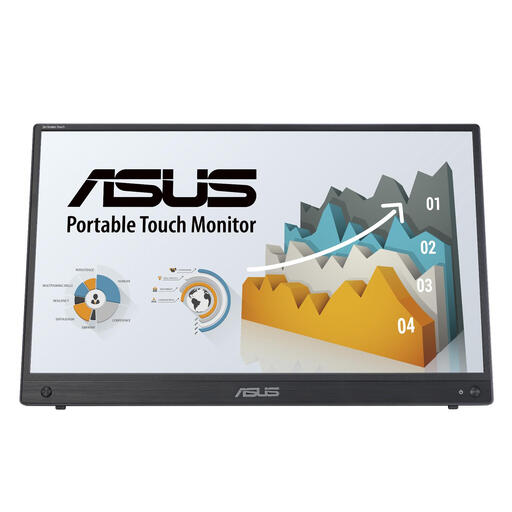 Image unavailable
A portable second screen with touch controls; check whether they work with your annotation software.
15,6 inches; 1920 × 1080 pixels; Full HD; touchscreen; HDMI, USB-C and kickstand.
Only if your laptop port supports the video output required and the connection is suitable for powering the screen. ASUS lists DisplayPort Alt Mode for the MB169CK; without this feature, ASUS describes HDMI for video and USB-C as a separate power input.
Place the screen directly in front of you and adjust it so you can look at it comfortably. Arboportaal recommends positioning the top of the screen slightly below eye level and changing your posture regularly; how much you can adjust a monitor depends on its stand.
Compare the EU energy label for the exact models: the scale for electronic displays runs from A to G. Don’t estimate energy consumption from screen size or resolution alone.
According to ACM ConsuWijzer, when you buy as a consumer online, you usually have a cooling-off period of up to 14 days after delivery, with some exceptions. This is separate from the legal guarantee: if a product used normally doesn’t meet what you could reasonably expect, the seller must put things right under the applicable terms. This doesn’t mean that every monitor has a fixed legal guarantee period of exactly two years.
The Dutch government states that products such as electrical appliances placed on the market in the EU must carry a CE mark. Check the mark and product information for the specific version, especially if you’re buying from outside the EU; general product information doesn’t confirm the mark on an individual item.