What should you look for when choosing?
If there isn’t a spare power socket for your screen, a portable monitor is the obvious choice. If you have one socket available, a desktop docking monitor can offer more screen space, but it needs its own mains power.
Portable monitor powered by your laptop
Choose this option if: you work in different places and can’t spare a power socket for your monitor.
Keep in mind: your laptop supplies the power, and the smaller screen gives you less room for text and windows.
Desktop USB-C docking monitor
Choose this option if: you have one power socket for your monitor and your laptop can output video via USB-C and work with the power it supplies.
Keep in mind: the monitor itself needs mains power, and charging output varies by model.
The percentages show which concern is the top priority for consumers in each situation described.
| Buying concern |
What should you check? |
Who is this most relevant to? |
| Power when sockets are limited |
Check whether the screen needs its own mains power and whether your laptop can supply power through the required connection. |
If I can’t spare a power socket for my screen, I want to know whether my laptop can power the monitor. Around 31% of consumers say power is their main buying concern. |
| Room for documentation and references |
Compare screen size and resolution, and check what text size is comfortable to read in your setup. |
When I want to view draft text and API references at the same time, I consider the available workspace. Around 25% of consumers prioritise screen space for text and references. |
| Connection to your laptop |
Check whether your laptop port supports video and whether the monitor needs a specific cable or an alternative video input. |
If I’m not sure whether my laptop’s USB-C port can output video, I want to check the exact port specification in advance. Around 25% of consumers say connection compatibility is their main concern. |
| Adjustable workstation |
Check whether the monitor has height adjustment and how you can position it at temporary workstations. |
When writing for long periods, I want to be able to position the screen comfortably, even when I move between workstations. Around 19% of consumers prioritise adjustability. |
Monitors at Joybuy
These product picks focus on desktop USB-C monitors for a writing space with a power socket, and portable second screens for work in different locations.
 No image available
Dell Pro P3426WEV 34.1-inch Curved WQHD USB-C Hub Monitor
For a permanent writing space where you want a large workspace and a USB-C hub.
34.1 inches, WQHD, curved screen, webcam, 100 Hz and 90 W Power Delivery. The monitor itself needs to be connected to mains power.
View at Joybuy
 No image available
INNOCN CB27U1 27-inch 4K UHD monitor
For a permanent workstation where you want a USB-C laptop connection and an adjustable stand.
27 inches, 4K UHD, IPS, 120 Hz, USB-C with 90 W Power Delivery and a height-adjustable stand. The monitor uses a power adapter.
View at Joybuy
 No image available
iiyama ProLite 34-inch UWQHD Curved Monitor with USB-C Dock
For a permanent laptop workstation where you want a USB-C dock and a wide screen for documents.
34 inches, UWQHD, curved screen, USB-C dock, LAN, KVM switch and a stand with 15 cm of height adjustment. The monitor itself needs to be connected to a power source.
View at Joybuy
 No image available
UPERFECT 15.6-inch 1080P portable monitor
For anyone who wants to use a portable second screen for laptop work in different places.
15.6 inches, 1920 × 1080, Full HD, IPS, HDR and USB-C. The smaller screen offers less physical workspace than larger desktop screens.
View at Joybuy
 No image available
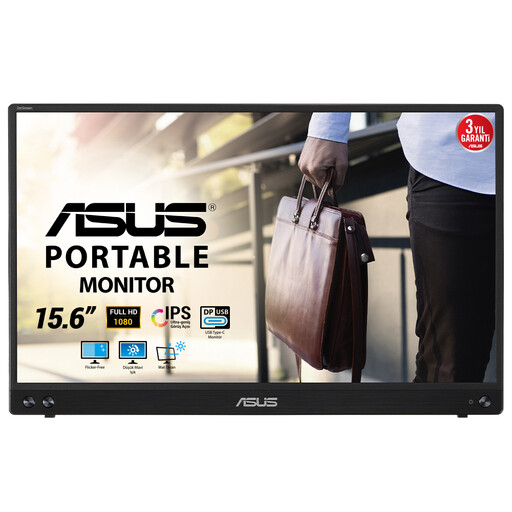
ASUS MB16ACV 15.6-inch Full HD portable monitor
For a second screen at temporary workstations, provided your laptop supports the required USB-C video connection.
15.6 inches, 1920 × 1080 and one USB-C connection. ASUS lists DP Alt Mode for video via USB-C; this model has no height adjustment.
View at Joybuy
Frequently asked questions
Can a single USB-C cable always provide both video and power to my portable monitor?
No, it depends on the laptop port and the monitor model. ASUS requires a laptop port with DP Alt Mode for the one-cable connection on the MB169CK. Without this mode, ASUS lists HDMI for video and USB-C as the power input. Check the specifications of both devices.
Do I still need a power socket for a USB-C docking monitor?
Yes, the desktop models mentioned here need their own mains power. The USB-C power output listed by Dell and Lenovo for specific monitors is intended for a compatible connected device; it doesn’t mean the monitor can work without a power socket.
How should you set up a screen for long periods of writing?
Arboportaal advises placing the screen directly in front of you, readjusting your workstation when you move to a different location and varying your posture. An adjustable workstation is preferable; a monitor doesn’t replace breaks or changing position.
Does a monitor used for screen work in the Netherlands have to be height-adjustable?
Arboportaal describes workplace requirements for employees who use a screen for more than 2 hours a day, including a height-adjustable screen. When using a laptop, it must be possible to use a separate screen or keyboard. According to Arboportaal, an employer may make an exception if health and safety are still protected; this isn’t a standard product specification for every private buyer.
Should you buy an extended warranty when you buy a monitor online?
Not automatically. According to the Dutch government, products bought in the Netherlands are covered by a legal guarantee, and you should contact the seller if there’s a problem. An additional warranty is most relevant if its terms give you extra rights; the Netherlands doesn’t have a fixed statutory warranty period of two years.


