What should you look for when choosing?
First decide whether you’ll need to carry the screen around often. Then check the connection and power requirements, and choose how much screen space you need. Touch functionality and a built-in battery are separate considerations, not requirements for viewing maps.
| What to consider |
What should you check? |
Who should prioritise this? |
| Easy to carry |
Compare the dimensions and net weight, and consider the protection, cables and any power supply together. |
If I often move where I study, I want a compact setup that’s easy to carry. Around 26% of consumers make portability their top priority. |
| Video and power |
Check video support on your laptop port, the monitor connection and whether the chosen setup will receive enough power. |
If I work in different places, I want to know in advance whether my laptop can drive the screen and power the setup. Around 26% of consumers prioritise a working connection and power supply. |
| Reading maps and text |
Compare the screen size, resolution and aspect ratio with the maps and documents you want to view at the same time. |
If I want to view a map alongside a transcription, I need a layout that keeps both readable. Around 21% of consumers prioritise being able to read maps and text. |
| Position and lighting |
Consider screen position, reflections, ambient light and space for your input devices. |
For longer study sessions, I want to be able to position and read the screen comfortably, even at a different table. Around 16% of consumers put posture and lighting ahead of other buying priorities. |
| Making notes on screen |
Check the pen type, supported pen features and compatibility with your computer and annotation software. |
If I want to write directly on digital map copies, I need pen input that works with my software. Around 11% of consumers make digital annotation their top priority. |
Joybuy products
These Joybuy products are suited to portable map and reference research, with options for pen input and viewing documents side by side. Before buying, check that the connections, power requirements and any software are compatible with your laptop.
 No image available
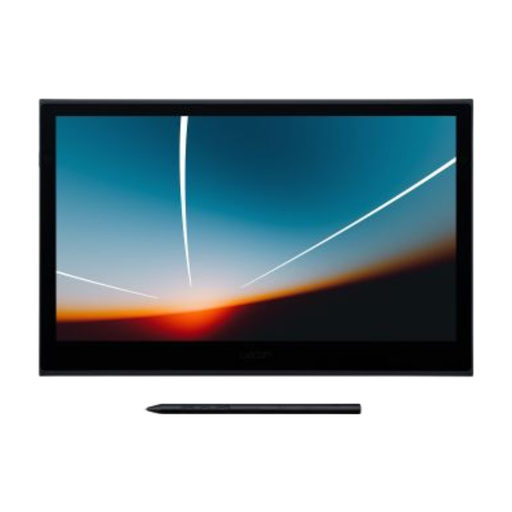
Wacom Movink 13
A portable pen display for anyone who wants to annotate digital map copies directly.
13.3-inch Full HD OLED screen with a supplied pen and 8192 pressure levels. USB-C for data and power; installing the Wacom driver for your operating system is required for full pen and touch functionality.
Joybuy
 No image available
Wacom One 14.0
A portable pen display for making digital notes, provided your computer and software support the pen input you need.
14-inch Full HD screen, an active area of 309 × 174 mm and a supplied battery-free pen with pressure and tilt recognition. The product description lists a weight of 750 g and USB-C for data and power.
Joybuy
 No image available
TECLAST V16H
A portable monitor for viewing maps and source text side by side on a larger screen.
16-inch IPS screen with a 16:10 aspect ratio. The product information lists two USB-C ports, mini-HDMI and a built-in stand.
Joybuy
 No image available
TECLAST V16Q
A portable option for viewing maps and documents at the same time, with a 16:10 screen layout.
16-inch IPS screen with a resolution of 2560 × 1600. The product description lists two USB-C ports, mini-HDMI and a built-in stand.
Joybuy
 No image available
Blackview TABLE 9
A portable monitor for comparing maps and documents on a 16-inch screen.
IPS screen with a 16:10 aspect ratio and a resolution of 1920 × 1200. The product description lists USB-C, mini-HDMI and an adjustable magnetic stand. The stated weight of 650 g excludes the stand.
Joybuy
Frequently asked questions
Is USB-C enough to use a portable monitor with one cable?
No. Check whether the laptop port you’re using supports video and whether the connection supplies enough power. ASUS lists DisplayPort Alt Mode for a single USB-C cable connection on the MB169CK. If that isn’t available, ASUS describes HDMI with a separate USB-C power connection as an alternative.
Can I write directly on a historical map with any supplied pen?
No, it depends on the pen, computer and annotation software. Lenovo lists a supplied passive pen for the M14t Gen 2 and separately states that it supports an active stylus. Check which input methods your software supports.
How should I set up my screen if I often study in a different place?
Position the screen and stand securely, avoid distracting reflections and adjust them to suit the table available. Arboportaal identifies small text, reflections and unsuitable ambient lighting as factors that can reduce readability. The workplace rules cited apply to employees and are not automatically legal requirements for every student.
Do I have a cooling-off period and a warranty when I buy online in the Netherlands?
Online purchases from a business generally come with a 14-day cooling-off period. The Dutch government lists exceptions and distinguishes these purchases from those made from private individuals. You also have statutory rights if a product isn’t as it should be. The Netherlands has no fixed statutory warranty period; if a product is faulty, contact the seller.
Do energy labelling rules also apply to monitors?
EU rules for electronic displays generally include computer monitors, with exceptions for certain types of screen. Check the energy label and product information for the exact model.


