
Multitrack editor
You edit conversations, music and other tracks on a long timeline and mainly want a clear view across the screen. Adobe describes the timeline as the place where clips and automation curves are edited on separate tracks.


A 34-inch ultrawide is a good fit if you want to see lots of tracks and long clips side by side while editing. A 27-inch 4K monitor is an alternative if text and image detail matter more. A 27-inch QHD screen may be enough if 4K or extra width isn’t a priority, while USB-C is only useful if the port and charging power are right for your laptop. A larger screen won’t make large audio files process faster, so consider your computer and storage too.
You edit conversations, music and other tracks on a long timeline and mainly want a clear view across the screen. Adobe describes the timeline as the place where clips and automation curves are edited on separate tracks.
You compare passages in two languages, read a lot of text or create subtitles, and want text and details to be easy on the eyes.
You switch between a laptop and a permanent workstation and want an easy way to connect your monitor and peripherals, potentially with power supplied through the same cable.
Start with what gets in your way most when editing: seeing the timeline clearly, reading text, connecting your laptop or adjusting your workstation. If you work with large source files, consider that separately as a computer and storage issue.
| What to consider | What to look for | Who is this important for? |
|---|---|---|
| Timeline overview | Compare the resolution and screen width. Consider whether you want to keep panels open alongside the timeline. | If I want to see lots of audio tracks and long clips side by side, I prioritise timeline space. Around 36% of consumers say a clear view of the timeline is their main reason for buying. |
| Text and detail | Compare 2560 × 1440 with 3840 × 2160 at the same screen size, and decide whether you’ll also be reviewing video footage. | If I’m reading transcripts in two languages or viewing details in footage, clear text and detail matter more. Around 29% of consumers say text readability and detail are their main reason for buying. |
| Laptop connection | Check whether your laptop can output video through its USB-C port and whether the power output is suitable for your laptop. | If I want to use my laptop at a permanent workstation with as few separate connections as possible, I also check its charging requirements. Around 21% of consumers say an easy laptop connection is their main reason for buying. |
| Adjustability | Check the height adjustment and the space on your desk. Also consider lighting and reflections. | If I’m working at the editing timeline for long periods, I want to be able to position the screen to suit me. Around 14% of consumers say adjustability for long hours of screen work is their main reason for buying. |
Screen space and audio file processing are two different things. A larger screen can change how much workspace you can see, but it won’t automatically solve a computer or storage bottleneck.
First work out whether you need a better view of your clips and text, or whether files are taking too long to process.
A USB-C connection doesn’t guarantee that your laptop can output video through that port, or that the stated charging power will be enough. Manufacturers quote different power outputs for these models.
For the exact monitor model, check your laptop port’s video output, the charging power required and the cable information.
According to Philips, the Philips 346B1C/00 has a resolution of 3440 × 1440; Dell lists 3840 × 2160 for the Dell P2725QE. So each option offers something different: extra horizontal space or more pixels on a 27-inch screen.
Let your main task guide your choice: timeline space, transcript text or video footage.
The B Line 346B1C/00 is a documented 34-inch ultrawide option for anyone looking for more timeline width.
The P2725QE is a 27-inch 4K monitor with a USB-C hub, suited to detailed viewing and a compatible laptop setup.
The 27BA45QB-B offers a documented 27-inch QHD option with an adjustable stand.
The PD2705U is a 27-inch 4K model with colour features and USB-C described by BenQ. Colour reproduction is most relevant if your podcast also includes video.
The ProArt PA279CRV is a 27-inch 4K option for anyone assessing video colour as well as audio.
This selection of Joybuy products focuses on ultrawide monitors that give you extra horizontal space for editing. For larger models, also check that the dimensions will fit your desk.
 No image available
A good fit for an editing setup where you want to view a wide timeline alongside other windows.
34 inches; 3440 × 1440; VA panel; 1800R curvature; 120 Hz.
 No image available
The wide screen is a good fit if you want to see a timeline and several windows side by side while editing.
34 inches; 3440 × 1440; 1500R curvature; 144 Hz; HDMI and DisplayPort connections.
 No image available
The wide workspace and USB-C features may suit editing with several applications, provided your laptop is compatible.
The listed dual modes are WUHD 5120 × 2160 at 120 Hz and WFHD 2560 × 1080 at 240 Hz. The description also mentions a USB hub, KVM switch and USB-C power delivery of up to 140 W. Check which mode and connections suit your needs.
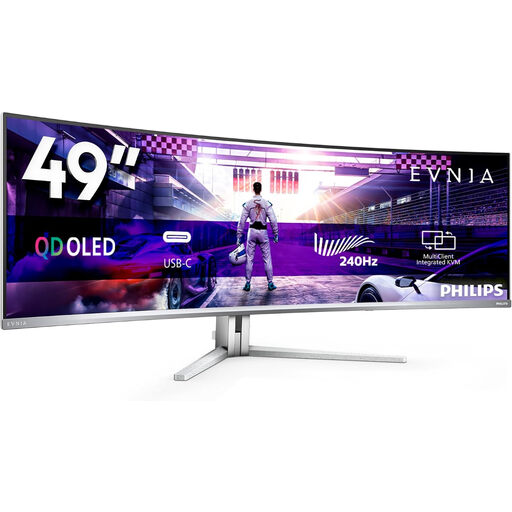 No image available
The extra-wide aspect ratio may suit you if you want a broad view of your timeline. Bear its size in mind when positioning or moving it.
49 inches; 5120 × 1440; QD-OLED; 240 Hz. The stated weight is 13,96 kg; two people are recommended to lift, move or install it.
 No image available
A good fit for a wide editing workspace and a compatible laptop setup where USB-C power delivery is useful.
21:9; 3440 × 1440; USB-C Power Delivery up to 96 W. Power delivery depends on the laptop and compatibility. The description also mentions HDMI, DisplayPort and an adjustable stand.
No. Screen size alone won’t change storage performance. If projects are slow, also check your computer, source files and your editing software’s drive and cache settings. Adobe describes Audition’s audio timeline and storage settings separately; this isn’t a performance test of monitors.
Choose a setup where the screen height suits your workstation, and check the lighting and reflections. The Dutch Arboportaal sets out additional requirements for employees in certain circumstances, including working at a screen for more than two hours a day. These requirements aren’t product specifications for every buyer.
Not because the podcast is spoken in two languages. Consider colour features only if you also review video footage. For audio editing and transcripts, first compare workspace, text display and connections.
Statutory rights apply in addition to any manufacturer’s guarantee. According to the Dutch Government, there’s no fixed time limit for these rights in the Netherlands; if a product is faulty, contact the seller. The assessment depends in part on what you could reasonably expect from the product and how it has been used.
According to the Dutch Government, many distance purchases from a business come with a 14-day cooling-off period. Check the terms of your specific purchase; this rule doesn’t necessarily apply to every purchase or every buyer.