
Editor with an existing second screen
You want to view audio tracks on your laptop and keep text or notes on an external monitor. Your monitor’s connection can help you decide which laptop and cable or adapter will work with your setup.


Start by checking that your audio software is compatible and that your existing monitor has the right connection. Then choose a laptop with enough memory, storage and ports for your projects and any audio interface you use. According to Apple, a MacBook Air M5 supports one external display alongside its built-in screen, but you’ll need Thunderbolt/USB-C for video. Some Windows laptops also offer HDMI and USB-A. Check the exact configuration and the cable or adapter you’ll need before you buy.
You want to view audio tracks on your laptop and keep text or notes on an external monitor. Your monitor’s connection can help you decide which laptop and cable or adapter will work with your setup.
You edit conversations, translations and music on separate tracks. Audacity explains how to adjust tracks individually or together; also check that the memory and storage configuration is suitable for your software and projects.
You use recording or playback equipment alongside your second screen. Check which ports will still be free once the monitor is connected, so you know whether you’ll need an adapter or dock.
A good fit if: your audio software runs on macOS and you can connect your monitor via Thunderbolt/USB-C.
Bear in mind: Apple lists two Thunderbolt 4 ports; you may need a suitable adapter or dock for HDMI or USB-A equipment.
A good fit if: you’d rather connect your monitor and peripherals directly to built-in ports.
Bear in mind: ports and configurations vary by model and version. HDMI alone doesn’t guarantee that your monitor will work at your preferred resolution and refresh rate.
| What to consider | What should you check? | Who should consider this? |
|---|---|---|
| Second screen | Compare the video output on the exact laptop configuration with your monitor’s input, resolution and refresh rate. | If I need my existing monitor to connect straight away, I’ll check the video connection first. Around 33% of consumers in this buying context put a working second screen first. |
| Multiple audio tracks | Check the requirements of your audio software and the memory and storage configuration of the version you’re considering. | When I edit conversations, translations and music separately, I want to know that my software and projects will work with the configuration. Around 27% of consumers give multitrack editing their highest priority. |
| Monitor and audio equipment | Plan the ports you’ll need for your monitor, audio interface, storage and charger; check video support for each USB-C port. | If my audio interface needs to stay connected while I use my monitor, I’ll check that there are suitable ports available. Around 20% of consumers prioritise connecting their equipment at the same time. |
| Portability and essentials | Compare screen size and weight, and check whether the power adapter is included and which accessories or software you’ll need. | For editing on the go as well as at a desk, I’ll consider the size and what else I need to use my setup. Around 20% of consumers prioritise this combination of portability and essentials. |
A USB-C connector doesn’t guarantee that the laptop can send video to your monitor through that port. Microsoft explains that a USB-C display connection may have limitations.
Before choosing a cable or dock, check the video output supported by the specific port and your monitor’s requirements.
Memory, screen and ports can vary between configurations. A product range’s model name doesn’t necessarily tell you which configuration you’re actually ordering.
Compare the full model or order number with the specifications for the version you’re considering.
A power adapter, monitor connection or software licence may vary by configuration or use case. ASUS states that a power adapter isn’t included with one UX3405 configuration; REAPER licences depend on how you use the software.
Check in advance which power supply, cables, adapters and software you’ll need, and what’s included with the configuration you’ve chosen.
The MacBook Air M5 is a compact option to compare if you edit on macOS and want to connect an external display.
The Zenbook 14 OLED UX3405 is a compact Windows range to compare if HDMI, USB-A and Thunderbolt are important to you.
The ThinkPad E14 Gen 7 Intel is a business Windows range to consider if you need several direct connections.
The ProBook 4 G1i is a Windows range to compare if a larger built-in screen matters to you.
Dell Pro 16 is a range to compare if you’d rather have a 16-inch Windows workspace than a compact chassis.
These laptops suit scenarios involving a Windows laptop with built-in ports or a compact MacBook for editing with an external display.
 No image available
An option to consider if you want to connect a monitor via HDMI and also need USB-A.
AMD Ryzen 5 7520U, 8 GB of non-upgradeable onboard memory, a 512 GB SSD and HDMI 2.1. According to the product description, the power adapter isn’t included.
 No image available
A compact Windows laptop to consider if your setup needs HDMI and several USB connections.
14-inch Full HD screen, Intel Core 7 150U, 16 GB DDR4 memory and a 512 GB SSD. The listed ports include HDMI and USB-C with DisplayPort, as well as USB-A.
 No image available
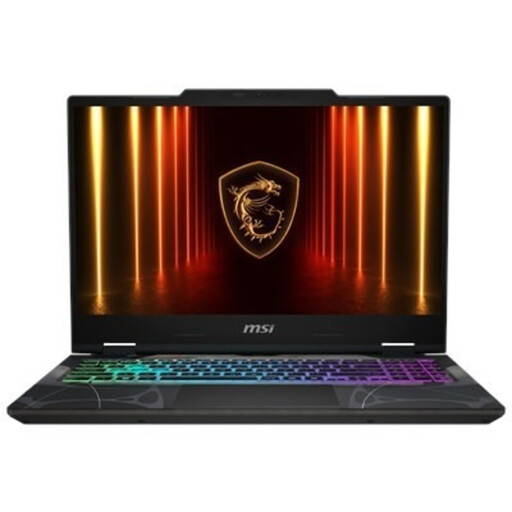
A 15.6-inch option to compare if you’d like a larger built-in screen to use alongside an HDMI monitor.
Full HD screen with a 144 Hz refresh rate, AMD Ryzen 9 270, 16 GB DDR5 memory and a 512 GB SSD. The product description lists HDMI 2.1 and USB-C.
 No image available
A compact option if your audio software runs on macOS and you want to use an external display.
Apple specifies 16 GB of memory and a 512 GB SSD for the base configuration. This model has Thunderbolt 4 ports and, according to the product description, supports up to two external displays. It doesn’t have HDMI or USB-A, so your equipment may need an adapter or dock.
 No image available
A 15.3-inch option to compare if you’d like a larger built-in screen as well as the flexibility to edit on the go.
AMD Ryzen 5 7535HS, 16 GB of non-upgradeable onboard memory and a 512 GB SSD. According to the product description, the power adapter isn’t included.
No, don’t assume you can. Check that the specific port supports video output and that the cable or dock is suitable for your monitor. Microsoft describes limited display connectivity as a possible USB-C limitation; in Windows, you can then identify and arrange a connected screen in the display settings.
Yes, if you want to carry on editing later. The Audacity manual distinguishes between saving an editable project and exporting audio for playback, and describes ‘Backup Project’ as a way to make a separate safety copy.
Check whether a power adapter is included and whether you need a monitor adapter, dock or licence for your audio software. ASUS states that a power adapter isn’t included with one UX3405 configuration; REAPER offers different licences depending on how you use it.
No. The Dutch government doesn’t specify a fixed statutory warranty period for the Netherlands: you’re entitled to a product that works properly for as long as you can reasonably expect it to. If a product is faulty, the retailer is your point of contact; any manufacturer’s warranty is in addition to this.
For many purchases made online from a business, the Dutch government says you have a 14-day cooling-off period, but there are exceptions and the details of the purchase matter. A purchase from a private seller isn’t covered by the same example of distance selling.