You don’t necessarily need a separate media player: first, check whether your TV or projector can already play your family videos through an app, casting feature or connection. Then choose the option that suits where your videos are stored: AirPlay or iCloud for a compatible Apple setup, Google Cast for a compatible app, or a player and app that support your NAS or USB files. Finally, check file compatibility and connections across your entire picture and sound setup.
Who is this choice relevant to?
Family with videos on a phone
Want to play videos from an iPhone, iPad or Google Cast-enabled app on a big screen without transferring files? Apple Support Netherlands explains how to use AirPlay from an iPhone or iPad; Google explains casting from compatible apps.
Collector with personal video files
Store your family videos on a computer, NAS or USB drive? Check which files your chosen player and app can play. The Consumers’ Association points out that locally stored videos cannot be played on every TV as standard.
Home cinema viewer with a permanent setup
Want to connect your player to a TV or projector, network and audio equipment? Stated 4K or audio format support does not, by itself, guarantee playback: the video source and the rest of your equipment must also be compatible.
What should you consider when choosing?
Start with where your videos are stored, then check that the entire playback setup is compatible with your files and home cinema.
| What to consider |
What should you check? |
Who should pay particular attention? |
| Personal files |
Check whether the app can access your NAS, USB drive or computer, and test a typical file, including any subtitles. |
If my videos are stored on a NAS or USB drive, I want to know whether I can play them directly. Around 36% of consumers give access to their own files top priority. |
| Phone or photo library |
Check the specific app, receiver and account; test AirPlay or casting with the device you actually use. |
If I mainly want to share videos from my phone or photo library, the option I choose needs to work with my app and receiver. Around 29% of consumers put this connection first. |
| Picture and sound |
Check that the video, player, HDMI setup, screen and audio equipment support the formats you want to use. |
If I want my home cinema to play my videos properly, I need to know whether the source and all the connected equipment work together. Around 21% of consumers name picture and sound compatibility as their main concern. |
| Connections and accessories |
Check for available HDMI ports, the cables and power supply you need, and whether Wi-Fi or a network cable is available where you watch. |
If I’m connecting the player in a fixed location, I want to know in advance which cables and network connection I’ll need. Around 14% of consumers give installation and accessories top priority. |
Common buying mistakes
-
Assuming Cast or 4K support guarantees playback of all your personal videos
An app’s Cast support does not automatically mean that every local file will work. For direct playback, the app and file format need to be compatible, among other things; according to Plex, subtitles can also make transcoding necessary.
Before buying, test a typical file, including its sound and subtitles, using the playback method you intend to use.
You may need a different media player or to convert your files if your chosen setup cannot play them.
-
Confusing internal storage with a connection for a video archive
Storage space for apps is not the same as access to a USB drive or NAS. A USB port also does not guarantee that the player and app will play every file.
Check the exact model’s available connections, as well as the playback app’s capabilities and the file formats it supports.
-
Leaving cable and network checks until after you buy
The HDMI cable and network connection you need vary by model. Google and Apple say that an HDMI cable is sold separately for the models reviewed; Xiaomi says a cable is included with the TV Box S (3rd Gen).
Before choosing, check what’s in the box, whether you have a free HDMI input, and whether Wi-Fi or an Ethernet connection is available where you’ll be watching.
Brands to consider
Apple
Worth considering if you want to share videos from an iPhone or iPad using AirPlay, or view a compatible iCloud photo library on Apple TV.
- Apple Support Netherlands explains how to use AirPlay from an iPhone or iPad to a compatible receiver on the same Wi-Fi network.
- According to Apple, the default profile determines who can view the library in the Photos app when using iCloud Photos on Apple TV.
- Check the account settings and HDMI cable for the exact model; Apple says an HDMI cable is sold separately for the Apple TV 4K reviewed.
Google
The Google TV Streamer (4K) is suited to a permanent Google TV setup and apps that support Google Cast.
- Google specifies built-in Ethernet and output of up to 4K HDR at 60 frames per second.
- An app’s Cast support does not prove that it will play any local file; also check that you have an HDMI cable available for your setup.
NVIDIA
The SHIELD TV Pro is worth looking into if you want a player with USB ports, Ethernet and support for personal media files.
- NVIDIA specifies two USB 3.0 ports and Gigabit Ethernet.
- The listed supported containers do not prove that every family video format will work without conversion; check the app, codec and file too.
Xiaomi
The TV Box S (3rd Gen) is worth considering if you’re looking for a Google TV box with Wi-Fi and a USB connection.
- Xiaomi Netherlands specifies one USB 2.0 port, 4K output and an included HDMI cable.
- The specifications do not list a built-in Ethernet port; also check whether the playback app works with your video files.
Joybuy products
These Joybuy products include projectors and a receiver for home use, with stated support for built-in apps, screen mirroring or USB multimedia playback. Check that each model supports your videos and playback method.
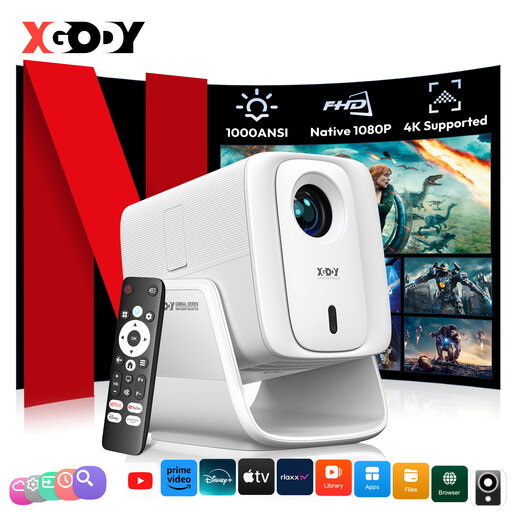 Image unavailable
XGODY N7 Cine smart projector, white
Worth considering if you’re looking for a projector with streaming apps or screen mirroring from a phone.
The product name lists native 1080p, support for 4K input, HDMI, USB, Wi-Fi 6 and 2 GB + 16 GB. Autofocus, automatic keystone correction and 90° rotation are also listed.
The description mentions Whale TV OS, streaming apps and Miracast screen mirroring. Check that the app or mirroring method works with where your family videos are stored.
View at Joybuy
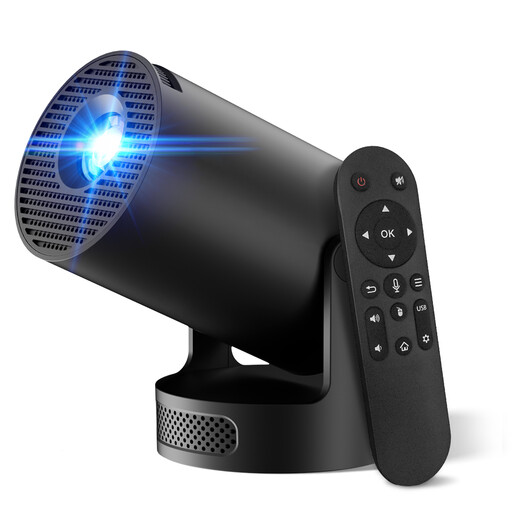 Image unavailable
Projector with built-in apps and Play Store
Could be a good fit if you want to watch videos using an available built-in app; check in advance that your video source is available in that app.
The product name lists Wi-Fi 6, Bluetooth, automatic picture correction, digital zoom and 180° rotation. The product description also gives a projection size of 50 to 200 inches.
HDMI and USB are listed as connection options. Check that the projector works with your chosen playback method and files.
View at Joybuy
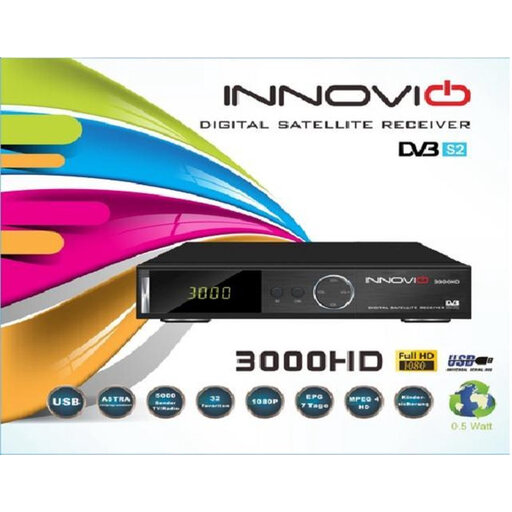 Image unavailable
INNOVIO 3000 HD FTA satellite receiver
Worth considering if you want to play family videos from USB and connect the receiver to a TV.
The product description lists USB multimedia playback, HDMI output up to 1080p and a SCART connection. Check that the receiver supports your files’ formats.
View at Joybuy
Frequently asked questions
Do you need a separate streamer if your smart TV already plays the videos?
Not necessarily. First, test your videos with the app or playback method you already have. The Consumers’ Association points out that apps on smart TVs may be discontinued later.
How do you play an iPhone video using AirPlay?
Use a compatible Apple TV or AirPlay-enabled receiver, and connect both devices to the same Wi-Fi network. Then select the AirPlay destination in the video app; Apple also explains how to share from Photos.
Why does a video from your NAS stutter or fail to appear?
First, check whether the playback app supports the file’s container, codec, bitrate and resolution. According to Plex, subtitles can make transcoding necessary; also check the connection and any server settings.
What costs and rights should you check when buying online in the Netherlands?
Check which cables and power supply are included with the product. According to ACM ConsuWijzer, online product purchases generally come with a statutory cooling-off period of up to 14 days after delivery, with some exceptions. The seller is also responsible for the statutory guarantee if a product is faulty; you are not required to buy an additional guarantee.


