
Developer with several windows open
You keep your code, debugger, documentation and a tracker preview in view at the same time. Compare the memory in the specific configuration and consider how much screen space you need.


Choose a laptop to suit your development environment. If you use code, a debugger and other windows at the same time, memory and usable screen space matter. If you also connect a development board, check the USB connection, any required drivers, and support for your specific board and debugger. A laptop port alone doesn’t guarantee compatibility.
You keep your code, debugger, documentation and a tracker preview in view at the same time. Compare the memory in the specific configuration and consider how much screen space you need.
You may want to connect an Arduino or ESP32 board to upload code or debug it on the board. The connection, any required drivers, and support for your chosen board and debugger are all important.
You work in different places and need to balance a compact screen against the space required for code and debugging information.
First, check that your development tools are compatible with Windows or macOS. Then compare the memory configuration and screen space. If you use a physical board, also check the required connection and debugger setup.
| What to consider | What should you check? | Who is this important for? |
|---|---|---|
| Memory for development tools | Compare the memory in the complete configuration, and consider which tools you’ll have open at the same time. | If I use my editor, debugger and project windows at the same time, I want to choose a configuration that suits that workflow. Around 36% of consumers give working with several tools at once their highest priority. |
| Screen space for code and debugger | Compare the screen size and resolution with the layout you want to use side by side. | If I want to see code and debugging information side by side, I weigh up screen space against how easy the laptop is to carry. Around 29% of consumers prioritise being able to see their code and debugger clearly. |
| Connection and board debugging | Check the USB connection, any required driver, and support for the exact board and debugger. | If I want to upload code to or debug a physical development board, I check the documentation for that specific setup. Around 21% of consumers prioritise the board connection. |
| Portability | Balance screen size against portability, and check the connections you need for devices you use on the go. | If I programme in different places, I look for a practical balance between portability and a clear view of what’s on screen. Around 14% of consumers prioritise working on the move. |
The system requirements for Visual Studio Code describe the editor, but they don’t automatically tell you what you need for all the tools and windows you use at the same time.
Compare the configuration with your full set of development tools and how you use them. Treat a higher memory capacity as a difference between configurations, not as a universal requirement for every project.
Arduino Documentation describes specific boards and hardware setups for debugging with Arduino IDE 2. Espressif Systems notes that an ESP32 may need a USB serial driver if it isn’t installed automatically.
First decide whether you’ll debug the application on your laptop or the code on the board itself. Then check the documentation for the exact board and toolchain you’ve chosen.
Depending on the board setup, you may also need a suitable cable, driver, external debugger or other connection accessories.
Memory, storage, connections and service terms can vary between configurations. Changing the configuration may also change other specifications.
Before buying, check the full model number, the specifications you’ve selected and the terms that apply to that configuration.
The HP ProBook 4 G1a C5BW6EA#ABH reviewed here is a Windows configuration with 24 GB RAM, a 512 GB SSD and a 14-inch WUXGA screen.
The Dell 14 Plus DB14250 described here is a Windows configuration with 16 GB of built-in memory, a 1 TB SSD and a 14-inch QHD+ screen.
The ThinkPad E14 Gen 7 Intel 21T9001TMH described here combines Windows 11 Pro, 16 GB SODIMM memory, a 512 GB SSD and a 14-inch WUXGA screen.
The MacBook Air 13-inch M5 described here is a compact macOS configuration with 16 GB unified memory, a 512 GB SSD, a 13.6-inch screen and two Thunderbolt 4 ports.
These Windows laptops are worth comparing for local programming, with screen space, memory and connections in mind.
 No image available
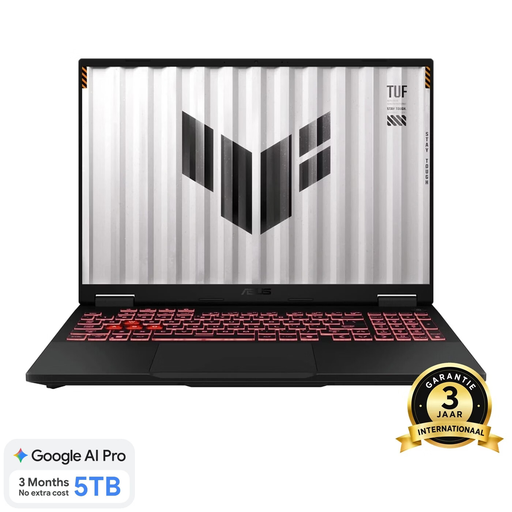
The 18-inch screen may suit anyone who wants to view code and a debugger on screen at the same time.
18-inch WUXGA screen; 16 GB DDR5 memory; 1 TB SSD; Windows 11 Home; USB4, USB-C and USB-A connections.
The product description says the power adapter must be purchased separately. The connections alone don’t confirm that a specific development board supports hardware debugging.
 No image available
The 18-inch screen is worth considering if you want to view several development windows side by side.
18-inch WQXGA screen; 16 GB DDR5 memory; 1 TB SSD; Windows 11 Home; USB4, USB-C and HDMI connections.
The product description says the power adapter must be purchased separately. For board debugging, check the hardware setup required for your specific board.
 No image available
This configuration has a 15.6-inch screen, a size worth considering for your preferred code and debugger layout.
15.6-inch FHD screen; Intel Core i5-13420H; 16 GB DDR5 memory; 512 GB SSD; Windows 11 Pro; USB-C with DisplayPort support.
USB-C support alone doesn’t confirm that hardware debugging is possible with a particular development board.
 No image available
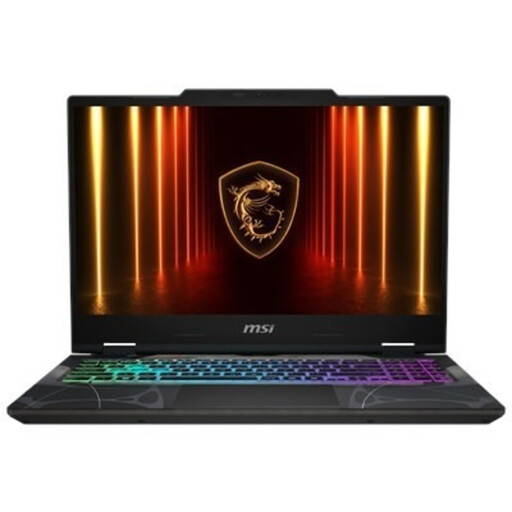
The 15.6-inch screen is a specific size to compare for viewing code and debugging information.
15.6-inch Full HD screen; 16 GB DDR5 memory; 512 GB SSD; Windows 11 Home; USB-C and HDMI connections.
The listed connections don’t prove that a specific development board supports your chosen hardware debugger.
 No image available
The stated memory and 16-inch screen are worth considering if you use several local tools and want a clear view of your code and debugging information.
16-inch screen, 1920 × 1200; 32 GB DDR5 memory; 512 GB SSD; Windows 11 Pro; USB-A and USB-C connections.
The product description says this configuration comes without a power adapter. Check separately that your board’s debugger setup is compatible with the connections.
The stated system requirements for Visual Studio Code don’t list a dedicated graphics card as a requirement. If you add a simulator or other demanding software, for example, check that software’s own requirements.
No, not without the right board and hardware setup. Arduino Documentation describes specific supported boards and debugger hardware for Arduino IDE 2. Check your board’s requirements before choosing a laptop or accessories.
First, check the USB cable and connection. If the driver isn’t installed automatically, Espressif Systems recommends identifying the board’s USB-to-serial bridge and checking the relevant driver.
According to ACM ConsuWijzer, online purchases generally come with a statutory cooling-off period of up to 14 days after delivery, subject to applicable exceptions. You’re also covered by the statutory guarantee if the product doesn’t meet what you could reasonably expect from normal use. A manufacturer’s warranty doesn’t replace these statutory rights.