
On-site photo reviewer
You want to examine and compare details in research photos during the workshop. That makes the screen an important factor in your choice.


Choose your laptop based on what you’ll be doing during the workshop. For detailed assessment, the screen matters; if you’ll be handling lots of photos without a reliable internet connection, local storage and a way to back them up are important; and if you’ll be travelling between locations, size and weight matter. Also check that your camera or card reader will connect. You won’t necessarily need a high-powered configuration if you’ll mainly be viewing and selecting photos.
You want to examine and compare details in research photos during the workshop. That makes the screen an important factor in your choice.
You’ll be bringing plenty of camera files and want to import, find and safely copy them, even without an internet connection.
You’ll be carrying your laptop between workshop locations and want a practical balance of weight, screen space and ports.
First, decide whether you’ll mainly be viewing and selecting photos or editing them intensively as well. Then compare the screen, storage and ports with the way you’ll use your laptop during the workshop.
| What to consider | What to check | Who is this important for? |
|---|---|---|
| Screen for photo detail | Check the screen size, resolution and reflective finish for the exact configuration. A stated colour gamut is not an independent measure of colour accuracy. | I want to compare photos side by side without reflections making details hard to see. Around 33% of consumers prioritise screen quality. |
| Importing and storing photos locally | Estimate the size of your photo folders, check the available SSD space and see whether your camera or card reader will connect. The Consumers’ Association recommends 512 GB or more as a guide for large files such as photos and videos. | If I need files during the workshop without an internet connection, I want to be able to open and copy them locally. Around 25% of consumers prioritise offline file management. |
| Taking your laptop to the workshop | Compare the stated weight and screen size, and check the power supply and ports on the exact configuration. Also consider whether you’ll have access to a power socket at the venue. | I travel between locations and don’t want to carry more weight than necessary, but I still need enough screen space to discuss photos. Around 25% of consumers prioritise portability. |
| Costs suited to the task | First decide whether you’ll be viewing and selecting photos or editing them intensively. Then check whether you already have the power supply and accessories you need. | I don’t want to pay for powerful editing hardware I won’t use, and I want to know whether I’ll need any other essentials. Around 17% of consumers prioritise keeping costs under control. |
On 27 December 2025, Notebookcheck published a ranking for photo and video editing based on general assessments, rather than suitability for a workshop like this one specifically.
First decide which programmes and tasks you need, then compare the screen, storage and portability of the exact configuration.
A catalogue or the files on your internal SSD do not automatically give you a second copy of your original photos.
Plan to use a separate storage location and, after transferring your files, check that the originals are actually there. Adobe explains how Lightroom Classic can create a second copy of original files during import, and also recommends regular backups.
Specifications, ports and included accessories can vary between configurations. For the ProArt P16 configuration reviewed, the Dutch ASUS shop states that the power adapter is not included.
Before buying, compare the full model number, memory, storage, ports and box contents.
For this ASUS configuration, the manufacturer specifies a 380 W adapter; factor in the extra luggage and the cost of buying a suitable power supply.
MacBook Pro configurations are worth comparing if you need a combination of screen quality, portability and support for camera files. Check the exact model and configuration.
The Yoga Pro 9i is worth comparing if you’re looking at a larger screen and a more demanding creative workflow.
The ProArt P16 is worth comparing if you’re considering more demanding creative tasks as well as reviewing photos.
The OmniBook Ultra 14 is a more compact Windows option to compare if you’ll be carrying your laptop around often.
This Joybuy selection includes laptops with different screen sizes, storage capacities and card readers for viewing, comparing and importing photos. Check that the screen, ports and included power supply on each configuration are right for your workshop.
 Image unavailable
This 16-inch configuration with a built-in UHS-II SD card reader could suit you if you want to review photos at a table and import them directly from an SD card.
OLED screen with 2560 × 1600 resolution; 16 GB RAM; 1 TB SSD; weight 1,85 kg. The product description states that the power adapter is not included.
 Image unavailable
This 14-inch configuration is worth comparing if you’ll be carrying your laptop between workshop locations and want to transfer photos from a compatible MicroSD card.
IPS-level anti-glare screen; Intel Core 7 150U; 16 GB DDR4; 512 GB SSD; MicroSD card reader; stated weight 1,40 kg.
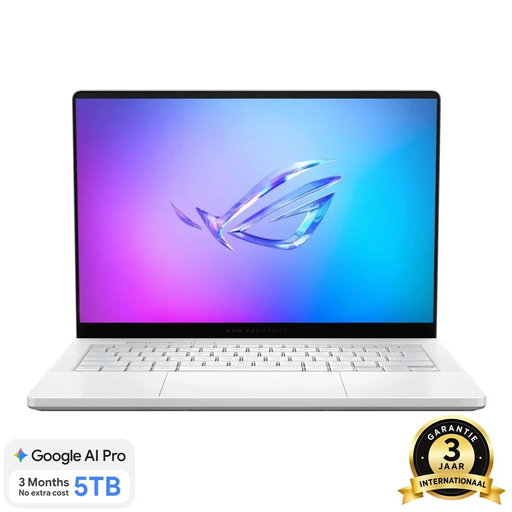 Image unavailable
This more compact configuration could suit you if you want to examine photos in detail while travelling and import files from a compatible microSD card.
14-inch OLED screen with 2880 × 1800 resolution; Ryzen 9 270; 16 GB memory; 1 TB SSD; UHS-II microSD card reader; stated weight 1,50 kg.
 Image unavailable
The 15,3-inch anti-glare screen could be useful if you want to view photos on a larger display and import them from a MicroSD card.
WUXGA IPS screen with 100% sRGB colour coverage; Ryzen 5 7535HS; 16 GB memory; 512 GB SSD; MicroSD card reader; stated weight approximately 1,50 kg. The product description states that the power adapter is not included.
 Image unavailable
This 15,6-inch configuration is worth comparing if you want to view photos on a roomier screen and transfer files from a compatible microSD card.
Full HD IPS anti-glare screen; Intel Core 7 150U; 16 GB RAM; 512 GB SSD; microSD card reader.
Not necessarily. Choose a laptop for viewing and selecting photos or for intensive editing, and check the requirements of the programmes you use. The Consumers’ Association distinguishes between creative use and more demanding tasks such as 4K video and 3D.
First, check that your camera or card reader will connect to the laptop. Adobe explains how Lightroom Classic can create a second copy of original files during import. Adobe also recommends regularly backing up your photos and catalogue.
No, you don’t need to buy paid-for extra cover to have a legal warranty. According to the Dutch government, if a problem is covered by the legal warranty, the seller must provide a solution. If you’re considering extra cover, check what additional protection the terms and conditions actually provide.
First check which privacy rules apply to the publication. The Dutch Data Protection Authority says that consent is required in most cases to publish personal data online, and describes a limited exception for use that is solely personal or domestic. Whether the exception applies depends on who is publishing, for what purpose and for which audience. Viewing photos on a laptop is not the same as publishing them online.