
Photo uploader with weak Wi-Fi coverage
Wants to find out whether Wi-Fi is causing slow uploads where they use their device. Consumentenbond recommends comparing a Wi-Fi test with one using an Ethernet cable.


First, test your upload speed using a cable connected to the router, then compare it with Wi-Fi where you upload the photo album. Consumentenbond recommends checking this to find out whether Wi-Fi is the bottleneck. A plug-in repeater can save shelf space if there’s still a usable router signal in a suitable spot. If you can run an Ethernet cable to that spot, compare a wired access point too. Check that your chosen device is compatible with your router and carries the correct CE marking for that model.
Wants to find out whether Wi-Fi is causing slow uploads where they use their device. Consumentenbond recommends comparing a Wi-Fi test with one using an Ethernet cable.
Is looking for a solution that can go in a suitable socket rather than on a shelf. Check that the repeater fits the intended spot, along with the space around the socket.
Can run a cable to the desired spot and is therefore comparing an access point with a wireless repeater. For example, TP-Link lists access point mode for the RE505X.
When is it suitable? If there’s a socket in an intermediate spot where the repeater can still receive a usable signal from the router.
The trade-off: If you put a repeater where the signal is weakest, it may not get a good connection there either.
When is it suitable? If you can run an Ethernet cable to a suitable spot and your device supports the mode you want to use.
The trade-off: You’ll need a practical route for the cable through your home. Mesh features may also depend on the router combination. TP-Link requires a compatible OneMesh router for OneMesh, while FRITZ! describes mesh integration with a FRITZ!Box.
When is it suitable? If uploads are also slow over a cable connected to the router, or if moving the router or changing a setting could solve the problem.
The trade-off: A repeater won’t fix a limitation with the internet connection itself.
| What to consider | What should you check? | Who is this important to? |
|---|---|---|
| Connection while uploading | Compare a wired upload test by the router with a Wi-Fi test where you upload. If you’re using a repeater, check where the signal is still usable. | If I upload photos somewhere with weak Wi-Fi, I want to know whether poor wireless coverage is slowing things down. Around 36% of consumers say upload coverage is their main buying concern. |
| Taking up little space | Measure the available space by the intended socket and check the dimensions of the exact model. | If you don’t want a device on a shelf, you’ll need a suitable socket and enough space around it. Around 29% of consumers say the space a device takes up is their main buying concern. |
| Connection to the router | Check the mode you want, compatibility with your exact router model and the route for any Ethernet cable. | If I can run a cable or want to use a specific mesh feature, it needs to work with my router and setup. Around 21% of consumers say router compatibility is their main buying concern. |
| Security and running costs | Check the correct CE marking and applicable requirements for the model, available firmware updates, security settings and stated power consumption. | If you leave an extra Wi-Fi access point on for long periods, you’ll want to consider security and power consumption. Around 14% of consumers say security and running costs are their main buying concern. |
A Wi-Fi booster won’t improve the speed your internet connection delivers over a cable connected to the router.
First, compare a wired upload test by the router with a Wi-Fi test where you upload the photo album.
A wireless repeater needs a usable router signal where you place it.
First, find an intermediate spot with a strong enough signal. Then check that the model fits there and that the socket is suitable. A placement indicator can help.
Mesh features may depend on the combination of booster and router. TP-Link requires a compatible OneMesh router for OneMesh, while FRITZ! describes mesh integration with a FRITZ!Box.
Before you buy, check that the feature you want works with your exact router and booster models.
FRITZ! describes the FRITZ!Repeater 1200 AX as a compact Wi-Fi 6 repeater with Gigabit LAN.
TP-Link describes the RE505X as a Wi-Fi 6 range extender with a placement indicator, Gigabit Ethernet and access point mode.
NETGEAR describes the EAX12 as a Wi-Fi 6 extender that plugs directly into a socket and has Gigabit Ethernet.
D-Link describes the E15 as a Wi-Fi 6 range extender that can also be used as a hotspot.
This selection includes wireless plug-in repeaters and devices for a wired Wi-Fi access point. The right option depends, among other things, on the signal at the intended spot and whether you can run an Ethernet cable.
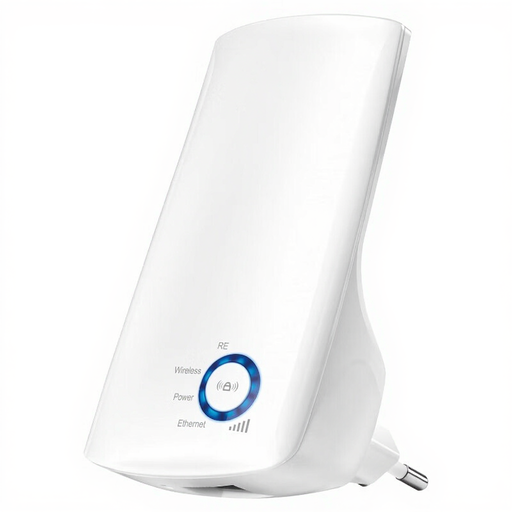 No image available
A good fit for wireless coverage if the repeater can still receive a usable signal from the router where you plan to place it.
The product description lists Wi-Fi 4, 300 Mbit/s and an Ethernet port. The stated speed isn’t a measured upload speed.
 No image available
This could be an option if you want to plug a repeater directly into a suitable socket where it can still receive a signal from the router.
The product description lists 2.4 GHz, up to 300 Mbps, two external antennas and dimensions of 80 × 54 × 70 mm.
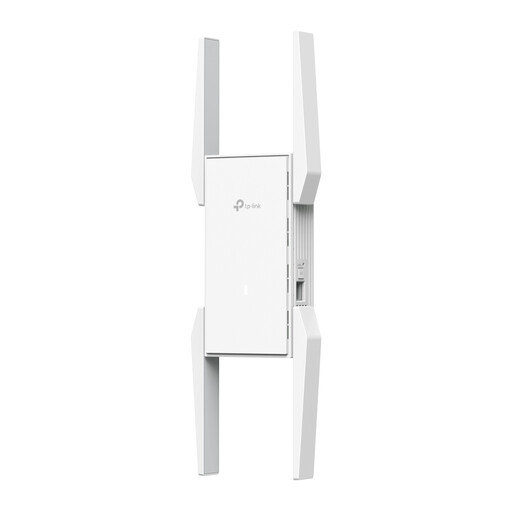 No image available
A good fit for a plug-in setup if you have a strong enough router signal at the spot and want a repeater to extend your network.
The product description lists Wi-Fi 6, dual-band and one Ethernet port. The product name lists 10/100/1000 Mbit/s.
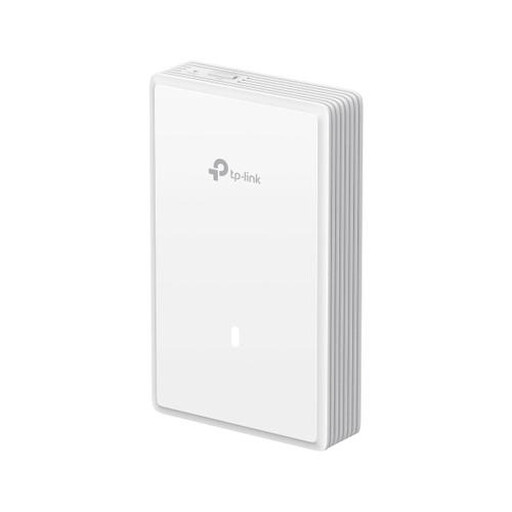 No image available
A good fit for a wired Wi-Fi access point if you can run an Ethernet cable to the desired spot and there’s a suitable PoE connection available.
The product description lists three Ethernet ports, including 2.5G support, and PoE. The product name lists 5012 Mbit/s; this isn’t a measured upload speed.
 No image available
A good fit for a wired Wi-Fi access point if you can run an Ethernet connection to the desired spot and the mode you choose suits your setup.
The product description lists 2.4 GHz, up to 300 Mbit/s, two antennas, Ethernet, passive PoE, and access point and repeater modes.
Not if the internet connection itself is the main limitation. First, compare your upload speed using an Ethernet cable connected to the router with the speed where you upload. If the wired connection is still slow, look into your broadband package or contact your provider. Consumentenbond recommends using a wired test for comparison.
Choose a spot where the repeater still gets a good signal from the router, rather than automatically placing it in the weakest corner. A placement indicator or setup app can help you find a suitable spot, as Consumentenbond explains in its usage tips.
Keep your router and booster up to date, and secure your network. Also check the stated power consumption, as an extra Wi-Fi access point may be left on for long periods.
No. According to ACM ConsuWijzer, statutory warranty in the Netherlands doesn’t have a fixed time limit: you’re entitled to expect a product to last a reasonable time with normal use. If a fault falls short of that, contact the retailer.
Radio equipment sold on the Dutch market must meet the applicable European requirements and carry the correct CE marking, according to the Dutch Authority for Digital Infrastructure. Since 1 August 2025, stricter cybersecurity requirements have also applied to relevant wireless devices. Check the marking and applicable information for the specific model.