Choose an all-in-one if you want to connect your computer and screen using as few separate power sockets as possible, and its built-in screen suits your print workflow. A mini PC or tower lets you choose your own monitor, but it will usually need its own power socket. Then compare the exact configuration with your photo software and make sure colour management is set up for your screen, printer and paper. Adobe also highlights the role of screen calibration and ambient lighting.
Which setup is right for you?
Photo editor with few power sockets
You want to know how many power sockets your whole workspace needs, including the screen and printer. An all-in-one combines the computer and screen; with a mini PC, you connect a separate screen. Apple Netherlands explains external display support for the Mac mini.
Home printer who checks colours
You want to compare your screen and print under suitable conditions. Adobe identifies screen calibration, ambient lighting and colour management for the printer, ink and paper as parts of the print workflow.
Editor working with large photo files
Compare the memory and storage of the exact configuration with the software you use and your own photo files. For Photoshop 27.x, Adobe recommends 16 GB RAM or more; also check how much storage space you need.
What should you look for when choosing?
All-in-one
Choose this if: you want to connect your computer and screen as one setup.
Bear in mind: you choose the screen and computer together; the resolution alone does not tell you whether the colour performance suits your print workflow.
Mini PC with separate monitor
Choose this if: you already have a suitable monitor or want to choose one yourself for assessing colour.
Bear in mind: in a typical setup, the monitor needs its own power supply; also check which cables and connections you need.
Tower with separate monitor
Choose this if: the specific configuration or the option to upgrade components matters more to you than having a compact setup.
Bear in mind: a separate monitor also needs space and a power socket; a tower alone does not guarantee more accurate colour reproduction in prints.
Count not just the computer, but also the screen, printer and any other devices that will be switched on at the same time. An all-in-one combines the computer and screen; a separate desktop will usually need its own screen.
| What to consider |
What to look for |
Who is this important to? |
| Power sockets |
Make a list of the devices that will be switched on at the same time and which ones each need their own socket. |
If I have few power sockets, I want to know how many my whole workspace will need. Around 29% of consumers put the number of power sockets first when deciding what to buy. |
| Assessing colour |
Check whether you can profile the screen and which profile is right for your printer and paper combination. |
If I want to check colours before printing, I consider both the screen and the print workflow. Around 29% of consumers give assessing colour their highest priority. |
| Memory and storage |
Compare the operating system, memory and available storage with your software’s requirements and your photo library. |
If I work with large photo files, I want enough space and a configuration that suits my software. Around 24% of consumers say editing capability is their main concern. |
| Existing equipment |
Check the connections and cables, and make a list of any screen, input devices and extra storage you still need. |
If I want to reuse equipment, I want to know in advance what else I need for a complete workspace. Around 18% of consumers prioritise reuse and the total cost of their purchase. |
Buying pitfalls
-
Assuming a mini PC gives you a complete workspace with just one plug
A mini PC uses a separate screen, which will also need power in a typical setup. So compare the power requirements of all your devices, not just the computer.
Before buying, count the devices and power sockets you’ll need, and check which components are included. The Netherlands Fire Service recommends plugging high-power devices directly into a wall socket where possible.
-
Assuming screen resolution or colour gamut guarantees an accurate print preview
A stated resolution or colour gamut alone does not confirm that the screen’s colours will match a print. Adobe also highlights calibration, ambient lighting and colour management for the printer and paper you use.
Consider the screen and print workflow together. When printing from Photoshop with Photoshop managing colours, Adobe describes using a suitable profile for the printer, ink and paper combination.
Brands to compare
HP
HP offers all-in-one models that combine the computer and screen in a single setup.
- HP Netherlands lists 16 GB RAM, a 512 GB SSD and a 27-inch QHD screen for the OmniStudio 27-cy0670nd.
- A QHD specification does not confirm that the screen is suitable for assessing print colours without profiling.
Apple
The Mac mini is a compact standalone desktop, so you choose the screen separately.
- For the base model mentioned, Apple Netherlands lists 16 GB unified memory and a 256 GB SSD; the Mac mini supports external displays.
- You need to connect a screen separately and include it in your setup. Also check that your photo software and printer driver work with the macOS version you choose.
Lenovo
The IdeaCentre range includes all-in-ones, mini PCs and towers, with specifications that vary by model.
- Lenovo Netherlands lists 16 GB RAM, a 256 GB SSD and a 27-inch FHD IPS screen with stated 99% sRGB coverage for the IdeaCentre AIO i Gen 9 F0HMCTO1WWNL1.
- The stated sRGB coverage does not measure how closely the screen matches a print. Also check whether 256 GB of storage is enough for your files.
Dell
The Pro 5 Micro P5M1260 is a compact desktop for a setup with a separately chosen screen.
- Its configurable design lets you assess the model you want alongside your monitor.
- Don’t assume the memory, screen quality or final configuration from the model name alone; a separate screen is still part of the workspace.
Joybuy products for an all-in-one setup
These Joybuy products are all-in-one desktops with an integrated screen, for a workspace that doesn’t need a separate monitor.
 No image available
MSI Modern AM273QP AI 1UM-061EU
The integrated monitor makes this a good option if you don’t want to connect a separate screen.
The product description lists an Intel Core Ultra 5 125H, 16 GB DDR5 memory, a 1 TB SSD and a 27-inch QHD IPS screen.
View at Joybuy
 No image available
MSI Modern AM273Q AI 1UM-058EU
The computer and 27-inch screen combine in one device for your basic setup.
The product description lists an Intel Core Ultra 7 155H, 32 GB DDR5 memory, a 1 TB SSD, a QHD screen, Windows 11 Pro and Wi-Fi 6E.
View at Joybuy
 No image available
Lenovo Yoga AIO 27IAH10 F0J2001DNY
The integrated screen suits a setup without a separate monitor.
The product description lists a 27-inch QHD screen with 120 Hz, an Intel Core Ultra 7 255H, 16 GB LPDDR5X memory and a 1 TB SSD. The stated 99% sRGB coverage does not measure how closely the screen matches a print.
View at Joybuy
 No image available
HP 24-cr0050nd 895R0EA#ABH
The integrated monitor keeps the computer and screen together, but check which power supply and components are included with this model.
The product description lists a 23.8-inch IPS screen, 8 GB memory and a 512 GB SSD. The memory is not upgradeable according to the description, and the power adapter must be bought separately. For Photoshop 27.x, Adobe lists 8 GB as the minimum and recommends 16 GB or more.
View at Joybuy
 No image available
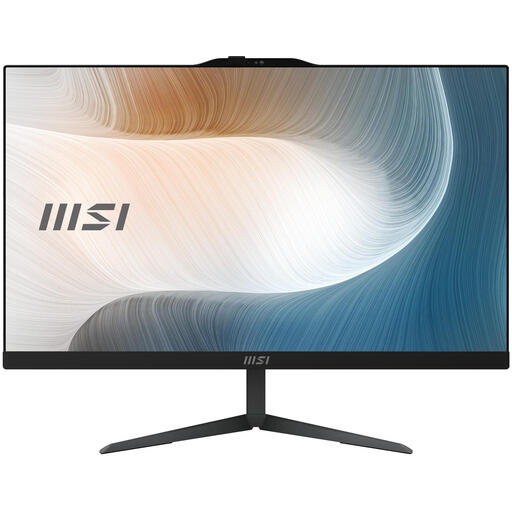
MSI Modern AM242 1M-1219EU
With its integrated screen, you won’t need a separate monitor for your basic setup.
The product description lists an Intel Core 5 120U, 8 GB DDR5 memory, a 512 GB SSD and a 23.8-inch Full HD IPS screen. Windows 11 Pro and Wi-Fi 6E are also listed. The 120 W power adapter is sold separately. For Photoshop 27.x, Adobe recommends 16 GB RAM or more; 8 GB is the stated minimum.
View at Joybuy
Frequently asked questions
Is an all-in-one automatically suitable for reliable photo prints?
No. The integrated monitor alone doesn’t make a print preview reliable. Adobe also highlights screen calibration, ambient lighting and paper, so check the screen and print workflow together.
How do I set up colour management when printing from Photoshop?
When Photoshop manages colours, Adobe says to use a profile that suits the printer, ink and paper combination, and to turn off colour management in the printer driver. Adobe also describes a printer-managed workflow if you’re not using a custom profile.
Can I always solve a shortage of power sockets with an extension lead?
First, check which devices need power at the same time. The Netherlands Fire Service recommends plugging high-power devices directly into a wall socket where possible and fully unwinding cable reels. This is not a blanket ban on connecting any desktop to an extension lead.
Am I automatically entitled to exactly two years’ legal warranty on a desktop in the Netherlands?
No. According to the Dutch government, the Netherlands has no fixed legal warranty period: a product must meet the standards you can reasonably expect. If a product is faulty, contact the seller; a manufacturer’s warranty or extended warranty is in addition to your statutory rights.


