
Online gallery creator
You select and edit photos for online publication and want to assess your images while keeping your work panels open.


For an online photo gallery, a 34-inch ultrawide with a resolution of 3440 × 1440 can give you room for photos and editing panels. Choose a screen with colour reproduction suited to your output. If you also print your photos, check Adobe RGB and the calibration options: a wider screen does not guarantee colour accuracy. Finally, make sure you can position the screen comfortably for both sitting and standing.
You select and edit photos for online publication and want to assess your images while keeping your work panels open.
You create an online gallery and also prepare the same photos for print. In that case, colour gamut and calibration options are important considerations.
You switch between sitting and standing while you work and want to position the screen comfortably in both positions.
Start with your gallery’s colour workflow, then decide how much workspace you need and check that the screen and connections suit your desk and computer.
| What to consider | What should you check? | Who is this important for? |
|---|---|---|
| Colour for your output | Check the stated sRGB coverage and calibration options for online work. If you also print, assess Adobe RGB and calibration options separately. | If the colour of my online gallery or printed work needs to match the intended result, I want to choose a colour gamut that suits my workflow. Around 36% of consumers put colour first. |
| Photos and panels side by side | Compare the resolution and screen width with how your editing software displays photos and panels. | If I want to select and edit photos without constantly closing my other windows, usable workspace matters. For around 29% of consumers, this is the main consideration. |
| Set-up for a sit-stand desk | Check the adjustment range and footprint. If you’re using a monitor arm, check the mounting standard and supported screen weight too. | When I switch between sitting and standing, I want to position the screen directly in front of me at a suitable height. Around 21% of consumers prioritise positioning and adjustability. |
| Connections and power | Check that your laptop’s port supports video, that the power delivery is sufficient and which cables you need to connect everything. | If I want to use my laptop, monitor and peripherals together, the connection needs to suit my devices. This is the main priority for around 14% of consumers. |
A wide screen gives you room for windows, but that alone doesn’t tell you whether you can assess colours suited to online publishing or print.
First decide whether you’ll publish online only or print as well. Then check the colour specifications and calibration options for the exact model.
If the colour workflow isn’t right for you, you may need a different screen or additional colour management hardware.
A wide screen needs to work at both desk heights and be positioned directly in front of you.
Measure the available width and depth, and check the adjustment options before choosing a model.
You may need a monitor arm or a different desk layout if the stand doesn’t fit your set-up properly.
A stated power delivery rating doesn’t tell you whether your laptop’s USB-C port also supports the video output you need.
Compare your laptop’s requirements with the monitor and cable’s video and power specifications.
Depending on your devices, you may need a separate power adapter, cable or dock.
The ProArt PA34VCNV is aimed at creators looking for a 34.1-inch ultrawide with a range of connections and an adjustable stand.
The UltraSharp U3425WE is designed for working with multiple windows and making use of its connections; the U4025QW is a larger option for those who want more screen space.
According to Philips, the Business Monitor 34B1U5600CH/00 combines a 34-inch ultrawide with USB-C docking and meeting features.
This selection includes ultrawide screens for viewing photos and work panels side by side, from 34-inch models to a 49-inch option.
 No image available
An option for combining gallery work with video calls.
The product title lists a 34.1-inch curved WQHD IPS screen, USB-C hub, webcam, 100 Hz and 90 W Power Delivery.
 No image available
Could suit an online gallery workflow if you’re looking for an ultrawide workspace. Check that its colour reproduction and calibration options suit your output.
The product title lists 3440 × 1440 pixels, 144 Hz and 100% sRGB. It also states that the model has no speakers.
 No image available
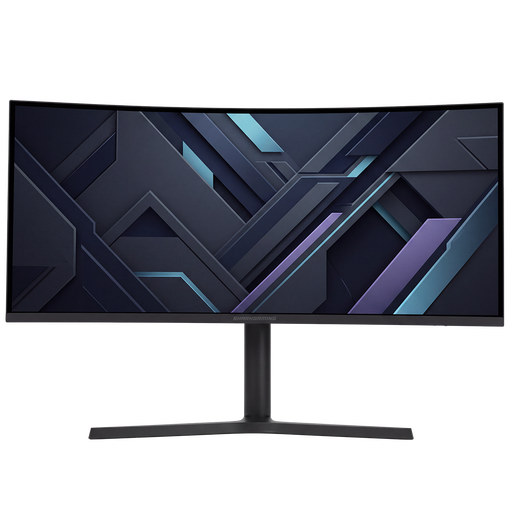
A 34-inch ultrawide worth considering if you want to view photos and other work windows side by side.
The product title lists a 34-inch UWQHD gaming monitor. Check the colour specifications and adjustment options for the specific version before choosing it for gallery work.
 No image available
A larger ultrawide worth considering if you want to view large images and work panels at the same time. Measure your available desk space first.
The product title lists a 49-inch screen, 5120 × 1440 pixels, a 32:9 aspect ratio and a height-adjustable stand. If colour-critical print work is part of your workflow, assess colour coverage and calibration separately.
 No image available
An option for combining gallery work with meetings and video calls.
The product title lists a 34-inch Dell Pro monitor with a USB-C hub and video conferencing features. Check the connections and colour specifications against your devices and workflow.
Not necessarily. For online use only, Cameranu describes sRGB as a suitable starting point; for printing, Cameranu also recommends assessing Adobe RGB. Check the model’s calibration options too.
Position the screen directly in front of you and, when you’re working, adjust it so the top is slightly below eye level. Arboportaal recommends this for your workspace. Also check that the stand or arm lets you position the screen properly at both sitting and standing heights.
If consistent colour is important for your work, check which calibration process and tools your chosen model supports. EIZO describes a factory report as a measurement of the monitor’s condition at the time of manufacture; it doesn’t tell you what condition it will be in later at your workstation.
Compare the energy labels for the specific models and, if needed, consult their EPREL product information. The European Commission describes the energy label scale for electronic displays as running from A to G; don’t estimate energy consumption from screen size alone.
Employers have obligations relating to safe screen work; these are not uniform minimum specifications for every private buyer. Arboportaal lists, among other things, rules for workstation set-ups when screen work exceeds two hours a day, including a height-adjustable screen, subject to conditions and possible exceptions for employers.