Start by choosing a screen finish that minimises distracting reflections in your workspace, and whose brightness and colour reproduction you can control. Then consider the performance you need for your photo files. For a reliable assessment of prints, suitable ambient lighting, screen calibration and the printer-paper profile are also important; a high peak brightness alone is not enough.
Who is this guide for?
Photo editor working beside a window
You often edit in the same bright spot and want to assess details without distracting reflections. The screen finish and your setup matter more than an HDR peak figure alone. Apple describes how the nanotexture option on certain MacBook Pro configurations reduces reflections.
Photographer checking prints
You compare your screen with paper and want to account for ambient light, screen calibration and the right printer-paper profile. EIZO explains how to adjust screen settings to suit ambient light, while Adobe describes colour management using a profile for the specific printer-paper combination.
RAW editor working on large projects
You import and export lots of photos or create panoramas. Memory, storage and available workspace can all be important; Adobe cites memory as a factor affecting performance for tasks such as importing and exporting.
What should you look for?
Screen with an anti-reflective option
Choose this if: reflections from windows are your main everyday concern and you can check the exact screen configuration.
Bear in mind: an anti-reflective finish is no substitute for calibration or checking a proof print; make sure you also check which configuration you’re buying.
Portable laptop with a standard colour screen
Choose this if: you often change workspaces and can manage the window light wherever you work.
Bear in mind: a brightness rating won’t eliminate reflections; check the screen where you’ll be working.
Larger creative laptop or workstation
Choose this if: you work with lots of RAW files, panoramas or several programmes at once, and extra workspace is important.
Bear in mind: optional screens and regional configurations aren’t available on every model; check the full model code.
| Consideration |
What to look for when buying |
Who should pay particular attention? |
| Screen in bright window light |
Check the exact screen finish and compare SDR brightness separately from HDR peak brightness. If possible, view the screen in similar window light to your workspace. |
If I work in a bright spot, I want to see details without reflections getting in the way. Around 34% of consumers in this buying context give screen readability in window light top priority. |
| Matching the screen to the print |
Check whether you can calibrate the screen and whether your workflow supports the profile for the printer-paper combination you use. |
When I compare an edited photo with a print, I want my screen settings and printing workflow to work together. Around 33% of consumers give print assessment top priority. |
| RAW files and large projects |
Compare the memory and storage in the full configuration with the photo files and programmes you use. Adobe cites memory as a factor affecting performance for tasks such as importing, exporting and creating panoramas. |
When I work on large photo projects, I want enough space and a smooth workflow for my files. Around 20% of consumers give RAW processing and project size top priority. |
| Portability and workspace |
Weigh up screen size and the connections you need against how often you take your laptop with you and whether you use a separate screen at a fixed workstation. |
If I regularly change workspaces, I want to take my laptop with me without sacrificing too much usable screen space. Around 13% of consumers give portability top priority. |
Common things to watch out for
-
Confusing HDR peak brightness with brightness for everyday photo editing
An HDR peak figure doesn’t automatically tell you how bright the screen will be for regular SDR photo editing. Apple distinguishes between SDR brightness and HDR display on the MacBook Pro configurations mentioned.
Compare SDR specifications and reflections in the lighting conditions you work in, rather than choosing based on a single peak figure.
-
Assuming a wide colour gamut guarantees a good print match
Screen settings, ambient light and colour management for the printer-paper combination also play a part. A laptop specification doesn’t describe the entire printing workflow.
Plan how you’ll assess proof prints and check the profile for the printer and paper you use.
Calibration and proof prints may require extra time or equipment.
-
Assuming an optional screen comes with every laptop in a range
HP lists the DreamColor screen on the ZBook Studio as optional. ASUS says that screen specifications for the ProArt P16 H7606 may vary by model and configuration.
Compare the full model code and check which screen configuration actually comes with the laptop.
Brands to compare
Apple
MacBook Pro is worth considering if a configurable nanotexture option matters to you; MacBook Air offers a different balance of size and screen specifications. The features mentioned apply to specific configurations and don’t guarantee print accuracy in general.
- Apple lists an optional nanotexture display and up to 1000 nits of SDR brightness outdoors for the 14-inch MacBook Pro with M5 Pro or M5 Max. The reduction in reflections is a claim made by Apple.
- Apple lists 500 nits and P3 for the 13-inch MacBook Air with M5; the cited specifications don’t mention a nanotexture option for this configuration.
HP
The ZBook Studio is a larger workstation range to compare if screen workspace and a creative screen configuration matter more to you than a compact size.
- For its Netherlands ZBook Studio range, HP lists an optional 16-inch DreamColor screen with 100% DCI-P3.
- The screen is optional, so it won’t automatically come with every configuration. The specification doesn’t indicate how much window glare you’ll see in practice.
ASUS
The ProArt P16 H7606 is a creative laptop range worth considering if you’re looking at a large screen and more demanding editing tasks.
- ASUS describes the ProArt P16 H7606 as having a 4K OLED screen and a choice of RTX options.
- Screen specifications may vary by model and configuration. Check the full model code and the configuration you’re considering.
Lenovo
The ThinkPad P1 Gen 8 is a workstation range worth comparing if storage, external screens or more demanding workflows matter to you.
- Lenovo lists optional screen and storage configurations for this product range.
- Lenovo notes that some configurations aren’t available in every region. A maximum screen specification isn’t guaranteed for every configuration.
Joybuy laptops for photo editing
These laptops are worth considering for photo editing in a bright workspace. Check the screen specifications, memory configuration and any practical limitations for each model.
 No image available
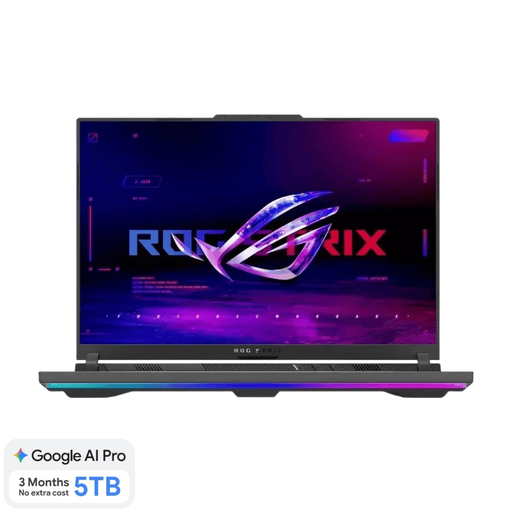
ASUS ROG Strix G16 G614FR-S5252W, 16 inch
The product description lists an anti-reflective screen, which is a useful feature to compare for working in window light.
Listed features: 16-inch screen, 16 GB memory, 1 TB SSD storage and 100% DCI-P3.
According to the product description, the charger must be purchased separately.
View at Joybuy
 No image available
HP OmniBook 3 16-by0058ndx, 16 inch
The product description lists an anti-reflective screen; also check whether its brightness suits your workspace.
Listed features: 16-inch screen, 8 GB memory, 512 GB SSD storage and 300 nits brightness.
According to the product description, the memory can’t be upgraded and the charger isn’t included.
View at Joybuy
 No image available
HP OmniBook 3 14-hy0058ndx, 14 inch
The product description lists an anti-reflective screen; the 14-inch size is also worth weighing against the workspace available to you.
Listed features: 1920 × 1200 resolution, 8 GB memory, 512 GB SSD storage and 300 nits brightness. The stated weight is approximately 1.42 kg.
According to the product description, the memory can’t be upgraded and the charger must be purchased separately.
View at Joybuy
 No image available
ASUS Vivobook S16 S3607QA-SH109W, 16 inch
The product description lists an anti-reflective screen; check the screen configuration and how it looks in your own workspace.
Listed features: WUXGA OLED screen, 16 GB LPDDR5X memory and 512 GB SSD storage.
View at Joybuy
 No image available
HP OmniBook Ultra Next Gen AI 16-bk0001nd, 16 inch
The product description lists a 16-inch 3K OLED screen; compare how it looks in the lighting conditions of your workspace too.
Listed features: 32 GB memory, 1 TB SSD storage and a 3K OLED touchscreen with 120 Hz.
View at Joybuy
Frequently asked questions
Is a screen with a high nits rating automatically suitable for checking prints beside a window?
No, a high brightness rating alone isn’t enough. Also consider reflections, SDR display and the lighting in which you compare the print. Apple distinguishes between SDR brightness and HDR peak brightness; EIZO explains how to adjust screen settings to suit ambient light.
How can you prevent brightness from changing while you edit?
Check your operating system’s automatic brightness settings. Microsoft says that some Windows 11 PCs can automatically adjust brightness and contrast based on the content on screen; check whether this setting is enabled on your device.
Which profile should you use when printing from Lightroom Classic?
If Lightroom Classic is managing colour, Adobe recommends using a custom printer colour profile for the specific printer-paper combination. So check which printer and paper you actually use.
Is the statutory guarantee in the Netherlands always exactly two years?
No. ACM ConsuWijzer doesn’t specify a fixed period for the statutory guarantee: what you could reasonably expect from the product and normal use are relevant. If a fault is covered by the statutory guarantee, contact the seller for a solution; an offered manufacturer’s guarantee is separate.


