
Teacher with an existing iPad or Galaxy Tab
Wants to write directly on the screen and therefore needs to check that the exact tablet model is compatible with the pen. Apple and Samsung publish information about supported models.


Start with your exact tablet model and teaching app: a pen that can write won’t necessarily work with every device or feature you need. If you want to write directly on the screen, choose a pen that’s compatible with your tablet. If you teach from a computer, compare graphics tablets with a pen. For precise geometric constructions, the tools in your geometry app matter more than freehand lines alone, as GeoGebra explains.
Wants to write directly on the screen and therefore needs to check that the exact tablet model is compatible with the pen. Apple and Samsung publish information about supported models.
Wants to demonstrate angles, circles and transformations. GeoGebra Geometry includes tools for these constructions, as well as the option to write with a pen.
Uses a shared computer whiteboard and is comparing writing on a tablet with drawing on a separate input surface. Wacom and Huion describe graphics tablets for computer use.
Choose this if: you want to write directly on a compatible iPad or Galaxy Tab during lessons.
Bear in mind: compatibility varies by tablet model and pen version. The pen’s name alone doesn’t guarantee it’s the right match.
Choose this if: you teach from a computer and want to use pen input with a shared whiteboard or geometry app.
Bear in mind: you draw on a separate surface. Wacom says One by Wacom requires a USB connection and driver installation.
| What to consider | What should you check? | Who should consider this? |
|---|---|---|
| Compatibility | Check the exact tablet model, pen version and required software version. Apple specifies iPadOS 17.1.1 or later for Pencil (USB-C) and iPadOS 17.5 or later for Pencil Pro. | If I want to keep using my existing tablet, I want to know in advance whether the pen works with that exact model. Around 29% of consumers put compatibility with their own device first. |
| Constructions and sketches | Decide whether you mainly want to explain things freehand or create precise constructions; check that your teaching app has the tools and pen input you need. | If you want to explain angles, circles or transformations precisely, you’ll need suitable tools in the app as well as pen input. Around 29% of consumers prioritise precise explanations of geometry. |
| Shared teaching setup | First decide which screen your pupils will see. Then check whether you’ll write directly on a tablet or use a separate input surface, connection and, if needed, driver. | If I share my explanation from a home computer, I want my pen input to work with the board my pupils see. Around 24% of consumers prioritise their computer workflow. |
| Everyday use | Compare charging with a battery-free pen, and check which cables, drivers and accessories you’ll need for your chosen setup. | If you want to prepare lessons without unnecessary interruptions, consider charging, cables and installation. Around 18% of consumers prioritise continuity and ongoing usage costs. |
Apple and Samsung list different supported devices for each pen version. So a pen from the same brand family won’t necessarily work with every model.
Note down your tablet’s full model name and compare it with the compatibility information for the exact pen.
One by Wacom is an input surface that connects to a computer. Huion says the Inspiroy 2 series doesn’t support Bluetooth.
Before buying, decide whether you want to write directly on the tablet screen or on a separate surface beside the computer.
With a computer setup, you may need to factor in a cable, driver installation and extra preparation time.
A pen is useful for writing explanations, but precise angles and circles also require suitable tools in the app you’re using.
Check how to create a sample angle and circle in your teaching app. GeoGebra Geometry offers construction tools for this; Microsoft Whiteboard describes features for sketching and shapes.
Apple Pencil (USB-C) and Pencil Pro are designed for specific iPad models.
Samsung S Pen versions are designed for specific supported Galaxy devices.
Logitech describes the Crayon (USB-C) as a pen option for compatible iPads from 2018 onwards.
One by Wacom is an input surface for using a pen with a connected computer.
Inspiroy 2 S is a compact graphics tablet for use with a computer.
This selection includes pens for specific iPads and Galaxy Tabs, as well as graphics tablets for computer use. Check compatibility with your device and teaching app for each model.
 No image available
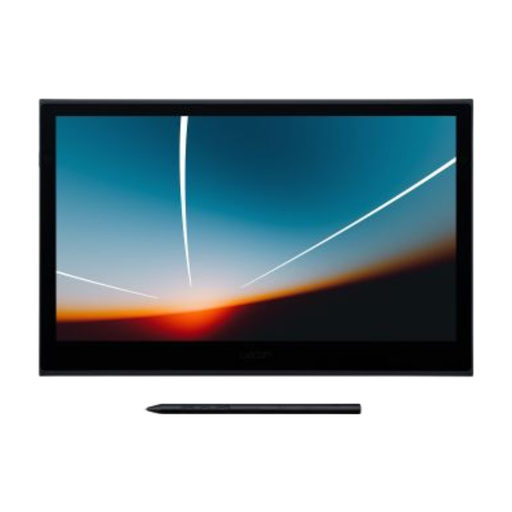
For computer-based teaching when you want to draw directly on a pen display; the product information lists USB-C and 8,192 pressure levels.
The listed operating systems are Windows, macOS, Android and ChromeOS. For connection and full pen and touch functionality, the product information specifies a USB-C connection and Wacom driver.
 No image available
For using pen input with a computer when you’re not writing directly on a tablet screen.
The product information lists Windows and macOS, Bluetooth 5.1, USB-C and a battery-free pen. Driver installation is required for full functionality.
 No image available
For writing, drawing and making notes on a compatible iPad; the product information lists squeeze and rotation gestures.
Listed compatible models include iPad Pro 13-inch and 11-inch (M4), iPad Air 13-inch and 11-inch (M2), and iPad mini (A17 Pro). Apple specifies iPadOS 17.5 or later as the system requirement.
 No image available
For writing, drawing and annotating on a compatible iPad; Apple describes this version as tilt-sensitive.
Check your exact iPad model. Apple specifies iPadOS 17.1.1 or later as the system requirement; charging is via the USB-C port beneath the cap.
 No image available
For writing and sketching on the Galaxy Tab S9 FE and S9 FE+, the models listed in this product information.
The product information lists IP68, Air Command and magnetic attachment to the tablet, plus use with Samsung Notes and PENUP.
Not necessarily for the construction itself: GeoGebra Geometry offers tools for angles, circles and transformations, among other things. Decide whether you’ll mainly create constructions or explain things freehand, then test the pen input in your teaching app.
Microsoft says you can open a new or existing Whiteboard directly in a Teams meeting. Check on your own device and in the app you use that pen input works as you need it to.
For One by Wacom, Wacom says to connect the USB cable and install the driver for Windows or Mac. Before your lesson, test that writing and erasing work in the app you’ve chosen.
Consumer purchases are covered by the statutory guarantee: according to ACM ConsuWijzer, the seller must offer a solution if the product doesn’t meet what you could reasonably expect when used normally. For distance sales, there is also a 14-day cooling-off period in many cases, as explained by the Dutch government; whether it applies depends on the purchase.