Who is a graphics tablet right for?

Marker with limited desk space

You already have a computer screen for viewing work and want pen input that fits beside your keyboard. Compare the overall dimensions, not just the active writing area. Wacom lists different sizes for the One by Wacom Small and Wacom One S.

Teacher who annotates digitally a lot

You regularly add comments to files and want the pen, any buttons and your existing application to work together as part of a practical routine. Microsoft Support notes that available inking features depend on the device and software version.

Marker who wants to write on the document

You want to see your pen tip in the same place as the work, and can make room for a larger device and its connections. A pen display has its own screen, but check which video connection your computer needs.

What should you look for when choosing?

Compact pen tablet without a screen

Good for: viewing work on your computer and writing on a separate input surface.

Bear in mind: you look at the computer screen rather than your pen tip; compare the device’s full dimensions too.

Pen tablet with programmable keys

Good for: frequently switching between pen functions while marking a lot of work. Huion specifies six keys for the H640P, while XPPen specifies eight for the Deco mini7.

Bear in mind: the models mentioned are about 260 mm wide. Check that they fit on your desk and that your app supports the key functions you want.

Compact pen display

Good for: writing directly on the work you can see being more important to you than having the smallest possible device. Huion lists the Kamvas 12 as having an 11.6-inch screen.

Bear in mind: the screen, power supply and connections all need space. Huion lists DisplayPort 1.2 support among the requirements for the USB-C connection.

What to consider What should you check? Which consumers?
Will it fit on the desk? Measure the available space and compare it with both the overall dimensions and active writing area of the exact model. If I have little room beside my keyboard, I want to know whether the whole device will fit. Consumers who prioritise desk space make up around 29%.
Will it work with my software? Test with a non-confidential sample file to check that you can write, save and reopen your comments. I want to use feedback in my existing files without changing the way I work. Consumers who prioritise software compatibility make up around 29%.
Will the controls suit me? Check that the keys you want work with your marking app and are in a comfortable position for you. When adding lots of repeated annotations, I want to switch easily between pen functions. Consumers mainly looking for easy-to-use pen controls make up around 24%.
Are the connections and accessories suitable? Check what’s included with the exact version and compare the required connections with the ports on your computer. I want to know in advance whether the chosen bundle will work with my computer connection. Consumers who prioritise a complete, compatible connection make up around 18%.

Common buying mistakes

  • Measuring only the active writing area

    The casing can be considerably larger than the area you write on. For the Huion Inspiroy H640P, Huion lists overall dimensions of 260 × 147,7 mm and a working area of 160 × 100 mm.

    Measure the free space on your desk and compare both dimensions for the exact model.

  • Confusing ‘Wacom One’ with ‘One by Wacom’

    Wacom describes these as different product ranges. The Wacom One S reviewed here is a pen tablet without a built-in screen, not a pen display.

    Check the full model number and whether the version is a pen tablet or a pen display.

  • Assuming every bundle includes a pen and cable

    What’s included can vary by version. Wacom offers the pen and cable as separate options when configuring a product.

    Check the contents of the exact version on offer and the ports required on your computer.

    If a compatible pen or cable is missing, you may need to source one separately.

  • Uploading pupils’ work without checking privacy

    Pupils’ work may contain personal data. The Dutch Data Protection Authority stresses that the data controller remains responsible; agreements with the provider are also important when processing is outsourced.

    For real pupils’ work, only use a storage and annotation method that your school has assessed and approved.

Brands to compare

Wacom

Worth considering if you’re comparing compact pen tablets without screens, such as the One by Wacom Small and Wacom One S. These are different product ranges.

  • For the One S, Wacom lists overall dimensions of 188 × 141 × 8 mm and USB-C and Bluetooth 5.1. For the One by Wacom Small, Wacom lists 210 × 146 × 8,7 mm and a USB connection.
  • Check the version and bundle: these dimensions and connections are model specifications, not the result of an independent user test.

Huion

Worth considering if you’re comparing a pen tablet with keys, such as the Inspiroy H640P, with the Kamvas 12 pen display.

  • Huion specifies six programmable keys for the H640P and an 11.6-inch screen for the Kamvas 12.
  • According to Huion, the H640P doesn’t have a wireless connection. USB-C video on the Kamvas 12 is subject to connection requirements, including DisplayPort 1.2 support.

XPPen

Worth considering if you want a larger active area and customisable keys on a pen tablet; this section focuses on the Deco mini7.

  • XPPen specifies eight shortcut keys and overall dimensions of 260,2 × 162,2 × 9,3 mm for the Deco mini7.
  • If your desk space is narrow, check that the whole device will fit. The specifications don’t tell you whether the keys are supported by every marking app.

Products at Joybuy

This selection includes pen tablets for use alongside a computer screen, devices you can write directly on, and a pen display. In every case, consider the software, connection and desk space available.

Wacom MovinkPad 11 standalone drawing tablet

Wacom MovinkPad 11 Standalone Drawing Tablet

The built-in screen and pen are designed for writing directly on the device; check that this workflow suits your marking software.

11.45-inch screen; active area 252 × 148 mm; Android 14; 8 GB RAM; 128 GB storage; device dimensions 266 × 182 × 7 mm.

View at Joybuy

Wacom Intuos Pro Pen Tablet Small

Wacom Intuos Pro Pen Tablet Small

This pen tablet is designed for writing while you look at a computer screen; check that your marking app supports the pen and key functions you want.

Active area 187 × 105 mm; four customisable ExpressKeys; Bluetooth and USB-C; overall dimensions 215 × 163 × 7 mm. The product description says that the Wacom driver must be installed to access full pen sensitivity and ExpressKey functions.

View at Joybuy

Wacom One Pen Tablet Small S

Wacom One Pen Tablet Small S

This compact pen tablet is designed for pen input alongside your computer screen; check that the workflow and software suit your needs.

Bluetooth 5.1 and USB-C; the product description says a battery-free pen is included.

View at Joybuy
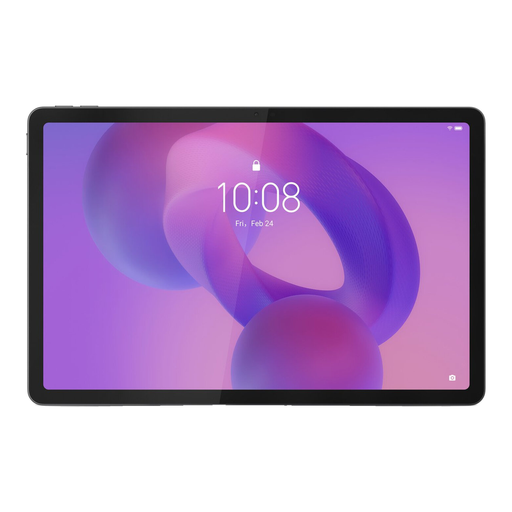
Lenovo Idea Tab 11-inch with stylus

Lenovo Idea Tab 256 GB, 11 inch, Wi-Fi, Android 15

The product description says a Tab Pen is included for writing and drawing on the screen; check that your school software works on the device.

8 GB RAM; 256 GB storage; according to the product description, the charger is not included.

View at Joybuy

Wacom One Pen Display 14-inch

Wacom One Pen Display 14.0

You write directly on the screen. If you have a small desk, bear the overall dimensions in mind and check that your computer’s USB-C connection is suitable.

14-inch screen; active area 309 × 174 mm; overall dimensions 336 × 201 × 10 mm; the product description says a pen and USB-C connection are included.

View at Joybuy

Frequently asked questions

Can you write directly on the document you see with every graphics tablet?

No. With a pen tablet without a screen, you write on the input surface while looking at your computer screen; a pen display has its own screen. Also check that your document app can save pen annotations.

How can I test my marking workflow before using pupils’ work?

Start with a dummy test file: add a comment, save the file and reopen it. Microsoft Support notes that Office inking features depend on the device and software version; Microsoft Journal can insert a copy of a PDF for marking up.

What should I check about a pen tablet’s accessories?

Check whether the pen, cable and any spare nibs are included with the exact version. Wacom lists a USB cable and spare nibs for the One by Wacom Small; don’t assume another bundle includes the same items.

What rights do I have when buying online in the Netherlands?

For applicable consumer purchases made at a distance, there is generally a 14-day cooling-off period, according to the Dutch government. The legal guarantee means you’re entitled to a product that works properly; there is no fixed legal guarantee period, and the seller is your point of contact if a product is faulty. Check which rules apply if the school, rather than you as a consumer, is the purchaser.

Can I put pupils’ work in any annotation app or cloud service?

Not without checking how the data is processed and what arrangements your school has in place. The Dutch Data Protection Authority stresses that the data controller remains responsible for personal data. Follow the method approved by your school, even when a provider processes the data.
