Who is a drawing tablet for circuit diagrams suited to?

CAD user with a small desk

Wants to create editable circuit diagrams and needs to consider both the space available and how symbols and connections are handled. KiCad describes features including symbols and electrical connections; check how pen input works in your own schematic app.

Someone who sketches diagrams by hand

Wants to sketch or annotate ideas with a pen. The main choice is whether to look at a separate monitor or draw on the screen beneath your pen, not whether the tablet is proven to be suitable for CAD.

Cautious first-time buyer

Wants to try a compact input setup and is checking the connections required, what’s included and the purchase terms. Compare these details for the exact model.

Which buying concerns should guide your choice?

Compact screenless pen tablet

Best suited when: you already use a computer and monitor and have little space beside your keyboard.

Trade-off: you look at the monitor rather than the pen tip; check both the overall dimensions and the active drawing area.

Pen display

Best suited when: you want to see the diagram beneath the pen tip and have room for an extra screen.

Trade-off: you’ll need space for the display and a suitable video connection; a screen doesn’t automatically change how you work with CAD symbols.

Standalone tablet with a pen

Best suited when: you mainly want to make occasional sketches or notes without having a computer on your desk.

Trade-off: KiCad lists Windows, macOS and Linux; this doesn’t confirm that you can work in the same way on a standalone tablet.

What to consider What should you check? Who is this important for?
Will the tablet fit on my desk? Measure the available width and depth and compare them with the overall dimensions; the active area isn’t the same as the total size. Huion lists the Inspiroy 2 S at 246 × 152 mm; ugee gives the S640’s dimensions as 215,3 × 162,53 mm. If I have little room beside my keyboard, I want to know how much space the whole tablet takes up. Around 36% of consumers say desk space is their top priority.
Will the pen work in my schematic app? Check the operating system and driver, then try clicking, dragging, zooming and navigating in your application. KiCad describes schematic features such as symbols and connections; shortcuts or pen pressure don’t prove that pen input will work well for these tasks. Anyone mainly looking to create editable diagrams should assess input in their own software, even if this means saving less space. Around 29% of consumers put their CAD workflow first.
Do I want to draw on the screen? A screenless tablet uses a separate monitor; a pen display also needs a suitable video connection. For the Kamvas 12’s USB-C connection, Huion specifies support for USB 3.1 Gen 1 and DisplayPort 1.2. If I want to see the line directly beneath my pen tip, I weigh this against the extra screen space and my computer’s connection. Around 21% of consumers prioritise drawing on the screen.
What’s included, and what terms apply? Check what’s in the box and the seller’s terms. ACM ConsuWijzer says that online purchases generally come with a 14-day cooling-off period from delivery, with some exceptions; the statutory guarantee is separate. Anyone looking for an easy start can check which accessories they’ll need and who to contact with any questions later. Around 14% of consumers prioritise a low barrier to entry and clear after-sales support.

Which pitfalls can you avoid?

  • Assuming more pen pressure levels mean better CAD control

    The stated number of pressure levels doesn’t tell you how well you can work with symbols, connections or the grid in a schematic programme.

    First, check which actions you need to perform in your schematic app, then try creating a short sample circuit with the pen.

  • Measuring only the active area or screen diagonal

    The overall dimensions determine how much desk space the device takes up; the active area tells you where the pen works.

    Measure the space available and compare it with the overall dimensions and cable orientation of the exact model.

  • Assuming every USB-C port can support a pen display

    For the Kamvas 12, Huion specifies port requirements for USB-C video, including DisplayPort 1.2.

    Compare your computer port’s specifications with the display’s requirements and check which alternative connection may work with your setup.

Which brands are worth comparing?

Wacom

Wacom’s Netherlands range includes the compact One S and Intuos Small, among others; these models suit a screenless setup with an existing monitor.

  • The Wacom One S is listed with model code CTC4110WLW2B.
  • This listing doesn’t confirm how the pen works in your schematic software; check the exact model and the pen included.

Huion

The Inspiroy 2 S is a compact screenless option; the Kamvas 12 is a pen display.

  • Huion lists the Inspiroy 2 S’s overall dimensions as 246 × 152 mm and says it has a scroller.
  • The Kamvas 12 has port requirements for USB-C video; check that your computer meets them.

XPPen

The Deco mini7 is a screenless pen tablet worth comparing if you’re looking for a compact work surface and shortcut keys.

  • XPPen lists overall dimensions of 260,2 × 162,2 mm, an active area of 177,8 × 111,1 mm and eight shortcut keys.
  • These specifications don’t confirm that the keys or pen pressure will make placing CAD symbols easier.

ugee

The S640 is a compact screenless option to compare for overall dimensions, connections and what’s included.

  • ugee lists overall dimensions of 215,3 × 162,53 mm and says the box includes a battery-free pen and cable.
  • The specifications don’t confirm that the tablet has been tested with a specific schematic programme.

Joybuy products for pen input and circuit design

This selection of Joybuy products includes screenless pen tablets, a standalone tablet with a pen and a writing tablet for hand-drawn sketches or notes. For editable CAD diagrams, always check that your software works as required and that you have the necessary computer connection.

Wacom One pen tablet small - S

Wacom One pen tablet Small S

Ideal for pen input alongside an existing screen; check how it works in your schematic app.

Active area: A6. Battery-free pen. Connection: Bluetooth 5.1 or USB-C.

View at Joybuy

Wacom Intuos Pro Pen Tablet Small

Wacom Intuos Pro Pen Tablet Small

A screenless option for pen input with a computer; check whether it works with your schematic app.

Active area: 187 × 105 mm. Connection: USB-C or Bluetooth. Four customisable ExpressKeys.

View at Joybuy

Wacom MovinkPad 11 Standalone Drawing Tablet

Wacom MovinkPad 11 Standalone Drawing Tablet

Worth considering if you want to draw on the device’s screen without a computer on your desk; check that the schematic app you need is available on the device.

Android 14. Listed overall dimensions: 266 × 182 mm; active area: 252 × 148 mm.

View at Joybuy

Wacom Intuos Medium Wired Pen Tablet

Wacom Intuos Medium Wired Pen Tablet

A screenless pen tablet for use with a separate computer screen; its body takes up more space than a smaller tablet.

Overall dimensions: 264 × 200 mm. Active area: 216 × 135 mm. Battery-free pen and four customisable ExpressKeys.

View at Joybuy
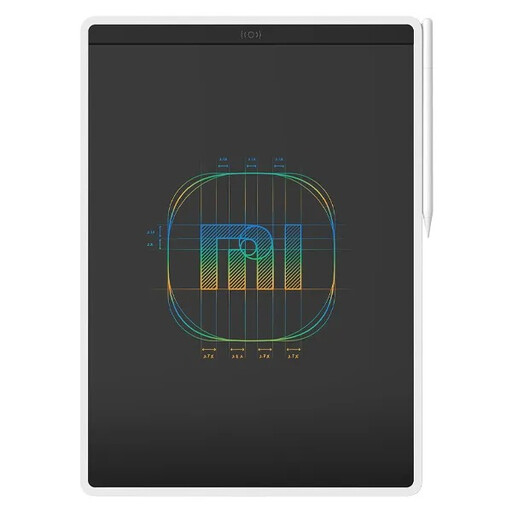
Xiaomi LCD Writing Tablet 13.5-inch Color Edition

Xiaomi LCD Writing Tablet 13.5" Color Edition

Designed for hand-drawn sketches or notes; the stated drawing function doesn’t confirm that it supports editable CAD input.

LCD screen: 13,5 inches. Pressure-sensitive technology.

View at Joybuy

Frequently asked questions

Can a drawing tablet create an editable electronic circuit diagram by itself?

No. A tablet is an input device and doesn’t replace schematic software. KiCad describes features such as symbols, connections and grids; decide which programme and file format you need, then check how pen input works.

What should I check before connecting a pen display?

Check the computer port, cable and required video connection for each model. For the Kamvas 12’s USB-C connection, Huion specifies at least USB 3.1 Gen 1 and DisplayPort 1.2 on the connected device; also check which alternative connection is available.

How can I make a pen tablet practical for regular circuit design work?

Check that you have the right driver, and set up pen buttons or the scroller only for actions supported by your programme. Shortcut keys on a tablet don’t prove that every CAD function will work with them.

What are my rights when buying online in the Netherlands?

According to ACM ConsuWijzer, online purchases generally come with a cooling-off period of up to 14 days after delivery, with some exceptions. You’re also covered by the statutory guarantee if, under normal use, a product fails to meet what you could reasonably expect; the seller is your point of contact.

What should I look out for when buying from a seller outside the EU?

Check who the seller is and read the product information carefully. The Dutch government says electronic devices placed on the EU market must carry a CE mark, and warns that it can be harder to assess compliance when buying from outside the EU. A CE mark doesn’t confirm that the tablet works with your schematic software.
