
Designers with no spare power sockets
You want to draw directly on the screen, but the available power socket is already in use. So check whether your computer’s USB-C port supports video output and supplies enough power.


Choose a pen display only after checking that your computer’s USB-C port supports video output and supplies enough power. Wacom specifies at least 15 W for the Wacom Movink 13; other models may need a separate power supply. Then compare the screen space and controls, and always follow your printer’s specifications for the final print.
You want to draw directly on the screen, but the available power socket is already in use. So check whether your computer’s USB-C port supports video output and supplies enough power.
You might be drawing initials, flowers or illustrative details, so compare the pen input, drawing area and shortcut controls. You’ll also need to check the file separately before sending it to print.
You combine illustrations and text to create physical invitations. Pay particular attention to the colour settings, fonts and bleed specified by your chosen printer.
First, check whether you can connect the display without an extra power socket. Then compare the drawing area and controls, and keep your printer’s requirements in mind when preparing the artwork.
| What to consider | What should you check? | Who is this important for? |
|---|---|---|
| Power without an extra socket | Check that your computer’s USB-C port supports video and supplies enough power. Wacom specifies at least 15 W for the Movink. | If your available power socket is already in use, you’ll want to know whether one cable can provide both the image and power. Around 36% of consumers put power without an extra socket first. |
| Drawing details for your cards | Compare the screen space, pen input and controls of the exact model. Also check that you have enough room at your desk. | If you want to draw decorative lettering or illustrations directly on screen, focus on the drawing area and controls. Around 29% of consumers prioritise hand-drawn details. |
| Colour and print-ready layouts | Follow your chosen printer’s colour profile, file format and bleed requirements. What you see on screen doesn’t guarantee the same result in print. | If your invitation will be printed, you’ll want the text and illustrations to meet the printer’s requirements. Around 21% of consumers prioritise the printed result. |
| Desk space and connection accessories | Compare the screen size and dimensions, and check which cables and power supply are included with the exact version. | If you have a small table, you’ll want to know whether the screen will fit and which connection accessories you’ll need. Around 14% of consumers prioritise desk space and connection accessories. |
Connection requirements vary by model. For the Huion Kamvas 13 (Gen 3), Huion’s connection instructions show a power cable and adapter alongside the USB-C connection.
Before buying, check your computer port’s specifications and the connection diagram for the exact pen display.
You may need a different cable or a separate power supply.
Drukwerkdeal warns that converting from RGB to CMYK or PMS can cause colour differences.
Follow your chosen printer’s file requirements and check the printed result separately from the on-screen display.
Depending on the job, you may need a proof or a different print order.
When submitting work to Drukwerkdeal, missing bleed and fonts that haven’t been embedded can affect the final result.
Check the trim margin for your chosen card size, and embed or convert fonts as required before sending the PDF.
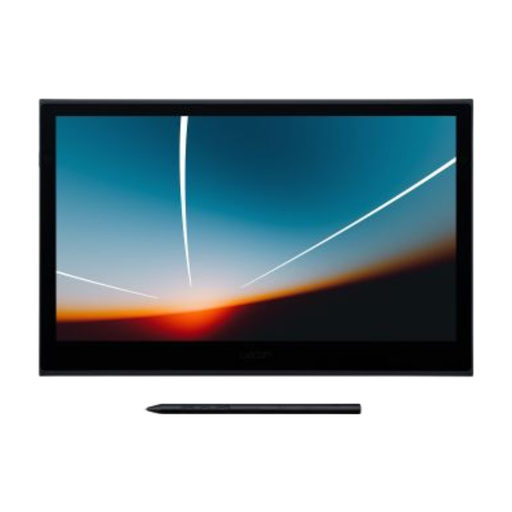
The Movink 13 is worth considering if you’re looking for a one-cable USB-C setup and your computer meets the connection requirements.
The Artist 12 3rd is a compact option to compare for hand-drawn card details and shortcut controls.
The Kamvas 13 (Gen 3) is an option to compare if you’re looking for a 13.3-inch screen and dial controls.
This selection of Joybuy products focuses on drawing directly on screen with a pen display that can connect to a compatible computer using a single USB-C cable.
 No image available
Suitable for drawing directly on screen if your computer supports USB-C video and supplies at least 15 W for single-cable use.
13.3-inch OLED screen with an active drawing area of 294 × 165 mm.
The included pen has 8192 pressure levels. According to the product description, a Wacom driver is required for full pen and touch functionality.
No. The USB-C port must support the required video output and supply enough power. Wacom specifies at least 15 W for the Movink. Also check the connection diagram for the exact model.
Don’t assume so: Huion’s specific USB-C connection instructions also show a power cable and adapter. According to those instructions, the USB-C to USB-C cable isn’t included.
Follow your printer’s specifications and the requirements for your card size. Drukwerkdeal asks for a PDF, recommends PDF/X-4:2008 with Fogra 39 as the preferred settings, and generally requires 3 mm bleed. Other printers may have different requirements.
For online purchases from a business as a consumer, you generally have a 14-day cooling-off period, according to the Dutch government. Your statutory rights are separate from any manufacturer’s warranty: if a product doesn’t meet what you could reasonably expect when used normally, the seller is responsible for providing an appropriate solution, as explained by ACM ConsuWijzer.
Electrical appliances offered for sale in the EU must meet the applicable product safety requirements and carry the required CE marking, according to the Dutch government. An EU Declaration of Conformity is available for the Wacom DTH135 range. For other versions, check the relevant product information.