
Photographer using two screens
Wants to keep a timeline or photo overview alongside the main window, and needs to check whether their computer, connections and display setup support a pen display.


If you only need to view photos alongside your main window, a standard second screen is usually enough. Choose a pen display if you also want to annotate or retouch images directly on that screen. First, check that your computer supports the screen setup you want, and find out which cables and power supply you’ll need. Microsoft Support explains how to set up separate displays in Windows; product specifications and manufacturers’ claims are not independent measurements of image quality.
Wants to keep a timeline or photo overview alongside the main window, and needs to check whether their computer, connections and display setup support a pen display.
Organises wedding photos and wants to make notes with a pen or carry out local edits as well. Direct pen input may be more important than simply having extra screen space.
Wants to fit an extra screen with pen control onto a desk or move it between workspaces, so takes its size, stand and cables into account.
When setting up two screens for wedding photos, the main considerations are a working connection, whether you’ll actually use the pen, image assessment and the space available.
| Consideration | What should you check? | Who is this most relevant to? |
|---|---|---|
| Connecting two screens | Check your computer’s video and USB ports, the signals and power required, and the cables supplied. | I want to see photos alongside my main window and need to be sure my computer can run both screens; around 36% of consumers are mainly concerned about connectivity when buying. |
| Direct pen input | Decide whether you want to annotate or edit on the second screen; check pen mapping and any shortcut keys. | If I want to select photos and mark up images straight away, pen control on the screen matters; around 29% of consumers prioritise pen use. |
| Image assessment | Compare the resolution and colour modes of the exact model; factor in calibration and colour profiles if colour-critical work is important. | I want to assess or retouch wedding photos on the second screen, so I look beyond a stated colour mode; around 21% of consumers prioritise image assessment. |
| Space and positioning | Compare the dimensions and stand of the version you’re considering with your desk and the space needed for cables. | If my desk has limited space or I move between workspaces, the screen needs to fit my setup; around 14% of consumers make workspace their main consideration. |
A USB-C port doesn’t automatically provide the video signal a pen display needs. Check what both your computer and the complete model support, and find out which connections and cables are required.
Depending on your computer and model, you may need a different cable or power adapter; check what’s included with the exact version.
A pen display isn’t automatically a standalone device: the connection and setup instructions for the Artist Pro 16 (Gen 2) assume it’s connected to a computer. Before comparing models, decide whether you need an extra computer screen or a standalone device.
A stated colour mode or factory calibration doesn’t guarantee that two screens will show the same image. Huion lists colour modes for the Kamvas 16 (Gen 3); Adobe treats calibration and colour profiles as separate parts of colour management.
For colour-critical work, you may also need to consider calibration and colour profiles.
ACM ConsuWijzer distinguishes between purchases mainly for private use and contracts mainly or exclusively for business use. Before buying, check how you’re purchasing the device and which warranty and service terms apply.
The Cintiq range includes pen displays in various sizes. Wacom positions the Cintiq 16 as the more compact option in the range.
The Kamvas range is worth considering when comparing screen size, pen control and colour modes. According to Huion, the Kamvas 16 (Gen 3) has dual dials.
The Artist Pro 16 (Gen 2) is worth comparing if you’re considering a pen display with a separate shortcut remote.
These Joybuy products are standard extra screens for anyone who mainly wants to view photos alongside the main window; they don’t offer the direct pen input of a pen display.
 No image available
A portable extra screen for anyone who mainly wants to keep a photo overview alongside their main screen.
The IPS screen has a resolution of 1920 × 1200 pixels. The description lists two full-function USB-C ports, a power adapter, a weight of 1.2 kg and a protective case.
 No image available
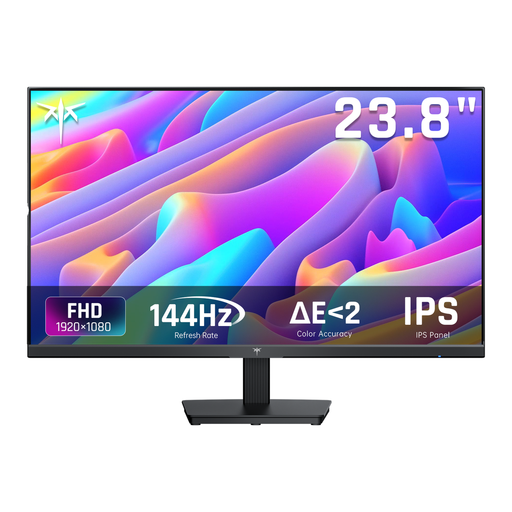
A desktop monitor to consider if you want a fixed extra screen for viewing photos.
The product name lists a 24-inch IPS screen, 1080p resolution and a 144 Hz refresh rate. HDMI and DisplayPort connections and a tilt-adjustable stand are also mentioned.
 No image available
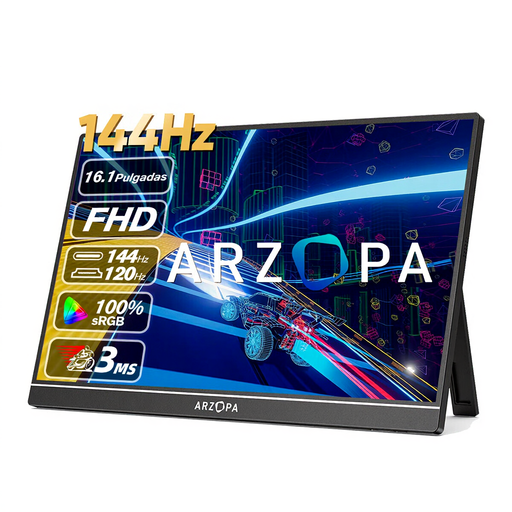
A portable external screen for anyone who wants to view photos alongside their main screen.
The product name lists a 16.1-inch Full HD screen with 1080p resolution and a built-in stand. The description mentions USB-C and HDMI, and gives the weight as 780 g.
 No image available
A portable screen to compare if you want extra space for viewing photos.
The product name lists a 16-inch IPS screen with 2560 × 1600 pixels and a built-in stand. USB-C and HDMI are also mentioned; the description gives the weight as 810 g.
 No image available
An ultra-wide screen to consider if you want to display photos and other windows side by side and have enough desk space.
The description lists a resolution of 3440 × 1440 pixels, an ergonomic stand and Picture-by-Picture for two input devices.
No, not if you simply want a wider view; a suitable second screen may be enough. Choose pen input if you also want to write or edit directly on that screen. Adobe describes the Library in Lightroom Classic as a place to view, organise, compare and assess photos.
First, set up the screens in your preferred extended display arrangement, then select the correct screen as the pen workspace in the pen display driver. Huion describes these steps for its driver; menus may vary by brand.
Don’t treat stated colour coverage or factory calibration as a guarantee that your screens will show images identically. Adobe covers monitor calibration and colour profiles as parts of colour management in Lightroom Classic.
If Dutch consumer law applies to the purchase, the seller is responsible for the statutory guarantee if the product doesn’t perform as you could reasonably expect under normal use. If you buy the device mainly or exclusively for business use, don’t automatically assume the same consumer protections apply; ACM ConsuWijzer makes this distinction.
No. CE marking is only required when the applicable EU rules specify it for the product. This may apply to electrical and electronic equipment; check the product information and the requirements that apply to the specific model. CE marking is not the same as a general EU certificate issued by an independent body.