
Photographers with limited desk space
You want to view wedding photos without an extra screen taking over your workspace. Check the external dimensions and cable routing, not just the screen size.


Choosing and organising wedding photos doesn’t necessarily call for a pen display: Adobe describes these tasks as features of the photo library in Lightroom Classic. If you also want to retouch photos directly, compare the full dimensions, connections, controls and colour features of compact models. Check which cables and power supply your computer and the exact version require, too.
You want to view wedding photos without an extra screen taking over your workspace. Check the external dimensions and cable routing, not just the screen size.
You review and organise lots of shots, and want to know first whether pen input would improve the way you already work with your software.
You want to work directly on photos with a pen, so you’ll need to consider colour reproduction, controls and connections as well as screen size.
When: If you mainly review, sort and collect photos, start with the library features in your existing photo software. Adobe describes these tasks for Lightroom Classic.
Trade-off: You can use your current equipment, but you won’t have an extra screen for working directly on photos with a pen.
When: Consider this option if you regularly work on images with a pen and have room on your desk for a screen of around 12 or 13 inches.
Trade-off: A smaller workspace leaves less room to show both the photo and software panels at once; buttons or a dial can take up space, too.
When: Look for documented colour modes or calibration if you retouch with colour accuracy in mind, or compare weights if you often put the screen away or move it.
Trade-off: Manufacturers’ colour gamut specifications are not an independent measurement of your individual unit and don’t guarantee an accurate print.
The percentages below relate to consumers considering a pen display for this type of workflow; each row highlights a different top purchasing priority.
| What to consider | What to look for | Who is this most important to? |
|---|---|---|
| Will the whole device fit? | Compare the external dimensions and cable outlet; leave room for your hand and a comfortable working position. | If my desk is already full, I want to know how much space the screen, cables and any stand will really take up. Around 25% of consumers put desk space first. |
| Will pen input add anything? | Review your selection process and decide which tasks you really want to do with a pen. | If I mainly review and organise photos, I want to know first whether my existing photo software already does the job well enough. Around 25% of consumers prioritise their selection workflow. |
| Will the display and power work? | Check video output, power requirements and the cables needed for the exact model. | If I want to use my current laptop, I want to be sure in advance that the chosen connection provides video and enough power. Around 20% of consumers make connection compatibility their top priority. |
| Will it suit retouching and colour work? | Compare like-for-like colour specifications and check which colour mode or calibration is documented. | If I regularly retouch photos directly, I want to assess the pen controls and relevant colour information. Around 20% of consumers start with retouching and colour. |
| What do I need to set it up? | Check what’s included with the exact version and consider any extra warranty alongside your statutory rights. | If I want to get everything connected and working in one go, I want to know which parts are included and who to contact if a product is faulty. Around 10% of consumers prioritise a complete purchase and after-sales support. |
A pen display is input and display hardware; you select and organise photos in your photo software.
First work out whether your sticking point is selecting photos or whether you actually want to retouch them with a pen.
Your computer’s port must support video output. Depending on the model, you may also need extra power or a different cable setup.
Compare your computer’s ports and power options with the manual and the contents of the exact version.
A suitable setup may require an extra cable, adapter or power connection.
Colour gamut and colour coverage are different measurements. A high gamut figure alone does not prove that colours will be reproduced accurately in photos.
Compare the same type of colour measurement and check which colour mode and calibration options are available for your editing.
The casing, cable routing and any stand also take up space. The Huion Kamvas 13 (Gen 3) manual lists the ST300 stand as optional.
Measure your available desk space and check the full external dimensions and what’s included with the version you choose.
The Kamvas 13 (Gen 3) is a compact option for pen editing, with adjustable colour modes.
The Artist 13.3 Pro V2 combines a 13.3-inch working area with physical controls.
The One 12 has a smaller working area, while the Movink 13 is a different product line with an OLED screen and a low stated weight.
The UE12 is an 11.6-inch pen display for anyone looking for a compact screen with physical shortcut keys.
The Pen Display 16 Bundle is a larger option if screen space and the included controls matter more than keeping your workspace as compact as possible.
These Joybuy product picks are designed for pen input when retouching photos, with compact workspaces in mind.
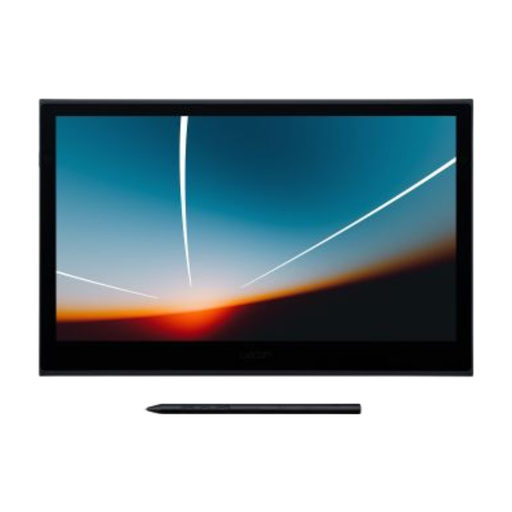 No image available
For anyone who wants to work directly on photos with a pen as well as select them, and is looking for a compact screen.
According to Wacom: a 13.3-inch OLED screen and a weight of 420 g. The product description lists Full HD, USB-C and an included pen.
 No image available
For anyone who wants to retouch photos directly with a pen and has room for a larger screen.
The product description lists Full HD, USB-C and an included battery-free pen. The active area measures 309 × 174 mm; the external dimensions are 336 × 201 × 10 mm. Bear these dimensions in mind if you have a small desk.
Not necessarily. Adobe describes Lightroom Classic as software that lets you view, sort, compare and rate photos. A pen display is mainly worth considering if you also want to work directly on images with a pen.
No. Your computer’s USB-C port must support the video output required by the model you choose, and you may sometimes need an additional power supply. Wacom also describes an HDMI and USB-A connection option for the One 12; the Huion Kamvas 13 (Gen 3) manual sets out connection and power requirements.
Allow space for the screen, your hand and the cables, and vary your posture. Arboportaal offers this as workplace guidance; the specific legal requirements for display screen work apply to employers in the relevant working relationship.
When you buy online from a business, you generally have a 14-day cooling-off period, although exceptions apply. The product must also match the contract: if it’s faulty, the seller is your point of contact. The Dutch government states that there is no fixed general statutory warranty period in the Netherlands.
No. CE is not an independent quality mark; it indicates that the manufacturer declares the product complies with the relevant EU rules. Which rules apply depends on the product and its features. This general explanation does not confirm that a specific version meets all applicable requirements.