Which pen display is right for you?

Sketcher who moves between desks

If you put your pen display away after use, look for a size that’s easy to move and connections that work with your laptop. Also check whether the stand and protective cover you need are included with the version you’re considering.

Designer who uses lots of reference images

If you want room for details and references while you sketch, consider a larger screen. Measure the space available on the shared desk first, and allow for the space the screen will take up when you put it away.

User of a managed office computer

Your choice will also depend on the available video and USB connections, the power supply and whether you’re allowed to install the required driver. If necessary, ask your IT administrator which connections and software are permitted on the computer.

What should you look for?

Compact pen display

A good fit if: you want to put the screen away after a sketching session or move it between workspaces.

Bear in mind: there’s less room to show details and reference images at the same time, and you may need to buy extras such as a stand or cable.

Larger pen display

A good fit if: the screen will usually stay at the same workstation and you want more room for sketches and references.

Bear in mind: it needs more desk and storage space. Also check which stand or easel is included with the version you choose.

What to consider What to look for Who is this important for?
Connection and computer access Check video output over USB-C, the available USB and HDMI ports, and whether you’re allowed to install drivers. If I’m using a managed office computer, I want to know in advance whether it supports the screen and pen, and whether I’m allowed to install the driver. Around 31% of consumers prioritise connections and access to the computer.
Moving and storage Compare screen sizes and check whether cables, a case or a stand are included with the version you choose. If I clear my shared desk after sketching, how easy the screen is to move and put away matters most. Around 31% of consumers prioritise portability and easy storage.
Drawing space Measure the desk space available and check whether the included stand or easel will suit your workspace. If I need room for details and reference images while designing, I want to know whether a larger screen will fit on the desk. Around 19% of consumers prioritise drawing space and working posture.
What’s included Check the box contents for the exact version, as well as the cables and power supply needed for your chosen connection. If I’m using the screen in a shared workspace, I want to know in advance which other parts I’ll need. Around 19% of consumers focus on what’s included and any additional costs.

Common buying pitfalls

  • Assuming every USB-C port carries video

    A USB-C connection alone doesn’t guarantee a video signal. To use the Wacom Movink 13 with a single cable as described, your computer must output video over USB-C. Huion specifies that the computer and cable must support video and data for the Kamvas 13 (Gen 3) USB-C connection.

    Check the exact specifications of your office computer and cable. If it’s a managed computer, also ask whether you’re allowed to install the required driver.

    An alternative connection may require extra cables or a power supply, use up more ports and make your shared-desk setup less straightforward.

  • Confusing an LCD writing tablet with a pen display for computer sketching

    Joybuy describes the Xiaomi product mentioned as an LCD writing tablet with a button cell, not as a pen display that works with a computer. The product category and connection are therefore key to choosing the right device for your drawing task.

    Check that the product page explicitly states that it connects to a computer and supports pen input for your drawing software.

  • Assuming every version comes with the same accessories

    According to the XPPen manual, the USB-C cable for the Artist 13 (2nd Gen) is sold separately. Wacom lists the stand for the Movink 13 as optional. Xencelabs offers the Pen Display 16 Bundle and a separate Essentials version.

    Before ordering, compare the box contents for the exact model and connection you’ve chosen.

    Depending on the version, you may need a compatible cable, stand, hub or additional power supply. Check which parts you already have and which ones you actually plan to use.

Brands to compare

Wacom

The Movink 13 is designed for a compact setup, while Wacom describes the Cintiq 16 as a larger screen for a dedicated drawing space.

  • Wacom says the Movink 13 can be used with a single USB-C cable when the computer outputs video through that port.
  • Wacom lists a 16-inch screen and built-in fold-out legs for the Cintiq 16.
  • The stand for the Movink 13 is optional, while a larger screen needs more workspace and storage space.

Huion

The Kamvas 13 (Gen 3) is a compact pen display with physical dials.

  • Huion lists a 13.3-inch Full HD screen and two dials.
  • According to Huion, this model doesn’t support multitouch. The USB-C setup depends on the computer and cable supporting video and data.

XPPen

The Artist 13 (2nd Gen) may suit you if a 3-in-1 connection works better with the ports available on your computer.

  • The manual lists a 3-in-1 cable as included.
  • According to the manual, the USB-C cable is sold separately. If the power supply is insufficient, you may need an additional power source for the connection.

Xencelabs

The Pen Display 16 Bundle is put together for anyone looking for a larger screen and several included accessories.

  • For the Bundle, Xencelabs lists items including a hub, cables, a power adapter and a mobile easel.
  • According to Xencelabs, the HDMI or DisplayPort connection also needs a USB connection for pen functions. The Essentials version isn’t the same bundle.

Joybuy product pick for shared workspaces

This product pick focuses on a compact pen display for furniture sketches that you can put away after use or move between shared workspaces.
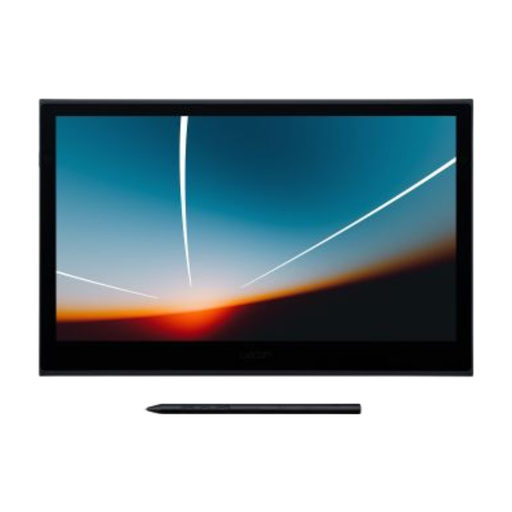
Wacom Movink 13 pen display

Wacom Movink 13 Pen Display

The compact design may suit you if you want to put the screen away after a sketching session. Single-cable use requires your computer to output video over USB-C.

The product description lists a 13.3-inch Full HD OLED screen, a pen with 8192 pressure levels and a USB-C cable. Wacom warns that showing the same image for long periods or repeatedly at high brightness may cause burn-in on this OLED model. Check whether you’re allowed to install the required driver on your office computer.

View at Joybuy

Frequently asked questions

Can I use a pen display without a computer?

Don’t assume you can: the pen displays mentioned are designed to work with a computer. Xencelabs lists a computer and driver as requirements for the Pen Display 16, while Wacom describes the Movink 13 as connecting to a computer that outputs video over USB-C. Check the requirements for the exact model.

What do I need to arrange to use one with a shared office computer?

Check that the computer has the required video and USB connections and that you’re allowed to install the driver for your model. XPPen and Xencelabs list driver installation as a requirement for the models mentioned. If the computer is managed, ask your IT administrator for permission if needed.

How do I care for a pen display that’s put away often?

Follow the manual for the exact model and avoid wrapping cables tightly around the device. For the Movink 13, Wacom recommends cleaning carefully with an anti-static or slightly damp cloth and replacing worn pen nibs. Wacom also warns against displaying the same image at high brightness for long periods on this OLED model.

Do consumer rights apply if the office buys it for business use?

Not automatically. Business.gov.nl distinguishes between private and business customers: consumer protection rules don’t automatically apply to sales to businesses. For a private consumer purchase, the Dutch government says the seller must offer a solution if a product is faulty. For a business purchase, check the terms you agreed to.

Which product safety requirements might be relevant?

Dutch government guidance refers to European requirements such as EMC and RoHS for relevant electrical and electronic products. The requirements that apply, including any CE marking obligations, depend on the product category and version. A CE mark is not an independent quality assessment.
