
Sketching at a flexible workspace
You sketch ideas beside a laptop and need to clear the desk afterwards. Size, weight and cable routing are therefore important.


First, choose a screen size that fits beside your laptop. Then check that your computer’s port supports video output and meets the connection and power requirements of your chosen model. A compact pen display is easier to put away if you often need to clear the desk; a 16-inch model gives you more drawing space, but needs more room.
You sketch ideas beside a laptop and need to clear the desk afterwards. Size, weight and cable routing are therefore important.
You use different computers or workspaces and want to know in advance which video and power connections you’ll need.
You repeatedly refine lines and details, and want to choose between pen buttons, dials and shortcut keys.
Start with the space available on your desk and your laptop’s connections. Then choose the controls and screen setup that suit the way you sketch.
| What to consider | What should you check? | Who is this important for? |
|---|---|---|
| Desk space and storage | Measure the space available beside your laptop. Compare screen size and weight, and check how much room a stand takes up. | If I need to clear the desk after sketching, easy storage matters more to me than extra drawing space. Around 33% of consumers say a compact workspace and easy storage are their main buying considerations. |
| Video and power connections | Check that your laptop port supports video output, the exact model’s cable and power requirements, and what’s included in the box. | When I switch between laptops, I want to know in advance whether the available port and power supply will work with the display. Around 27% of consumers prioritise connection compatibility. |
| Controls and pen | Check which pen controls and shortcut keys are included with the exact version, and whether your software supports the features you want. | When I often adjust lines and details, I want quick access to the drawing actions I use repeatedly. Around 20% of consumers give controls and pen features top priority. |
| Screen and working posture | Compare the active drawing area and screen finish. Also check whether an adjustable stand is included. | If I want to keep details and reference images clearly in view, the setup matters more than being able to put it away quickly. Around 20% of consumers prioritise screen quality and working posture. |
A matching connector doesn’t automatically mean that your computer can output video or supply enough power. Huion lists specific port and power requirements for using the Kamvas 13 (Gen 3) with a single USB-C cable.
Check your laptop port, the exact model’s requirements and what’s included in the box before relying on a single cable.
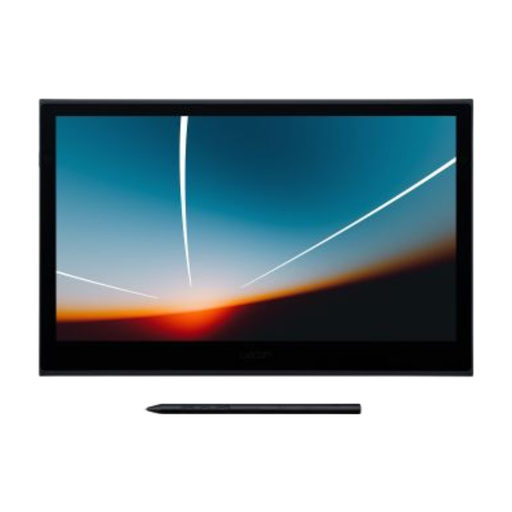
Wacom offers compact models such as the Movink 13, as well as larger pen displays such as the Cintiq 16. The differences depend on the model, not the brand as a whole.
The Kamvas 13 (Gen 3) is a compact option for anyone who wants to use dial controls while sketching.
The Artist 13.3 Pro V2 is designed for a compact drawing setup, with a dial and physical shortcut keys.
The Pen Display 16 range includes the Essentials version and the more fully equipped Bundle.
The PD1320 is another 13.3-inch option to compare if a compact setup is important to you.
These pen displays are suited to a compact sketching setup beside a laptop on a shared desk.
 No image available
A compact choice for sketching ideas directly on the screen when you want to clear the desk after use.
13.3-inch OLED screen with an active drawing area of 294 × 165 mm. Your computer’s USB-C port must support video output, so check your laptop’s connection.
 No image available
An option for sketching beside a laptop if you want an integrated stand and USB-C connection for video and power.
14.0-inch Full HD IPS screen with an active area of 309 × 174 mm. The stated weight is 750 g, and it has an integrated kickstand.
No, not automatically. Check that your computer’s port supports video output and that the port, cable and power supply meet the exact model’s requirements. For the Kamvas 13 (Gen 3), Huion specifies DisplayPort 1.2 or higher and at least 5 V/2 A, among other requirements. You may need an additional power supply.
First check how you’ll connect the display, then install the manufacturer’s software if you want to customise the model’s buttons. Huion says the Kamvas 13 (Gen 3)’s two dials can be customised separately using the Huion driver. Also check that you’re allowed to install software on the laptop you plan to use.
Store the pen and cable together, and follow the cleaning instructions for the exact model. For the Movink 13, Joybuy recommends a soft, dry microfibre cloth and advises against liquid cleaners, alcohol and abrasive products. Don’t assume the same advice applies to other screens.
For employees, Arboportaal outlines employers’ responsibilities for screen work, including alternating it with other tasks or taking breaks. Arboportaal also lists additional workplace requirements when an employee works at a screen for more than 2 hours a day. This is not a product specification and doesn’t automatically apply to every reader.
For a standard online consumer purchase, ACM ConsuWijzer says you generally have a statutory cooling-off period of up to 14 days after delivery; check which exceptions apply. The Dutch government says there is no fixed, general statutory warranty period in the Netherlands. If a product is faulty, contact the retailer, in addition to any manufacturer’s warranty.