
Artist using a shared desk
You clear your workspace after inking and want to be able to move your pen display easily. Check its size, cables, and your computer’s video output and power capabilities.


Choose a compact pen display if you often need to clear your shared desk; a larger screen gives you more room to view a whole comic page at once. Also check that your computer provides the required video output and power, and that the pen, screen visibility and setup suit the way you work. Manufacturer specifications aren’t a real-world comparison, and stated pressure levels alone don’t prove that you’ll get better results when drawing.
You clear your workspace after inking and want to be able to move your pen display easily. Check its size, cables, and your computer’s video output and power capabilities.
You want control over fine details and line variation. Compare the supplied pen, how easy it is to see the nib, the screen area and how it works with your drawing software. Don’t just look at the stated number of pressure levels.
You want to see the page clearly and be able to vary your posture. Look out for reflections, the screen angle and space to support your arms. Arboportaal recommends setting up the workspace to suit the user.
A good fit if: you often clear your workspace and are happy to zoom in and out while inking. Wacom lists a 13.3-inch screen and a weight of 420 g for the Movink 13; Huion lists the same screen size for the Kamvas 13 (Gen 3).
Trade-off: there’s less room to view a whole page alongside tool panels. To connect the Movink 13 with a single USB-C cable, Wacom requires video output and at least 15 W of power.
A good fit if: you want an adjustable drawing angle without putting a separate stand on the desk. XPPen lists a built-in fold-out stand for the Artist Pro 14 (Gen 2).
Trade-off: XPPen recommends connecting an additional power supply if the screen doesn’t turn on via USB-C, so check your ports and available space.
A good fit if: you have enough room to use and store the device, and would rather see more of the comic page at once. Huion lists a 15.8-inch screen with 2560 × 1440 pixels for the Kamvas 16 (Gen 3).
Trade-off: the larger screen takes up more space. The stated resolution alone says nothing about the drawing experience, so check the screen angle and connection too.
| What to consider | What should you check? | Who does this matter most to? |
|---|---|---|
| Clearing and sharing the desk | Measure the space available while using and storing the device; compare the size and weight of the exact version. | If I need to clear the desk after drawing, I want a screen that’s easy to put away. Around 33% of consumers put tidying away at the top of their list. |
| Control over ink lines | Check the supplied pen and nibs, how easy it is to see the nib, and the settings in your own drawing software. | For fine line work, I want to judge how the pen responds in my software. Around 27% of consumers put line control first. |
| Viewing the page and working posture | Compare the screen size and resolution of the exact version; also look out for reflections, the drawing angle and arm support. Arboportaal recommends setting up the workspace to suit the user. | I want to see more of the page at once without the screen taking over our shared table. Around 20% of consumers prioritise being able to view the page. |
| Connecting at a shared workspace | Check the model instructions, your computer’s video output and power, as well as the cables included in the box. For a single USB-C connection to the Movink 13, Wacom specifies video output and at least 15 W. | If I have to reconnect the pen display each time, I want to know whether my computer can provide the image and the required power. Around 20% of consumers put easy connectivity at the top of their list. |
A USB-C port doesn’t automatically mean your computer can output video or provide enough power. Requirements vary by model.
Compare your computer’s port specifications with the setup instructions for the exact model, and check which cables are included with that version.
Depending on your computer and model, you may need an additional power source, adapter or cable, making setup less straightforward.
The stated number of pressure levels doesn’t tell you how the pen will feel in your hand or work with your drawing software.
Check the exact pen supplied, the nibs available and the settings you can adjust. Don’t treat manufacturers’ comparative performance claims as independent tests.
A larger drawing area can show more of the page, but it also takes up more room on a desk you share with others.
Measure the space available while using and storing the device, and consider the screen angle, reflections and room for your arms.
These brands offer models to suit different preferences for screen size, portability and setup. The features listed apply to the specific models and versions, not every product from each brand.
The Movink 13 is a compact pen display for a workspace you clear after use.
The Kamvas 13 (Gen 3) is a more compact model, while the Kamvas 16 (Gen 3) offers a larger drawing area.
The Artist Pro 14 (Gen 2) is a medium-sized model with a built-in fold-out stand.
These picks focus on pen displays of around 13–14 inches, suited to a shared desk that you clear after inking.
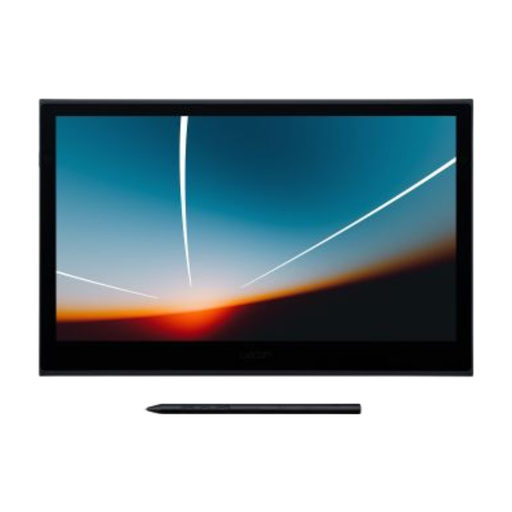 Image unavailable
The compact screen size suits a workspace you want to clear after inking.
Wacom lists a 13.3-inch OLED screen, a weight of 420 g and a thickness of 4 mm for the Movink 13. The product listing states 8,192 pressure levels and includes a pen; that number alone doesn’t show how the pen will respond in your drawing software.
To connect with a single USB-C cable, Wacom requires video output and at least 15 W of power. Check that your computer meets these requirements.
 Image unavailable
The 14-inch drawing area is a medium-sized option if you want to free up desk space after use.
The Joybuy product listing states that it has a Full HD IPS screen, USB-C, an active area of 309 × 174 mm and a weight of 750 g. The product description also lists a supplied pen and 4,096 pressure levels.
Before ordering, check the connection instructions and which cables are included with the exact version.
No. Check whether the port can output video and provide enough power for each specific model. For a single-cable connection, Wacom specifies USB-C with video output and at least 15 W for the Movink 13; XPPen’s instructions for the Artist Pro 14 (Gen 2) recommend additional power if the screen doesn’t turn on.
Set up your workspace to suit your body, avoid glare and, where possible, vary your posture and tasks. This is workplace advice from Arboportaal, not a guarantee that a particular device will prevent discomfort.
First check what’s included in the box with the exact version. Huion says that felt nibs for the Kamvas 13 (Gen 3) must be bought separately; depending on your computer, the Artist Pro 14 (Gen 2) may need additional power.
According to the Dutch government, when you buy from a business online, you’ll often have a 14-day cooling-off period. You also have statutory rights if a product doesn’t conform to the contract; the Netherlands has no fixed statutory warranty period, and the retailer is your point of contact. Check the terms of your specific purchase, and don’t confuse a commercial manufacturer’s warranty with your statutory rights.
It depends on the circumstances. For employees who work with display screens for more than two hours a day, Arboportaal says, among other things, that the screen and keyboard must not be attached to each other. The fact that a desk is shared doesn’t automatically mean these rules for employees apply to every user.