Pen displays on Joybuy
A Joybuy selection for on-screen retouching, with a connection option that depends on your computer’s video output and power supply.
 No image available
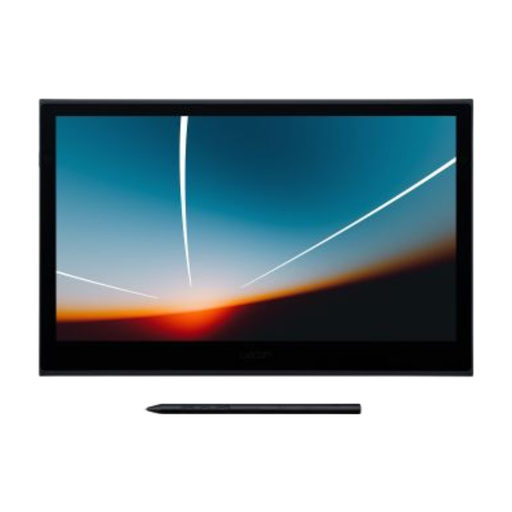
Wacom Movink 13 pen touch
Direct pen input on the 13.3-inch screen is ideal for retouching small details on a scan.
Wacom says the OLED version can be connected with a single USB-C cable if the computer supports video output and provides at least 15 W. An unsuitable port may require additional connection accessories and a power supply.
Joybuy
Frequently asked questions about pen displays for scan retouching
Can a USB-C pen display always work without an available power socket?
No. Check that your computer’s port supports video output and provides enough power for the exact model. Wacom specifies at least 15 W through the single USB-C connection for the Movink 13; a USB-C port alone doesn’t confirm this.
How can you remove dust without overwriting the original scan?
Adobe explains how to use the Spot Healing Brush on a new layer with ‘Sample All Layers’. This preserves the original image. Check details with unusual textures carefully, as Adobe says these may require you to choose the source manually.
What extra accessories might you need to connect it?
For the original Huion Kamvas 13, Huion says the USB-C-to-USB-C cable is optional and sold separately. Depending on the model and your computer port, you may also need extra cables, an adapter or a power supply. Check what’s included with the version you choose.
What rights apply when buying online from a business in the Netherlands?
According to the Dutch government, you usually have 14 days to change your mind when buying at a distance, although exceptions and the type of seller matter. ACM ConsuWijzer explains that the statutory guarantee doesn’t have a fixed two-year term, and that the seller is responsible if a product doesn’t meet what you can reasonably expect from normal use.


