Choose a pen display based on its stated colour gamut and how you calibrate and profile the screen; a colour specification alone does not guarantee an accurate assessment of product colours. If you want to avoid using an extra plug socket, check that both the display and your computer support video and provide sufficient power through the same USB-C connection. For the Wacom Movink 13, Wacom specifies video output and at least 15 W from the computer.
Who is this relevant to?
Photographers who need accurate colour
You edit photos where product colours need to be assessed carefully. Adobe explains that an incorrect monitor profile can lead to adjustments that aren’t needed. So, alongside the stated colour gamut, consider calibration and profiling too.
Editors with limited plug sockets
You want to work directly on the screen without automatically having to connect an extra adapter. Check that your computer outputs video through the port you plan to use and supplies enough power; requirements vary by model.
Retouchers working on detailed images
You prioritise space for local adjustments, while weighing this against the desk space available and the display’s power requirements.
Buying priorities: colour management, power and workspace
Compact display with a single USB-C cable
A good fit when: desk space and plug sockets are limited, and your computer supports USB-C video and delivers at least 15 W through that connection. Wacom lists these requirements for the Movink 13.
Trade-off: insufficient power may limit brightness or prevent the screen from starting. Factory calibration also doesn’t replace proper profile management.
Compact display for an sRGB workflow
A good fit when: you mainly edit photos for an sRGB workflow. Huion specifies 99% sRGB coverage and includes a factory calibration report for the Kamvas 13 (Gen 3).
Trade-off: Huion’s connection instructions also call for a power connection when using USB-C video. So don’t assume one cable will be enough; the full-featured USB-C cable mentioned isn’t included.
A larger workspace for retouching
A good fit when: you value space for local adjustments more than a minimal setup. XPPen’s European product page lists a resolution of 2560 × 1600 pixels for the Artist Pro 16 (Gen 2).
Trade-off: according to the manual, a separate power supply may be needed if your computer doesn’t power the screen via USB-C.
| What to consider |
What should you check? |
Who will value this? |
| Assessing product colours |
Check the colour gamut of the exact model and how you calibrate and profile the screen. |
If I need to assess product colours accurately, I want to know how the screen has been calibrated and profiled; around 34% of consumers prioritise colour accuracy. |
| Working without an extra plug socket |
Check video output, available power and the cable requirements for both the computer and display. |
With few spare plug sockets, I want to be sure in advance that video and power will work through the connection I choose; around 33% of consumers prioritise working without an extra plug socket. |
| Workspace for retouching |
Compare the active screen size and resolution with the space available on your desk. |
For detailed retouching, I want enough active screen area without the display taking over my desk; around 20% of consumers prioritise workspace. |
| Complete connectivity |
Check what’s in the box and which cables or power adapter are included with the exact version. |
I want to be able to connect everything as soon as it’s delivered, so I check which cables and power supply are included with the version I’m buying; around 13% of consumers prioritise complete connectivity when buying. |
Pitfalls to avoid
-
USB-C doesn’t automatically mean one cable and no extra plug socket
Video signal and sufficient power are separate requirements. Both the port and the computer must meet the requirements of the display you choose.
Check your computer port’s video output and power, and read the connection instructions for the exact model.
-
A stated colour gamut doesn’t guarantee accurate product colours
An incorrect monitor profile can distort how a photo file looks. Adobe warns that this can lead to unnecessary colour adjustments.
Compare the colour gamut with the available calibration and profiling options, and assign suitable colour profiles to the photo file.
Calibration and profile management take time; calibration equipment may be needed for colour-critical work.
-
Versions with similar model names may have different connection requirements
Wacom distinguishes between Wacom One 13 touch versions with different connection and accessory requirements.
Check the full model number, what’s in the box and the accessories required for the version on offer.
If the version you choose doesn’t include a cable or adapter you need, you may have to source it separately.
Brands compared
Wacom
The Movink 13 is a compact option if colour management and a USB-C connection are important to you. The One 13 touch range includes versions with different connection requirements.
- Wacom says the Movink 13 DTH135K0B has a factory-calibrated OLED screen and 95% Adobe RGB coverage. A single USB-C cable may be enough if your computer supports video and delivers at least 15 W.
- A single-cable setup won’t work with every computer or version; check the port and the full model number.
Huion
The Kamvas 13 (Gen 3) is a compact option to consider for an sRGB workflow.
- Huion specifies 99% sRGB coverage and lists a factory calibration report for this model.
- Huion’s connection instructions also call for a power connection when using USB-C video, so don’t assume one cable will be enough without checking first.
XPPen
The Artist Pro 16 (Gen 2) is a larger pen display to consider if you need plenty of room for retouching.
- The European product page lists a resolution of 2560 × 1600 pixels.
- According to the manual, a separate power connection may be needed if your computer doesn’t power the screen via USB-C.
Products on Joybuy
These product picks are pen displays for photo editing, selected with colour reproduction and connectivity when plug sockets are limited in mind.
 No image available
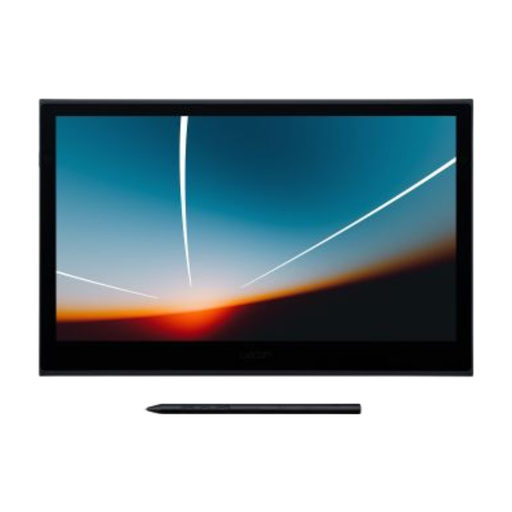
Wacom Movink 13 DTH135K0B
A compact option for colour-critical photo editing if your computer provides the required USB-C video and power.
The 13.3-inch Full HD OLED screen supports pen input and USB-C. Wacom says this model is factory calibrated and offers 95% Adobe RGB coverage; one cable may be enough with USB-C video and at least 15 W from the computer.
A suitable monitor profile is still important when assessing product colours.
View on Joybuy
 No image available
Wacom One pen display 14.0"
An option to compare if you’re looking for a pen display for photo editing and want to check the connection requirements in advance.
The product description for this version lists a 14-inch Full HD IPS screen, 98% colour coverage, an included pen and an active working area of 309 × 174 mm.
The description lists a single USB-C cable for data and power. Check the accessories and connection requirements for the exact version.
View on Joybuy
Frequently asked questions
Is a wide colour gamut enough to assess product colours accurately?
No, a wide colour gamut alone isn’t enough. Adobe points out that an incorrect monitor profile can lead to unnecessary colour adjustments, so consider calibration and profiling too.
When can the Wacom Movink 13 work without an extra plug socket?
It can if your computer outputs video via USB-C and delivers at least 15 W through that connection. Wacom says that lower power may limit brightness or prevent the screen from starting.
What should you do to manage colour on your screen?
Calibrate and profile the screen, and use a profile that suits your photo work. For colour-critical work, Adobe recommends using calibration equipment and recalibrating regularly.
Is CE marking required for a pen display in the Netherlands?
The Netherlands Food and Consumer Product Safety Authority says CE marking is mandatory for electrical consumer products. Check whether the version on offer is covered by the relevant documentation; Wacom has a manufacturer’s declaration for the DTH135 model family. A CE declaration says nothing about colour accuracy.


