
Photo retouchers with limited plug sockets
You want to work directly on photos and check whether your computer can provide both video and enough power via USB-C. Wacom and Xencelabs specify requirements for individual models.


First, choose a pen display that can use your computer’s video output and power supply: a USB-C port doesn’t automatically mean you won’t need an extra plug socket. Wacom specifies a minimum of 15 W via USB-C for the Movink 13; Xencelabs specifies USB-C Alt Mode and 15 W for the Pen Display 16 Essentials. For reliable print assessment, you’ll also need suitable colour profiles for your display and your printer-and-paper combination, as Adobe explains.
You want to work directly on photos and check whether your computer can provide both video and enough power via USB-C. Wacom and Xencelabs specify requirements for individual models.
You want to assess photos before printing and weigh up display characteristics alongside colour management for your display, printer and paper. Adobe explains how to use a profile for the printer-and-paper combination when printing with Photoshop managing the colours.
You make local adjustments and weigh up the working area, resolution and physical controls against the desk space available, as well as the cables and power supply you’ll need.
First check your computer’s video output and power supply; then compare screen size, colour capabilities and what’s included with the version you’re considering.
| What to consider | What should you check? | Who is this important for? |
|---|---|---|
| Power and connection | Check whether USB-C supports video, how much power your computer supplies and which cable the exact model requires. | If I have limited plug sockets, I want to know whether my computer can provide the display with both video and enough power. Around 40% of consumers prioritise power without an extra plug socket. |
| Colour assessment for printing | Compare the display’s colour modes and check which monitor and printer-and-paper profiles your print workflow uses. | For my photo prints, I want to assess colours in relation to the printer and paper I use. Around 33% of consumers prioritise assessing print colours. |
| Working area and controls | Compare the screen size and resolution with the desk space you have, and check whether the controls suit the way you work. | For local adjustments, I want a clear enough view or quick access to controls, without crowding my small workspace. Around 17% of consumers choose mainly on the basis of working area and controls. |
| Cables and accessories | Check what’s included with the version you’ve chosen and which connection cables or power supply you’ll need. | I want to know in advance what I’ll need to connect my complete setup and what service terms apply. Around 10% of consumers prioritise essential accessories and service. |
Power requirements vary between models and computers. Huion’s connection instructions for the Kamvas 13 (Gen 3) also specify a separate power cable and a full-featured USB-C cable, which isn’t included.
Before choosing, check that your computer provides the required video output and power, and follow the connection instructions for the exact model.
Depending on the connection, you may need an extra power adapter or cable. Insufficient power can also limit the usable brightness.
A display specification alone doesn’t tell you how a specific printer-and-paper combination will reproduce colours. Adobe explains colour management using a profile for the printer and paper type when Photoshop manages the colours.
Match your display assessment to your colour management settings and select the output profile for the printer-and-paper combination you use.
The included accessories can vary between versions. Huion, for example, states that the full-featured USB-C cable for the Kamvas 13 (Gen 3) isn’t included.
Check the contents listed for the exact model and version before ordering.
You may need to buy a required cable, stand or hub separately.
The Movink 13 is a compact option, while the Cintiq Pro 17 is designed for a larger setup for which Wacom specifies a power adapter.
According to Xencelabs, the Pen Display 16 Essentials and Bundle offer a 16-inch 4K OLED working area for retouching and colour assessment.
The Kamvas 13 (Gen 3) is a compact model with dial controls, while the Kamvas Pro 19 is a larger option with colour modes.
The Artist 13.3 Pro V2 is a compact option with a dial and shortcut keys for retouching.
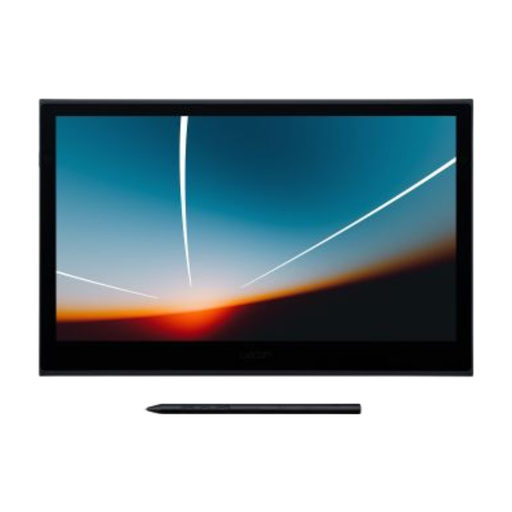
This option suits compact photo retouching with a computer that supports the required video output and power via USB-C.
 No image available
A compact pen display for retouching directly on screen, provided your computer meets the connection and power requirements.
The product description lists a 13.3-inch Full HD OLED screen, pen input and 8192 pressure levels. For use with a single USB-C connection, Wacom specifies a minimum of 15 W from the computer.
No. The laptop must support the required video output and provide enough power. Wacom specifies a minimum of 15 W for the Movink 13; Xencelabs specifies USB-C Alt Mode and 15 W for the Pen Display 16 Essentials.
Adobe recommends a calibrated display with an accurate monitor profile and, when Photoshop manages the colours, an ICC profile for the specific printer-and-paper combination. Select that output profile in the print dialogue and make sure the printer driver doesn’t also manage the colours.
First, follow the connection instructions for the exact model and check that the power supply is sufficient. For the HDMI/USB-A connection on the Artist 13.3 Pro V2, XPPen describes using an additional power connection if the display flickers or won’t turn on; Huion also lists insufficient power as a possible cause for the Kamvas 13 (Gen 3).
According to ACM ConsuWijzer, if a product is faulty, the seller is responsible for providing a remedy under the applicable statutory guarantee conditions; a manufacturer’s guarantee doesn’t replace this right. For online purchases, you generally have up to 14 days after delivery to change your mind, with some exceptions.