
Photographers choosing the sharpest shots from a series
These photographers want to compare contenders on two screens at the same image detail, without prioritising pen features over assessment. Adobe describes Compare view in Lightroom Classic.


You don't automatically need a pen display to choose the sharpest photo from a series: according to Adobe, Lightroom Classic can show the library on a second monitor and let you zoom in on photos in Compare view. A pen display is mainly worthwhile if you also want to work directly on screen with a pen. If so, check the computer connection and compare similar details at the same zoom level.
These photographers want to compare contenders on two screens at the same image detail, without prioritising pen features over assessment. Adobe describes Compare view in Lightroom Classic.
These photographers want to work with a pen directly on a second screen after making their selection. In that case, the screen controls and computer connection matter too.
These photographers also want to use the second screen to assess colour. Adobe explains that colours can look different on different devices and that monitor profiles are part of colour management.
Choose this if: you mainly view photos side by side and don't need pen input on the second screen. Lightroom Classic supports a second Library window and a zoomable Compare view.
Bear in mind: you can't use a pen directly on that screen.
Choose this if: as well as comparing photos, you want to work with a pen directly on a compact second screen.
Bear in mind: the Wacom Cintiq 16, Huion Kamvas 16 (Gen 3) and XPPen Artist Pro 16 (Gen 2) reviewed here differ in screen aspect ratio and controls. Also check the video output, cables and controls for the exact version.
Choose this if: you also want a compact workspace with a high-resolution panel for editing; the Xencelabs Pen Display 16 Bundle is one option reviewed here.
Bear in mind: the higher resolution alone doesn't prove that it will help you assess sharpness more accurately. The one-cable connection described by Xencelabs requires USB-C Alt Mode. Also check which accessories are included with the version you choose.
| Consideration | What should you look for? | Who should give this more weight? |
|---|---|---|
| Comparing sharpness | Compare the same detail in the original photos and consider the screen's native resolution. Adobe describes zoom in Lightroom Classic's Compare view. | If I want to decide which shot is sharpest, I want to assess contenders at the same detail rather than relying on the overall impression on screen. Around 36% of consumers prioritise comparing sharpness. |
| Connecting two screens | Check your computer's video output, the connection requirements for the exact model and the cables included. The one-cable connection described for the Xencelabs Pen Display 16 Bundle requires USB-C Alt Mode. | If I want to use my existing screen alongside a second one, my computer needs to be able to drive both. Around 29% of consumers prioritise a working connection. |
| Assessing colour | Check the colour modes for the exact model and bear colour management and monitor profiles in mind. Adobe explains that colours can vary between devices. | If I edit with colour accuracy in mind, I want to know how the display is matched across my screens. Around 21% of consumers prioritise colour assessment. |
| Pen controls | Decide which selection or editing tasks you'll use the pen for, and check the shortcut keys and touch controls for each version. According to their manufacturers, the Wacom Cintiq 16 and Huion Kamvas 16 (Gen 3) reviewed here don't support multi-touch. | If I also want to select or edit directly on screen, pen controls and any shortcut keys matter to me. Around 14% of consumers prioritise using a pen directly. |
Lightroom Classic also lets you compare and zoom in using a standard second monitor. Pen input is a different feature from making details visible.
First decide whether you also want to draw, select or edit on the second screen.
The computer must support USB-C Alt Mode for the one-cable setup described by Xencelabs for the Pen Display 16 Bundle.
Compare the specifications of your computer and pen display, and check the cables included with the exact version.
Depending on the connections available, you may need a different cable or adapter.
Adobe explains that colours can vary between devices; a stated colour gamut alone doesn't tell you how two screens will behave with your colour management.
As well as checking the supported colour modes, consider how monitor profiles are used in your photo workflow.
The Cintiq 16 DTK168K0B reviewed here combines a pen display with Pro Pen 3 and a 2560 × 1600-pixel screen.
According to Huion, the Kamvas 16 (Gen 3) has a 15.8-inch screen with 2560 × 1440 pixels and several colour modes.
According to XPPen, the Artist Pro 16 (Gen 2) reviewed here has a resolution of 2560 × 1600 pixels.
The Pen Display 16 Bundle reviewed here combines a 16-inch 3840 × 2160 OLED screen with pen controls.
These product picks are standard monitors for anyone who wants to compare photos on a second screen without pen input on that screen.
 No image available
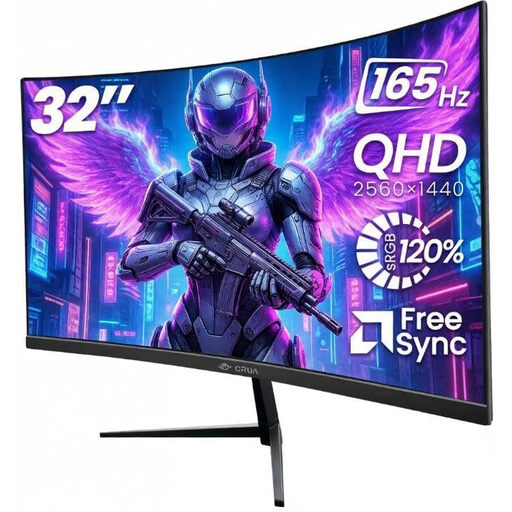
A standard second monitor for comparing photos without pen input on screen.
QHD, 2560 × 1440 pixels; IPS panel; HDMI and DisplayPort inputs; 180 Hz according to the product name.
 No image available
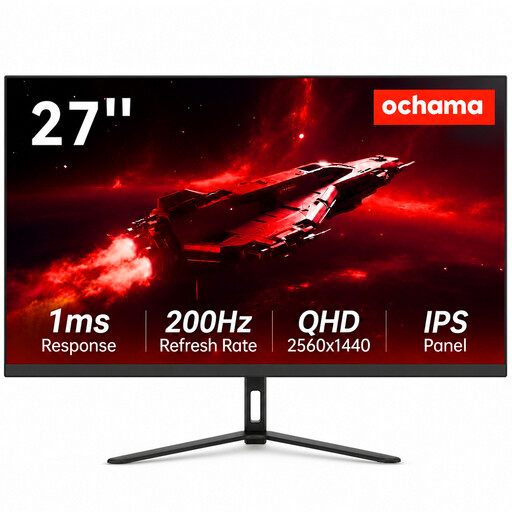
A monitor option for anyone looking for a standard second screen to view photos side by side.
2560 × 1440 pixels; VA panel; HDMI and DisplayPort connections; tilt adjustment and VESA mounting according to the product description.
 No image available
A standard second monitor for comparing and editing images.
3840 × 2160 pixels; PIP/PBP display; factory calibration according to the product description; HDMI, DisplayPort and USB-C connections.
 No image available
A standard monitor option for a second screen used for office work and multitasking.
2K HD according to the product description; the product name lists a 200 Hz refresh rate.
 No image available
A standard second monitor option for anyone who wants to compare photos without pen input on screen.
2560 × 1440 pixels; QD-OLED panel; HDMI, DisplayPort and USB-C connections; 10-bit colour display (8-bit + FRC) according to the product description.
Yes. According to Adobe, when a second monitor is connected, you can display the second Library window on it, and Compare view offers zoom. Standard commands and edits follow the selection in the main window.
Not unless you check the video specification. The computer must support USB-C Alt Mode for the one-cable connection described by Xencelabs for the Pen Display 16 Bundle. Check the connection requirements for other models separately.
Yes, if you assess colour critically. Adobe explains that devices can display colours differently and that monitor profiles are used to match the display in a colour-managed workflow.
According to the Dutch government, you are entitled to a product that works properly and can contact the seller if it is faulty. The Netherlands has no fixed statutory warranty period; a manufacturer's warranty is an extra and does not replace this right.
According to the Dutch government, when you buy from a business at a distance, you usually have a 14-day cooling-off period. Check the seller's information for your specific order; an online purchase from a private individual does not fall under the same definition of distance selling.