For quick corrections and a small desk, a compact pen display of around 11.6 inches may be a good fit. If you want more room for margin notes and have space on your desk, consider a 13.3-inch model. Always check that your computer, cables and approved marking software are compatible, and that you can position the screen comfortably for both sitting and standing.
Who is a pen display suitable for?
Teacher who writes a lot on PDFs
Wants to add corrections and brief feedback directly to submitted work. Adobe describes PDF annotation features such as drawing and adding comments. Check that your school’s approved software supports and saves the pen input you need.
Marker with a sit-stand desk
Alternates between sitting and standing, and wants to position the screen, forearms and cables comfortably at both desk heights. The Arboportaal recommends a relaxed working posture, so assess your setup at both heights.
Teacher using a school laptop
Needs to match the connection to the available computer ports and work within the school’s software and data policies. The Dutch Data Protection Authority stresses that schools must provide appropriate protection for personal data.
What should you consider when choosing one?
Compact pen display of around 11.6 inches
Best for: quick corrections, limited desk space and documents you can enlarge on your computer when needed.
Trade-off: a smaller writing area may mean more zooming or scrolling on a full page.
13.3-inch pen display
Best for: anyone who wants more room for margin notes and regularly moves between workspaces.
Trade-off: allow for the desk space required, and check the connection method, cable type and whether a stand is included with the version you choose.
| What to consider |
What should you check? |
Who should pay extra attention? |
| Space for pen annotations |
Open a representative piece of work to mark and check how clearly you can see the text, the margin space and whether pen strokes are saved in the approved software. |
If I want to write corrections without constantly switching between reading and making notes, I prioritise the writing area. Around 31% of consumers cite annotation space as their main concern. |
| Working posture |
Check the screen angle, space for your forearm and cable clearance when working both sitting and standing. The Arboportaal recommends varying your posture and tasks. |
If you raise and lower your desk during the day, you’ll want to use the screen comfortably at both heights. For around 25% of consumers, working posture comes first. |
| Connection to your school computer |
Compare your computer’s ports with the connection method for the exact model version, and check which cables and any power supply are required. |
If I use a school laptop, I want to know first whether the available connections support both the display and pen input. Around 25% of consumers make connectivity their top priority. |
| Complete setup |
Check the exact model generation and what’s included in the box, including the cables you need and a suitable stand. |
If you want to put together a complete workstation, check what comes with the version you choose and what else you might need. Around 19% of consumers focus mainly on the overall setup. |
Common pitfalls
-
Assuming a pen display is a standalone tablet
The models described are designed to connect to a computer or another compatible device. A suitable USB-C port and the right cable aren’t guaranteed.
Compare the connection diagram and box contents for the exact version with the computer you use for marking.
Depending on your computer and the version you choose, you may need a suitable cable or adapter.
-
Looking only at the screen size
At a sit-stand desk, your writing position changes with the desk height. Screen size alone won’t tell you whether the angle and viewing distance work for you.
Check your arm position and screen angle both sitting and standing; also check whether the version you choose includes the stand you need.
If the version you choose doesn’t include a suitable stand, you’ll need to adapt your setup.
-
Confusing a new model generation with its predecessor
GAOMON distinguishes between the screen construction of the PD1161 V2 and that of the original PD1161.
Compare the full model name on the product page and packaging with the specifications you want to assess.
-
Uploading pupils’ work without checking school policies
Pupils’ work may contain personal data. The Dutch Data Protection Authority highlights privacy risks associated with digital education tools.
Check which annotation and storage systems your school approves before uploading any work.
Brands to consider
Wacom
The Wacom One 12 is a compact 11.6-inch pen display for anyone looking to save desk space.
- Wacom lists a Full HD screen and a single-cable connection, depending on the computer’s USB-C port.
- Wacom notes that the plug-and-play connection described isn’t available for macOS. Check the connection method for your own computer.
XPPen
According to XPPen, the Artist 13 (2nd Gen) has a 13.3-inch writing area and nine customisable shortcut keys.
- XPPen describes an HDMI connection using a 3-in-1 cable, as well as a connection through a suitable USB-C port.
- Check the package version: the USB-C to USB-C cable and stand may vary depending on the version.
Huion
According to Huion, the Kamvas 13 (Gen 3) is a 13.3-inch pen display with Full HD, designed for anyone looking to combine writing space with portability.
- Huion lists a weight of 865 g, a battery-free pen and customisable pen buttons.
- These features don’t confirm that your school software supports pen input; also check the connections and box contents.
GAOMON
According to GAOMON, the PD1161 V2 is a compact 11.6-inch alternative with a laminated Full HD screen.
- GAOMON lists HDMI and USB as connection options.
- The full-featured USB-C cable is sold separately. GAOMON also distinguishes the V2’s screen construction from that of the original PD1161.
Related screen options on Joybuy
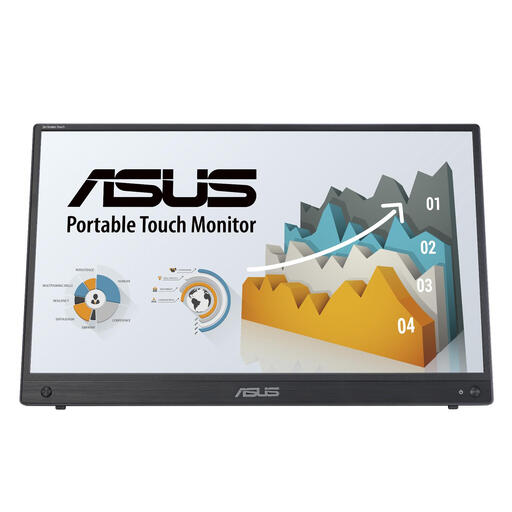
These portable touchscreen monitors are related screen options for displaying work to mark. A touchscreen alone doesn’t confirm support for pen input; check this feature and its compatibility with your approved software separately.
 No image available
ASUS ZenScreen MB16AHT, 15.6-inch Full HD touchscreen monitor
Can be used as an extra screen to display work for marking; check separately whether it supports the pen input and software you need.
15.6 inches; 1920 × 1080 pixels; Full HD; touchscreen.
View on Joybuy
 No image available
UPERFECT 15.6-inch 1080P touchscreen monitor
Can be used as an extra screen to display work for marking; check separately whether it supports the pen input and software you need.
15.6 inches; 1080P; touchscreen.
View on Joybuy
Frequently asked questions
Can I write directly on pupils’ work with a pen display?
Only if your approved programme can open the document and supports and saves the pen annotations you need. Adobe describes features such as drawing and adding comments to PDFs, but that doesn’t confirm that your school software will work. Test a representative document before choosing a device.
Is one USB-C cable always enough?
No, it depends on the model and computer. Wacom’s single-cable connection depends on the computer port; GAOMON lists a full-featured USB-C cable for the PD1161 V2 as a separate purchase. Check video output, power and box contents for the exact version.
How should I set up my marking station for sitting and standing?
Position the screen and writing area at both desk heights so your shoulders, wrists and forearms can stay relaxed, and vary your posture and tasks. The Arboportaal offers this as workplace advice; a pen display or working while standing doesn’t guarantee good posture on its own.
What if my pen display doesn’t work properly after purchase?
When you buy as a consumer in the Netherlands, you’re entitled to a product that meets reasonable expectations; if there’s a fault, contact the seller to find a solution. According to the Dutch government, applicable online purchases from a business generally also come with a 14-day cooling-off period. Check whether these rules apply to your specific purchase, particularly if the school, rather than you, is the buyer.
Can I upload pupils’ work to an online annotation tool?
Don’t assume you can: follow your school’s policies and use its approved systems. The Dutch Data Protection Authority highlights risks associated with digital education tools and protecting pupils’ data. The pen display itself doesn’t give you permission to share data with a new service.


