
Collage makers with few spare sockets
You want to arrange and draw directly on a pen display, with as little separate power as possible. Whether you can do this with one cable depends on your computer’s video output and power supply.


Start by checking your computer’s video output and power supply. A single USB-C cable is only practical if both your computer and your chosen pen display support that connection. Wacom specifies that the Movink needs at least 15 W of power from the computer; other connection options may still require an extra power cable or adapter.
You want to arrange and draw directly on a pen display, with as little separate power as possible. Whether you can do this with one cable depends on your computer’s video output and power supply.
You switch between image fragments and layers, balancing the screen space available against the room the display takes up on your desk.
If your computer doesn’t have a suitable USB-C video output, a model with a different connection option may be worth considering. You may need to accept having more cables on your desk.
First check which video and power outputs your computer has. Then compare the screen space, cables required and controls available on the exact model.
| What to consider | What to look for | Who is this most important for? |
|---|---|---|
| Power without an extra socket | Check whether your computer supports USB-C video and supplies enough power for the exact model. | If I don’t want to use a socket for a power adapter, I’ll first check what my computer can do. Around 36% of consumers give top priority to working with one cable. |
| Screen space for layers | Compare the models’ active screen size and resolution, and consider whether you use a main monitor too. | When arranging image fragments, I want enough screen space without unnecessarily crowding my workspace. Around 29% of consumers prioritise screen space for working with images. |
| Cables and power | Check which cables and adapters are included with the version you’re considering, and which connections you already have. | I want to know in advance whether my setup will need another cable or power source. Around 21% of consumers prioritise the total connection costs. |
| Controls while you work | Check which buttons or touch features the exact model has, and whether you can configure them in your software. | If I often switch tools, I want to know whether the available controls suit the way I work. Around 14% of consumers put direct controls ahead of other considerations. |
A USB-C connection doesn’t guarantee that your computer can output video or supply enough power. Requirements vary by model.
Before relying on a single cable, compare your computer port’s specifications with the manual for the exact pen display.
A cable or power requirement for one model doesn’t automatically apply to a different generation or when using another device.
Check the full model name, the intended connection and what’s included in the product box.
Wacom warns that repeatedly displaying bright, static images on the Movink for extended periods can risk screen burn-in.
Wacom recommends using Display Saving and switching off the screen or using a screensaver when taking breaks.
The Movink is worth considering if you want a compact, single-cable setup and your computer meets the video and power requirements.
According to XPPen, the Artist 13 (2nd Gen) has a 13.3-inch screen and customisable shortcut keys.
The Kamvas 13 (Gen 3) may be worth considering if you’re looking at both HDMI and USB-C connection options.
For the PD1320, GAOMON describes both an HDMI and USB connection option and a USB-C option.
This product has been selected for drawing and arranging collage elements on a pen display when you want to use as little separate power as possible.
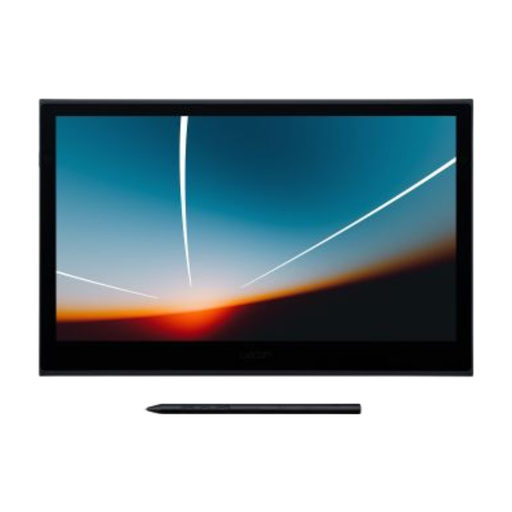 Image unavailable
Well suited to drawing and arranging collage elements on screen, provided your computer supports the required USB-C video and power.
Wacom describes a single USB-C cable for data and power; the computer must supply at least 15 W for this connection. The display has a 13.3-inch OLED screen with Full HD resolution, touch functionality and an included pen with 8192 pressure levels.
The active drawing area measures 294 × 165 mm. Wacom warns of a burn-in risk if bright, static images are displayed repeatedly or for extended periods. It recommends using Display Saving and switching off the screen or using a screensaver when taking breaks.
No, it depends on the computer, cable and exact model. Wacom specifies that the Movink needs at least 15 W of power from the computer; for the Artist 13 (2nd Gen), XPPen requires a port with Alternate Mode and a fully featured cable.
First check whether your computer port supports video and whether the cable is suitable for your model. Huion states that the two USB-C ports on the Kamvas 13 (Gen 3) have different functions, so follow the instructions for connecting to the correct port in the manual.
Wacom recommends using Display Saving and switching off the display or using a screensaver during longer breaks. This is the manufacturer’s advice for the OLED-screen Movink.
According to the Dutch government, you should contact the retailer to claim your statutory guarantee. The Netherlands has no fixed statutory guarantee period; a manufacturer’s guarantee is separate from this right.
Business.gov.nl explains that electrical and electronic equipment sold in the Netherlands must meet applicable European requirements, including those concerning CE marking and an EU declaration of conformity. According to information from the Dutch government, a CE mark is not an independent quality mark; check the product and seller information for the item you’re buying.