
Sketcher with limited access to sockets
You want to draw directly on a pen display and, above all, find out whether your computer can power the screen without a separate power adapter.


Start by checking the connection and power supply. A pen display can help you avoid an extra socket if your computer can deliver video, data and enough power through the port you plan to use. Then compare the screen space and pen controls you need. An HDMI setup or connection to a mobile device may still require extra cables or power. A pen display is not a standalone drawing computer.
You want to draw directly on a pen display and, above all, find out whether your computer can power the screen without a separate power adapter.
You want to sketch on the screen, but need to allow for HDMI, separate data transfer and possibly extra power. Huion describes this connection setup for the Kamvas 13.
You compare sketching space, colour modes and pen controls alongside connectivity. A manufacturer's screen specifications don't automatically tell you how colours will look on real fabrics or in print.
First, check that your computer supports the connection and power supply you need. Then compare the screen space, colour features and included cables with the way you sketch costumes.
| What to consider | What should you check? | Who is this important for? |
|---|---|---|
| Drawing without an extra socket | Check the video, data and power available from your computer's port, and compare these with the manual for your chosen model. | If I don't want to connect a separate power adapter while sketching, my computer needs to provide the required functions and power. Around 36% of consumers prioritise avoiding an extra socket. |
| Connecting to your computer | Make a note of the available ports and check which cables and connections the specific model requires. | If I want to keep using my current computer, I want to know in advance whether its connections are actually suitable. Around 29% of consumers give compatibility with their existing computer top priority. |
| Sketching space and colour | Compare the screen size, resolution and any colour modes with the details you want to work on. | If I'm comparing fabric colours or small costume details digitally, the available screen space matters; a digital display can't guarantee a match with real fabric. Around 21% of consumers prioritise sketching space and colour comparison. |
| Cables and support | Check which cables and adapters are included, and review the terms of any additional warranty. | If I don't want to have to arrange a missing connection cable or power adapter afterwards, I'll look at the complete setup and aftercare. Around 14% of consumers give additional connection costs and support top priority. |
A plug that fits doesn't guarantee video output. Without the right features, a single-cable connection may not work.
Check your computer's port specifications and the connection requirements in the manual for the exact model.
Power requirements vary by model and setup. For the Movink 13, Wacom specifies a minimum of 15 W for a single USB-C connection; Huion and XPPen say that some mobile connections need extra power.
Check the power requirements for the pen display and computer or mobile device combination you plan to use.
The required cable can vary by model. GAOMON says the full USB-C cable for the PD1320 must be bought separately.
Compare the connections you need and check which cables and adapters are included with the version on offer.
The Movink 13 is worth comparing if you're looking for a single-cable connection to a compatible computer.
The Kamvas 13 and Kamvas 13 (Gen 3) are models to compare if you're considering a USB-C connection to a compatible computer.
The Artist 13.3 Pro V2 is worth considering if your computer supports USB-C video output and you want to compare its dial and shortcut keys.
The PD1320 is worth comparing if you want to consider both USB-C and HDMI connection options.
The Pen Display 16 Lite is a larger screen to consider if you have room for a 16-inch model.
These Joybuy products are options to compare if you want to sketch on screen using a USB-C connection to a compatible computer.
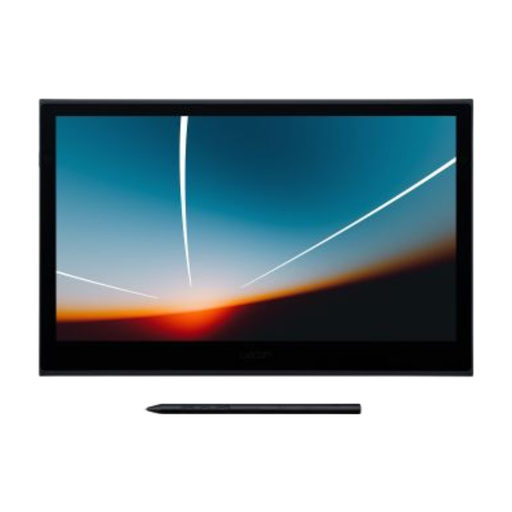 No image available
Worth considering if you want to sketch on screen via a single USB-C connection, provided your computer is compatible. Wacom specifies a minimum of 15 W via USB-C for the Movink 13; check that your computer can provide this.
 No image available
Worth considering if you're looking for a Wacom pen display to sketch on screen. Before buying, check the video, data and power requirements for your computer and the version on offer.
Not necessarily. Check that the specific port and cable provide video, data and enough power for your chosen model. Wacom specifies a minimum of 15 W for the Movink 13 when using a single USB-C connection.
Check whether the exact model supports HDMI and USB connections. For the Kamvas 13, Huion describes HDMI for video, USB-A for data and USB-A for power. If the computer doesn't provide enough power, you may still need a separate power plug.
That depends on whether the specific screen and phone are compatible, and extra power may be needed. Huion specifies extra power for the Kamvas 13 (Gen 3) when used with a phone; for mobile use of the Artist 13.3 Pro V2, XPPen lists a power adapter that isn't included.
A colour mode can help you compare digital colour variations on screen, but it can't guarantee a match with real fabric or printed materials. Huion lists colour modes for the Kamvas 13 (Gen 3); where necessary, check colours against the materials you plan to use.
Electrical and electronic equipment must comply with the applicable European product regulations. According to Ondernemersplein, the Dutch government's business information portal, and the Netherlands Enterprise Agency, whether CE marking is required depends on the product and the applicable rules. This general requirement doesn't confirm that a specific version complies.