
Circuit diagram sketcher with limited power sockets
Wants to sketch or annotate directly on a screen without necessarily using an extra adapter. Check your computer port’s video and power capabilities, as Wacom specifies for the Movink 13.


A pen display is a good fit if you want to sketch or annotate existing circuit diagrams. If you need an editable electronic schematic, the features of schematic software matter more than pen input. To avoid using an extra power socket, check whether your computer can provide the required video signal and enough power through the same USB-C connection. HDMI or multi-cable connections offer alternatives, but may require extra ports, a power cable or an adapter.
Wants to sketch or annotate directly on a screen without necessarily using an extra adapter. Check your computer port’s video and power capabilities, as Wacom specifies for the Movink 13.
Primarily needs placeable symbols, electrical connections and schematic checks. KiCad describes features for symbols and wires, so first consider whether a pen display would add anything to your schematic software.
Wants to work on screen with a pen, but needs to weigh the available screen space against the room taken up by the display and its cables. The stated screen sizes from GAOMON and XPPen can help you decide.
Choose this when: you want to create an editable electronic schematic and drawing directly on screen isn’t a priority. KiCad offers symbols, wires and electrical connection checks.
Trade-off: you won’t need an extra screen connection or power supply, but you won’t be able to draw directly on the screen with a pen.
Choose this when: sketching or annotating on screen is important and your computer supports the required video mode and power supply. For the Movink 13, Wacom specifies DisplayPort Alt Mode or Thunderbolt 3 or later, and at least 15 W for a single USB-C connection.
Trade-off: a USB-C port alone doesn’t guarantee a picture or enough power; if the power supply is insufficient, you may still need an adapter.
Choose this when: your computer doesn’t have a suitable USB-C video output, but does have the required video and USB ports. Huion describes a supplied 3-in-1 connection option for the Kamvas 13 (Gen 3).
Trade-off: this option may require more cables and a separate power supply; the full USB-C cable for the other Kamvas connection option isn’t included.
| Consideration | What to look for | Who is this important for? |
|---|---|---|
| No extra power socket | Check the video output, power in W and connection instructions for the exact model; the shape of the USB-C port isn’t enough. | If I don’t want to use an extra adapter, I want to know whether my computer can provide a picture and enough power through one connection. Around 36% of consumers prioritise avoiding an extra power socket. |
| Editable schematic | Decide whether you want to create a sketch or an electronic design that you can continue editing and checking. | Anyone primarily designing an editable circuit needs symbols, connections and schematic checks; around 29% of consumers say this is their main requirement. |
| Desk space | Compare the screen size and check that the diagram and the software panels you need remain easy to read at the same time. | If I have limited desk space, I want a compact screen without losing sight of the visible working area. Around 21% of consumers prioritise keeping desk space free. |
| Cables and power | Compare what’s in the box with your chosen connection option and your computer’s ports. | If you want to keep additional costs down, check in advance which cable or power supply you’ll need and whether it’s included. Around 14% of consumers put this at the top of their checklist. |
Your computer port must also provide the required video output and enough power. These requirements vary between computers and pen displays.
Compare your computer port’s specifications with the connection instructions for the exact model.
Your chosen connection option may require a compatible video cable, a second power cable or a mains adapter.
Using a pen on screen doesn’t automatically give you the symbols, connections and electrical checks available in schematic software.
First decide what file and design process you need; only then consider a pen display for sketching or annotating.
GAOMON documents different connections and included accessories for the PD1161 and PD1161 V2.
Check the full model name and what’s in the box before choosing a connection option.
You may need a different cable or power setup if you assume the box contents are the same as those of another generation.
Worth considering for a portable, single-cable setup, depending on the exact model and your computer port.
According to Huion, the Kamvas 13 (Gen 3) offers a 3-in-1 connection option and a USB-C option, so your computer’s available ports will help determine which to choose.
According to the manual, the Artist 12 (2nd Gen) has a USB-C port and a 3-in-1 port.
The PD1161 V2 is described as having HDMI and a 2-in-1 cable, or a full USB-C cable that must be purchased separately.
These pen displays are for anyone who wants to draw or annotate directly on screen; check that each model’s connection option suits your computer and available power.
 No image available
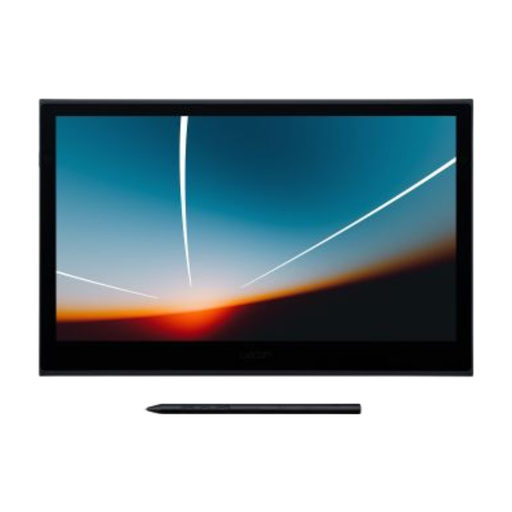
For anyone who wants to sketch or annotate existing circuit diagrams directly on screen. According to Wacom, the Movink 13 needs a port with DisplayPort Alt Mode or Thunderbolt 3 or later, and at least 15 W, for a single USB-C connection. If there isn’t enough power, brightness may be limited or the screen may not start.
 No image available
For anyone who wants to draw directly on screen using pen input. For this exact model, check the video connection and power requirements of your computer, and whether the cables and adapter for your chosen connection option are included.
The pen displays discussed here are screens that connect to a compatible device; they don’t replace a computer with schematic software. If you’re considering another type of product, check separately whether it has its own operating system.
The USB-C port must support the required video output and provide enough power. For the Movink 13, Wacom specifies DisplayPort Alt Mode or Thunderbolt 3 or later. For the full USB-C connection option on the Kamvas 13 (Gen 3), Huion specifies DP1.2 and USB 3.1 Gen 1, among other requirements. Also check the power requirements for the exact model.
This depends on the model, your computer’s ports and the connection option you choose. Huion says the full USB-C cable for the Kamvas 13 (Gen 3) isn’t included, while XPPen says the USB-C cable for the Artist 12 (2nd Gen) is sold separately. So check what’s in the box and whether you’ll need any power cables before you choose.
For online purchases from a business in the Netherlands, you generally have a 14-day cooling-off period, with some exceptions, according to the Dutch government. Your statutory rights if a product is faulty are separate from any commercial manufacturer’s warranty. For the exact terms, check the information from the Dutch government and the seller.
No. According to the European Commission, CE marking is only required for products covered by harmonised EU rules that stipulate it; the manufacturer is responsible for assessment and marking. So also check the product information for the specific device.