
Painting at a small desk
You create digital seasonal scenes in a home office that you also use for other work. Size, storage and a suitable connection all play a part in your choice.


Start by checking how much desk space you have and whether your computer can output video through the required connection. Then compare screen size, colour reproduction and pen controls for the details you paint. A compact display takes up less drawing space, while a larger screen gives you more room to work. Manufacturers’ specifications can help you compare models, but they aren’t independent measurements of painting performance. Check the connections and included accessories for each version too.
You create digital seasonal scenes in a home office that you also use for other work. Size, storage and a suitable connection all play a part in your choice.
You work with fine brushstrokes and subtle seasonal colours, and want to compare screen resolution, colour gamut and pen controls across models.
You want to learn to paint directly on a screen and find out in advance which computer, cables, stand and any software you’ll need.
First compare the connection and the desk space available. Then consider which screen and pen features suit the details and colours you want to paint.
| What to consider | What should you check? | Who should pay particular attention? |
|---|---|---|
| Colour and control while painting | Compare the resolution, stated colour gamut and pen controls of the exact models. Huion lists a resolution of 1920 × 1080 pixels and 99% sRGB coverage for the Kamvas 13 (Gen 3); Xencelabs lists a resolution of 3840 × 2160 pixels and 99% sRGB coverage for the Pen Display 16 Lite. | If fine lines and subtle colour gradients matter to you, compare the screen specifications without treating them as a guarantee of painting results. An estimated 29% of consumers put colour and control while painting first. |
| Desk space and working position | Measure the free space on your desk and check whether a stand is included. Wacom lists a 14-inch screen for the One 14; XPPen lists a built-in fold-out stand for the Artist Pro 16 (Gen 2). | If your desk also needs to accommodate a computer and other work, size is an important consideration. An estimated 29% of consumers put available desk space first. |
| Connecting to your computer | Check video output, the power requirements and the cables included. For a single USB-C cable connection, Wacom says the One 14 requires DisplayPort Alt Mode or Thunderbolt 3/4. | If you want to keep using your current computer, first check whether its ports can output video and whether the connection options are suitable. An estimated 21% of consumers put connectivity first. |
| What’s included | Check the box contents for the exact version, including the stand, converter and any accessories you want. Wacom sells the stand for the One 14 separately; Quick Keys aren’t included with the Xencelabs Pen Display 16 Lite. | If you’re a first-time buyer and want a complete set-up, check which items you may need to buy separately. An estimated 21% of consumers put getting everything they need first. |
To connect the Wacom One 14 using a single cable, your computer’s port must support video output via DisplayPort Alt Mode or Thunderbolt 3/4.
Check your computer port’s specifications and the connection instructions for the exact display before you order.
You may need to buy a converter or another connection solution separately.
The stand for the Wacom One 14 is sold separately. The accessories also differ between the Xencelabs Pen Display 16 Lite and Bundle.
Check the full product name and the box contents for the version you choose.
The stand or Quick Keys you want may not be included and might need to be bought separately.
Stated pressure levels and colour values are manufacturers’ specifications for their models, not an independent comparison of the painting experience across brands.
Use the specifications to compare models, and consider screen space, controls and connectivity too.
The One 14 is a compact option, while the Cintiq range includes larger pen displays. These are different models, each with its own specifications.
The Kamvas 13 (Gen 3) is a compact pen display option to use alongside a laptop or desktop computer.
The Artist Pro 16 (Gen 2) is a larger drawing option that needs more desk space.
The Pen Display 16 Lite is worth comparing if OLED screen details and colour gamut are important to you.
These Joybuy products are pen displays for painting directly on screen, with options to suit compact workspaces, detailed colour work and connecting to a computer.
 No image available
The 13.3-inch version may suit painting at a workstation where desk space is limited.
The product description lists an OLED screen, Full HD resolution, pen controls on the display and a pen with 8,192 pressure levels. These are stated product specifications, not independent performance measurements.
 No image available
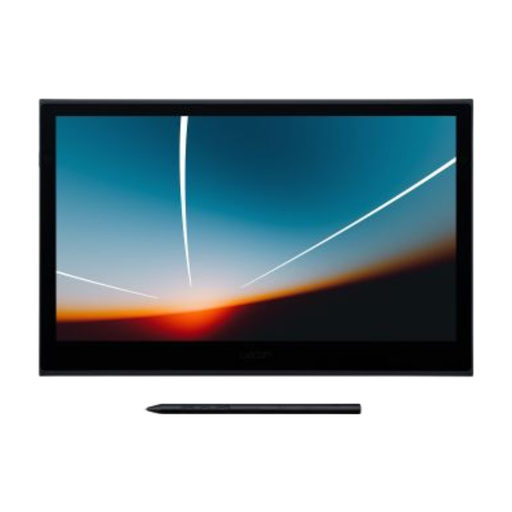
The 14-inch pen display is worth considering if you want to draw and paint directly on screen.
The product description lists a Full HD IPS screen with a 98% colour gamut and a pen with 4,096 pressure levels and tilt support. Wacom says the single-cable connection requires DisplayPort Alt Mode or Thunderbolt 3/4; the stand is sold separately.
No. To connect the Wacom One 14 using a single cable, your computer must be able to output video through that port using DisplayPort Alt Mode or Thunderbolt 3/4. For computers with HDMI and USB-A, Wacom describes a converter that’s sold separately. Check your computer’s ports in advance.
It depends on the version. Huion says the PW600L pen is included with the Kamvas 13 (Gen 3); Wacom says the pen is included with the One 14, but the stand is sold separately. Check the box contents for the model you choose.
Follow the manufacturer’s instructions for your exact pen and replace a worn nib as directed. Huion lists standard and felt nibs for the Kamvas 13 (Gen 3); according to the product information, felt nibs need to be bought separately.
According to the Government of the Netherlands, you’re entitled to a product that works as it should, and the seller must provide a solution if there’s a problem. The Netherlands doesn’t have one fixed statutory guarantee period that applies to all products; a manufacturer’s warranty is separate from these statutory rights.
For a standard online purchase as a consumer, you generally have a statutory cooling-off period of up to 14 days after delivery. ACM ConsuWijzer lists exceptions, so check the terms that apply to your specific purchase.