
Comic artist who inks digitally
Wants to draw panels and varied lines directly on screen, and pays attention to pen settings and visible detail. Clip Studio Paint describes features for creating rectangular and freehand panels, among other things.


First, choose a pen display with a physical work area that fits on your desk and lets you work on panels and lines with the level of detail you need. Then compare the pen, resolution and stand. Before buying, check that your computer provides the required video connection and power, and find out which accessories come with the exact model.
Wants to draw panels and varied lines directly on screen, and pays attention to pen settings and visible detail. Clip Studio Paint describes features for creating rectangular and freehand panels, among other things.
Needs to fit the display alongside a computer, keyboard and other work essentials. The work area and set-up are therefore important considerations; Wacom lists an active area of 345 × 215 mm for the Cintiq 16.
Wants to assess colours on the display as well as work on line art, so pays attention to colour settings and the stated screen specifications. Huion and Xencelabs describe these features for specific models; manufacturer specifications are not independent colour measurements.
Start with the work area and the space available on your desk. Then check that the screen, pen and connection work with your drawing software and computer.
| Consideration | What should you check? | Who is this important for? |
|---|---|---|
| Pen and panels | Check which pen comes with the exact model and whether its settings work with your drawing software. Compare screen resolution at the size you plan to draw. | If I’m inking precisely and drawing panels, I want to be able to tailor the pen and software to the way I work. Around 33% of consumers prioritise control over ink lines and panel borders. |
| Workspace | Measure the available space, including room for the stand and cables. Compare screen size and resolution separately. | At a shared home office, I want enough drawing space without the screen taking over the rest of the work area. Around 27% of consumers prioritise a suitable work area and a practical set-up. |
| Connection and set-up | Check the video output, power requirements and included cables. Also check whether the stand and accessories you want are included in the bundle. | If I want to connect my computer and get straight to work, I need to know which port, cable and power supply are required. Around 20% of consumers prioritise a working connection and a complete set-up. |
| Colour reproduction | Compare colour modes and how the stated colour gamut is defined. Check which screen and colour profile you’re using to assess your page. | When working on coloured comic pages, I want to assess colours on the display using a suitable setting. Around 20% of consumers prioritise colour assessment. |
Physical screen size and resolution tell you different things. Huion specifies 1920 × 1080 for the 21.5-inch Kamvas 22 Plus, while the smaller Kamvas 16 (Gen 3) has a resolution of 2560 × 1440.
Compare the dimensions and resolution of the exact models separately, and weigh them against your desk space and the level of detail you need.
A USB-C port alone doesn’t confirm that your computer supports the required video connection and power. Requirements vary by model; for the Kamvas 16 (Gen 3), Huion specifies USB 3.1 Gen 1 and DP 1.2 for the relevant USB-C connection, among other requirements.
Compare your computer’s ports and video capabilities with the model manual, and check which cables and power supply are included.
For the USB-C connection on the GAOMON PD1561 V2, the manufacturer specifies a cable that must be purchased separately. A compatible cable or extra power supply may also affect the set-up for other models.
Xencelabs states that the Lite and Bundle versions contain the same Pen Display 16 OLED, but have different accessories.
Check what’s included with the specific bundle, especially if you need shortcut controls or a particular set-up.
You may need to buy missing accessories separately.
The Joybuy product listing for the Xiaomi LCD writing tablet describes a different type of product from the computer-connected pen displays compared here.
Before treating a search result as a pen display, check the brand, full model name and features on the product detail page.
The Cintiq 16 is a mid-sized pen display worth comparing if you’re looking for a stated active work area and an integrated set-up.
The Kamvas 16 (Gen 3) and Kamvas 22 Plus illustrate the difference between more stated pixels on a smaller screen and a larger physical work area.
The Artist Pro 16 (Gen 2) is a mid-sized option worth comparing if the included pen and integrated stand suit your set-up.
The PD1561 V2 is a 15.6-inch Full HD model worth comparing if screen resolution and cable requirements are important to you.
The Pen Display 16 Lite and Bundle are worth comparing if the stated 4K resolution and bundle contents matter to you.
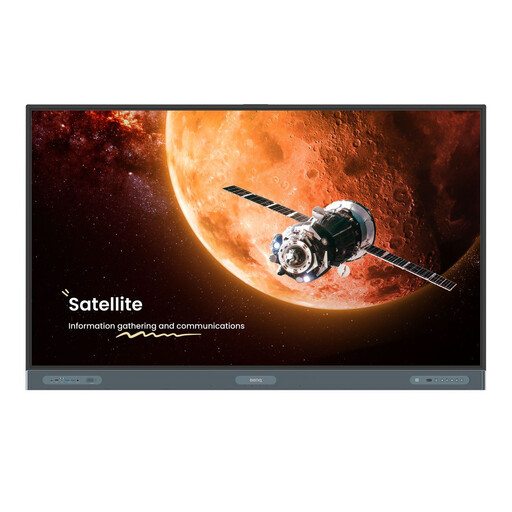
The Joybuy product featured here is a large interactive whiteboard, not a compact pen display for a shared home office. Treat it as a different type of set-up, and check that its features work with your drawing software.
 No image available
This interactive whiteboard has a touchscreen and is listed with two styluses. Check that its size and features suit the work you have in mind and your set-up.
The product listing specifies a 75-inch screen, 3840 × 2160 pixels and an anti-glare screen.
The listed dimensions are 1709,4 mm wide and it weighs 52 kg. The product listing recommends a stable stand or secure wall mounting, and two or more people to lift, move or install it. Before buying, check the applicable safety and compliance information for the version on offer.
Yes. For the computer-connected models compared here, you’ll need a suitable computer and, where required, a separate power supply. Check the requirements for the exact model; the presence of a USB-C port alone doesn’t prove the connection will work.
No, panels are a feature of your drawing software. The Clip Studio Paint manual describes rectangular, polygonal and freehand panels, among other options; the display is the input and viewing surface.
Measure the space for the screen, stand and cables in advance, and adjust the pen and shortcut keys to suit the way you work. If buying replacement pens or cables, check that they’re compatible with the exact model version.
Not on its own: according to Ondernemersplein, whether a CE mark is required depends on the product rules that apply. Electrical appliances must also meet the requirements that apply to those products, including rules on safety and electromagnetic interference. Check the information for the specific version.
For a consumer purchase, the seller must provide a solution if the product isn’t as it should be, according to the Dutch government. A manufacturer’s warranty doesn’t replace your statutory rights. For an eligible online consumer purchase, a 14-day cooling-off period generally applies. Check the terms that apply to your specific purchase.