What should you look for in a pen display for album artwork?
Start by checking the space available on your desk and your computer’s connections. Then compare colour settings and drawing controls based on the output and workflow you need.
| What to consider |
What to check before buying |
Who is this important for? |
| Clearing a shared desk |
Check the overall dimensions, stand, cables required and storage space. Don’t judge these by screen diagonal alone. |
If you want to clear your desk quickly after drawing, consider the size and storage as well as the available drawing area. Around 31% of consumers put clearing the desk first. |
| Assessing colour and detail |
Compare the colour mode and resolution with your intended output, and assess printed work through your own print workflow. |
If you assess colours and detail for digital publishing or print, you’ll want to know which settings suit that output. Around 25% of consumers give colour assessment top priority. |
| Connecting to your computer |
For each model, check the port’s video output, cable type, power supply, operating system and included cables. |
If you’re reconnecting a shared workspace, you’ll want to make sure the display and pen input work, and find out whether extra power is needed. Around 25% of consumers choose mainly on connectivity and power. |
| Pen control and drawing area |
Compare the pen, physical controls and screen size for the same model generation; try the pen yourself if possible. |
When creating illustrations and compositions, pen control, shortcut keys and visible workspace can shape your workflow. Around 19% of consumers prioritise the pen and drawing controls. |
Joybuy products for drawing at a shared desk
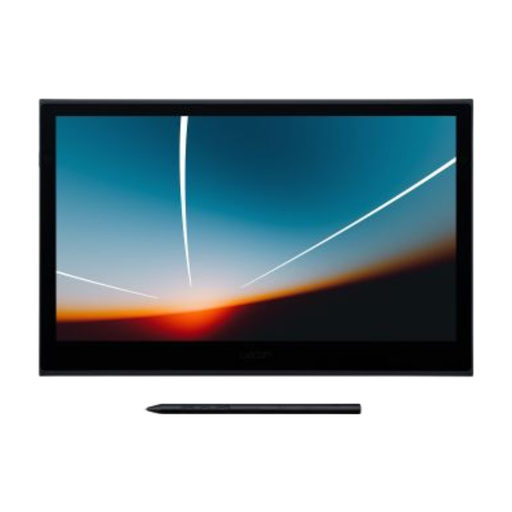
The Joybuy products shown are Wacom pen displays measuring 13 to 14 inches, suitable for drawing at a shared desk where storage space matters. Check that each model’s computer connection suits your setup.
 No image available
Wacom Movink 13 Pen Touch
A compact option to consider if you regularly need to clear your drawing space. Bear in mind that it offers less workspace than pen displays around 16 inches.
Wacom lists a 13.3-inch OLED screen and a single cable for the Movink 13. Check that your computer’s port and cable are compatible.
View at Joybuy
 No image available
Wacom One Pen Display 14.0"
A 14-inch pen display to consider if you want to draw directly on the screen and put your workspace away again after use.
Before buying, check the connections and included components for the exact model.
View at Joybuy
Frequently asked questions
Can I connect any pen display to my laptop with a single USB-C cable?
No, it depends on your computer’s port, the cable and the pen display. For a single-cable connection to the Kamvas 16 (Gen 3), Huion specifies support for USB 3.1 Gen 1 and DisplayPort 1.2 Alt Mode; the XPPen manual says additional power is needed if the screen isn’t receiving enough. Check the requirements for the exact model.
What should I check when setting up a shared workspace?
After connecting everything, check that the display and pen input work, then adjust the screen position to suit you. For employees’ workstations, Arboportaal recommends alternating with other tasks or taking a break; these employer rules aren’t a standard product specification for every buyer.
What product safety requirements apply to a pen display sold in the Netherlands?
An electrical pen display placed on the market in the Netherlands must comply with the applicable European product rules. Ondernemersplein describes the required CE marking and EU declaration of conformity as the manufacturer’s responsibility; check the information for the exact model. CE marking isn’t an assessment of drawing or colour performance.
Am I always entitled to just two years’ warranty in the Netherlands?
No. According to ACM ConsuWijzer, the statutory guarantee lasts for as long as the product should reasonably be expected to work. A manufacturer’s or seller’s warranty doesn’t replace this right. If a product is faulty, contact the seller. This consumer guidance doesn’t automatically apply to business purchases.
Can I return a pen display bought online if it doesn’t fit on my desk?
For a distance purchase by a consumer in the Netherlands, there is generally a statutory cooling-off period of up to 14 days after delivery, subject to applicable exceptions. ACM ConsuWijzer explains this cooling-off period. Also check the seller’s returns information; business purchases aren’t automatically covered by this consumer right.


